[Property Manager] Staff Management
Last Updated on:2023-05-29 05:50:16
Create a Staff Role
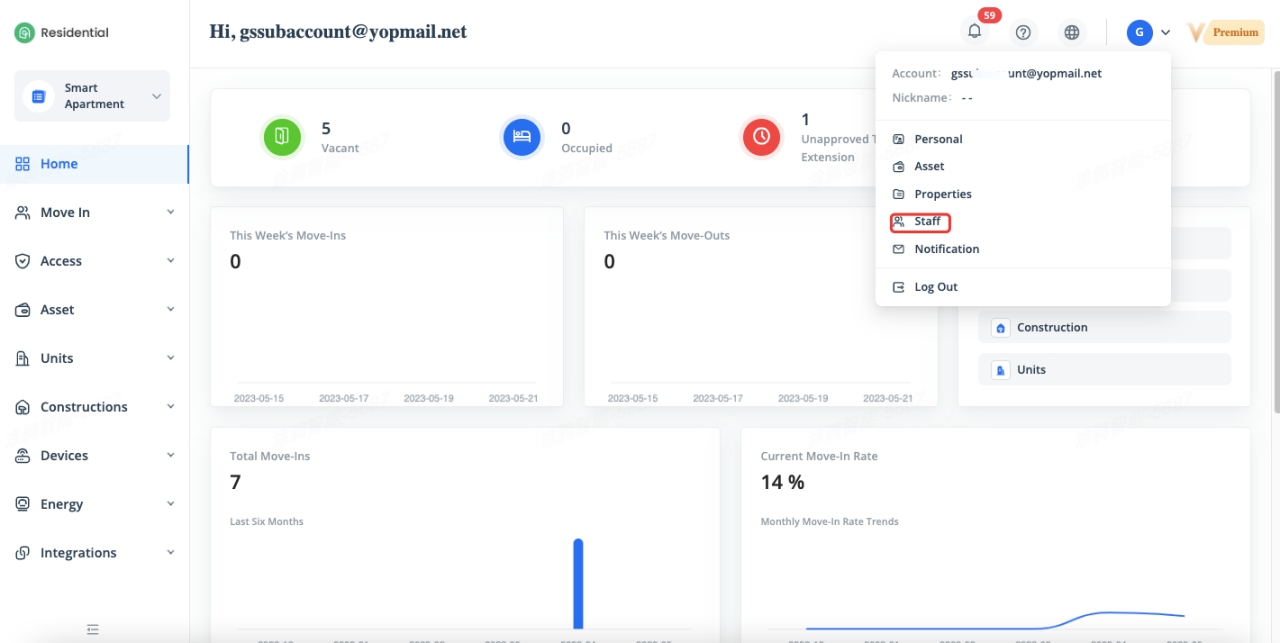
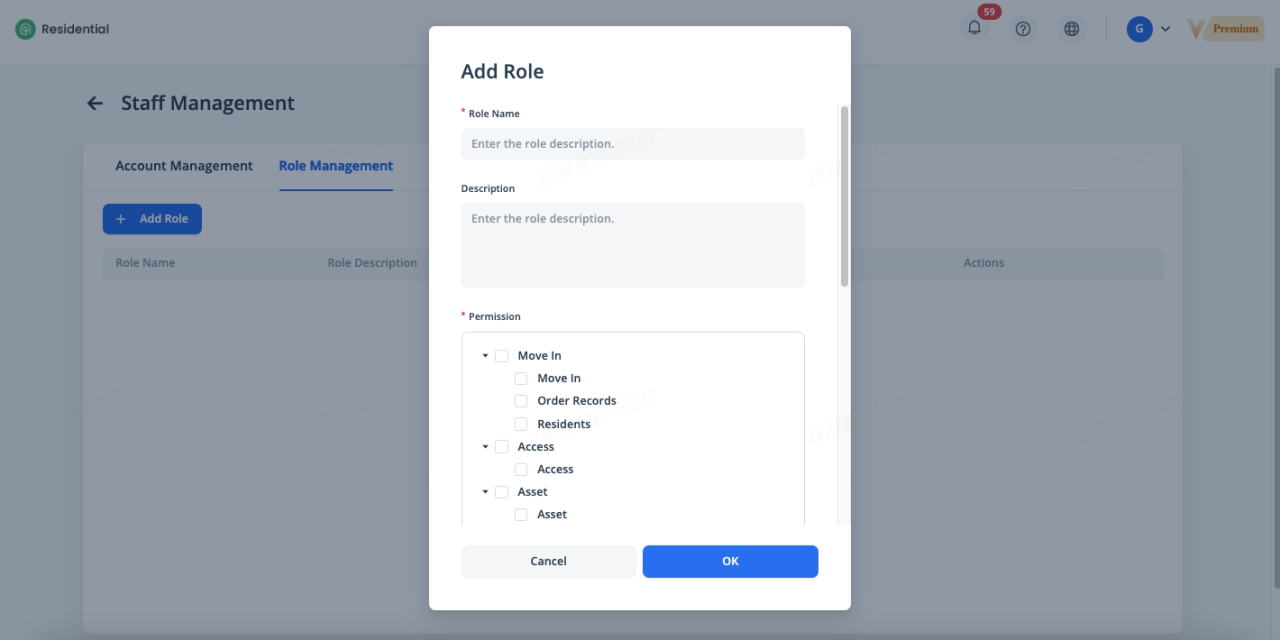
Click on the [Staff] menu in the upper right corner to enter staff management page, on the Staff Management page, click [Add Role] under Role Management tab, specify a name and assign permissions for the staff role in the Add Role dialog box.
Edit a Staff Role
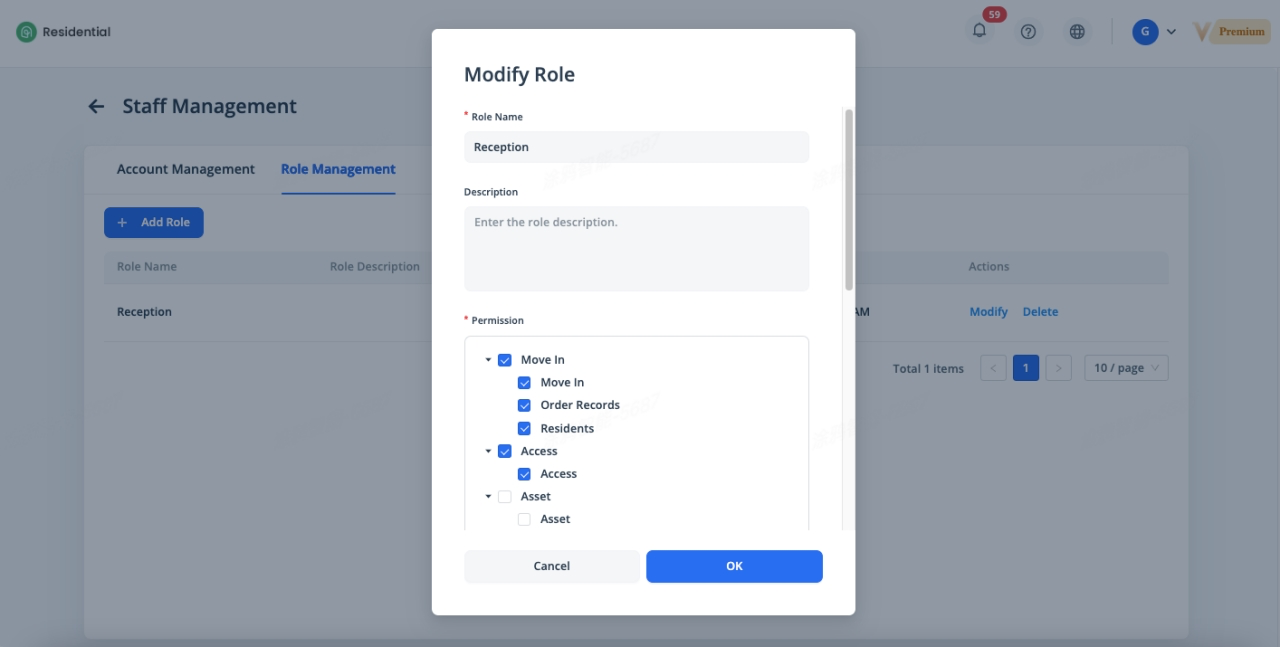
To edit a role, click on the [Staff] menu in the upper right corner to enter Staff Management page. Click [Modify] in the Actions column of a staff role under Role Management tab, you can modify the role name and the role permissions.
Delete a Staff Role
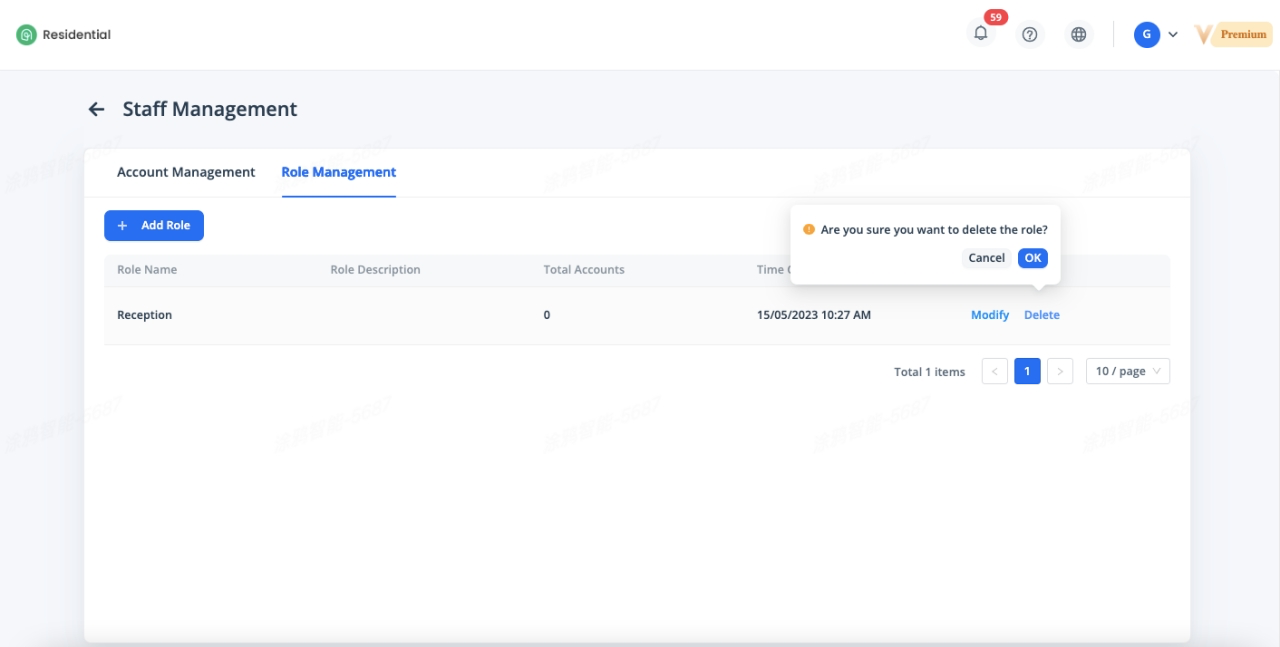
To delete a role, click on the [Staff] menu in the upper right corner to enter Staff Management page. Click [Delete] in the Actions column of a staff role under Role Management tab to delete it, staff roles that are associated with accounts that cannot be deleted.
Create a Staff Account
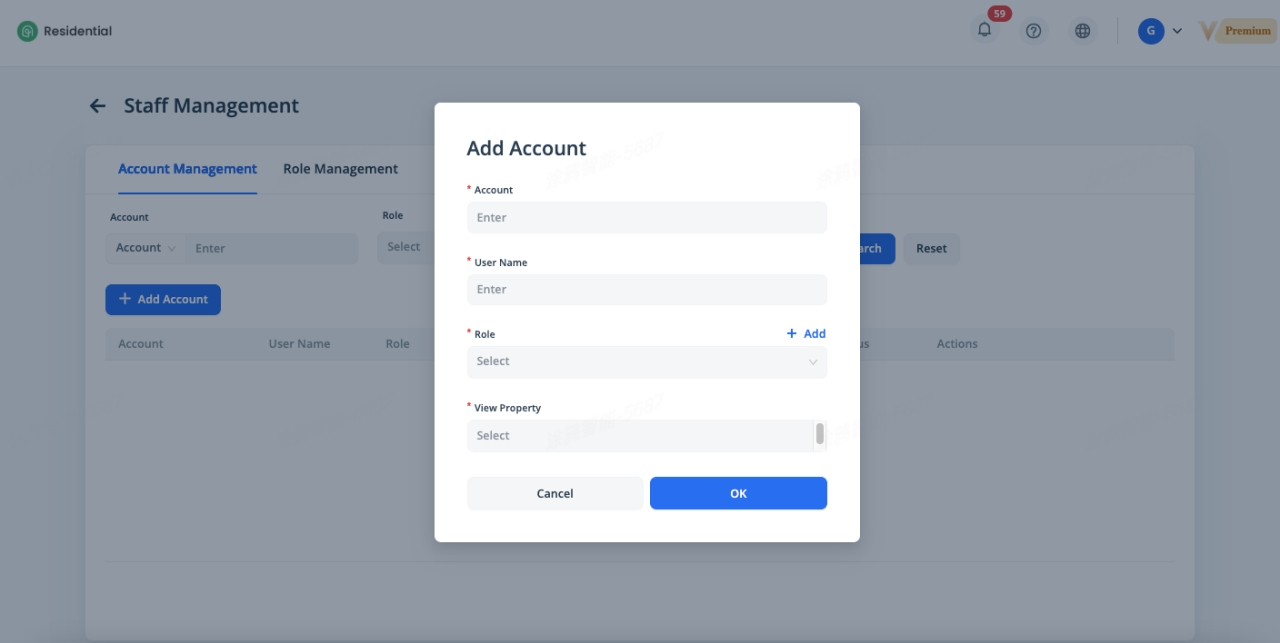
Click on the [Staff] menu in the upper right corner to enter staff management page, on the Staff Management page, click [Add Account] under Account Management tab. In the Add Account dialog box, enter an email address and username, and select a role and properties that can be operated by using this staff account. Special reminder: the email address you enter in the Account field cannot be modified after the staff account is created. The system will automatically send an activation email to the staff account. New staff can complete the account registration by using the activation email to join the property.
Edit a Staff Account
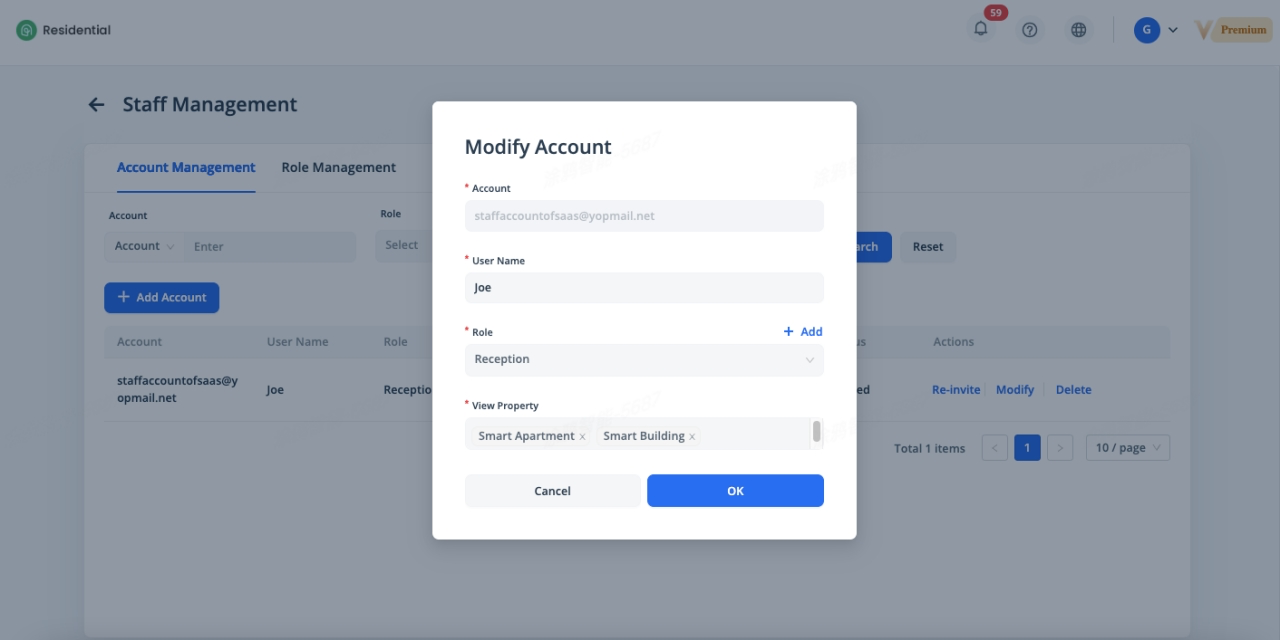
To edit a staff account, click on the [Staff] menu in the upper right corner to enter Staff Management page. Click [Modify] in the Actions column of a staff account under Account Management tab, the account information except the email address can be modified.
Re-invite Staff Account Registration
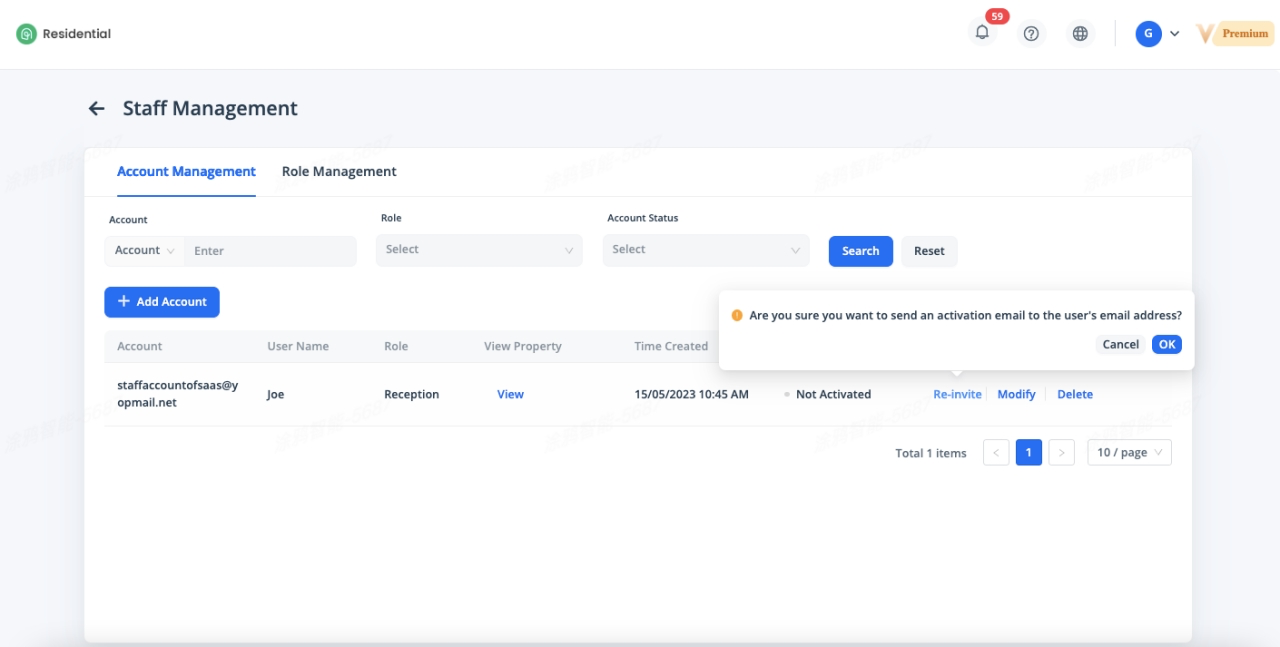
The invitation link in the activation email will expire in seven days after the email is sent. If the email is lost or the link expires, you can click [Re-invite] in the Actions column of a staff account under Account Management tab to re-send an activation email.
Join Properties
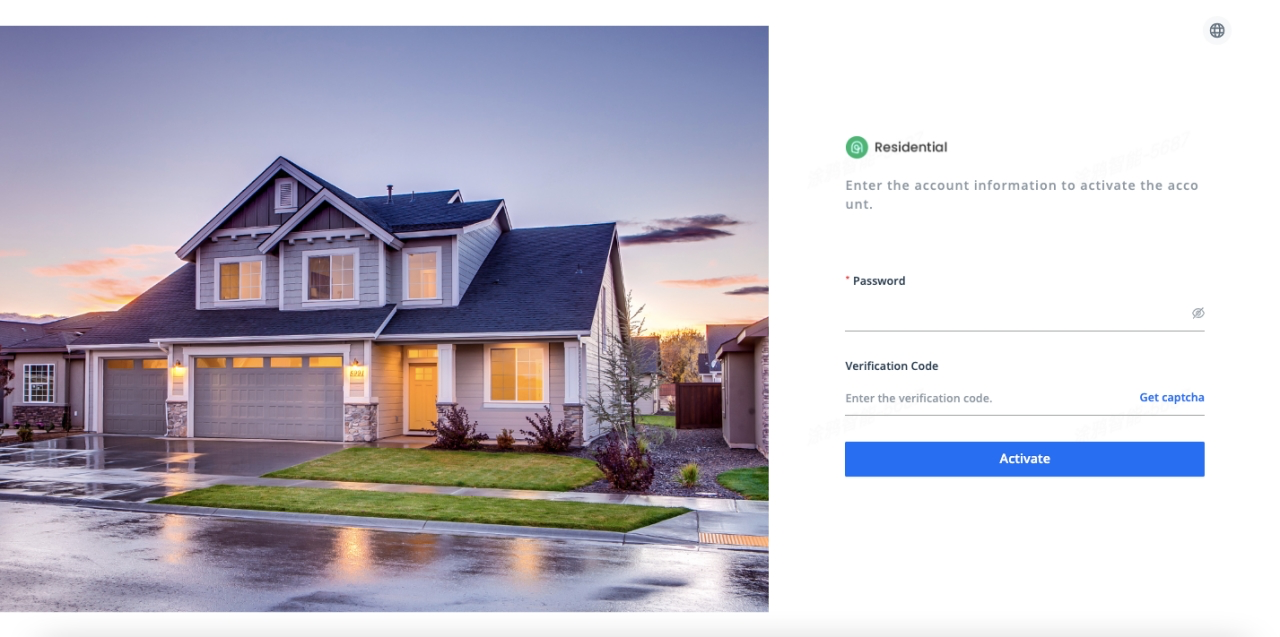
New staff can click the invitation link in the activation email to activate the account and join the specified properties.
Disable a Staff Account
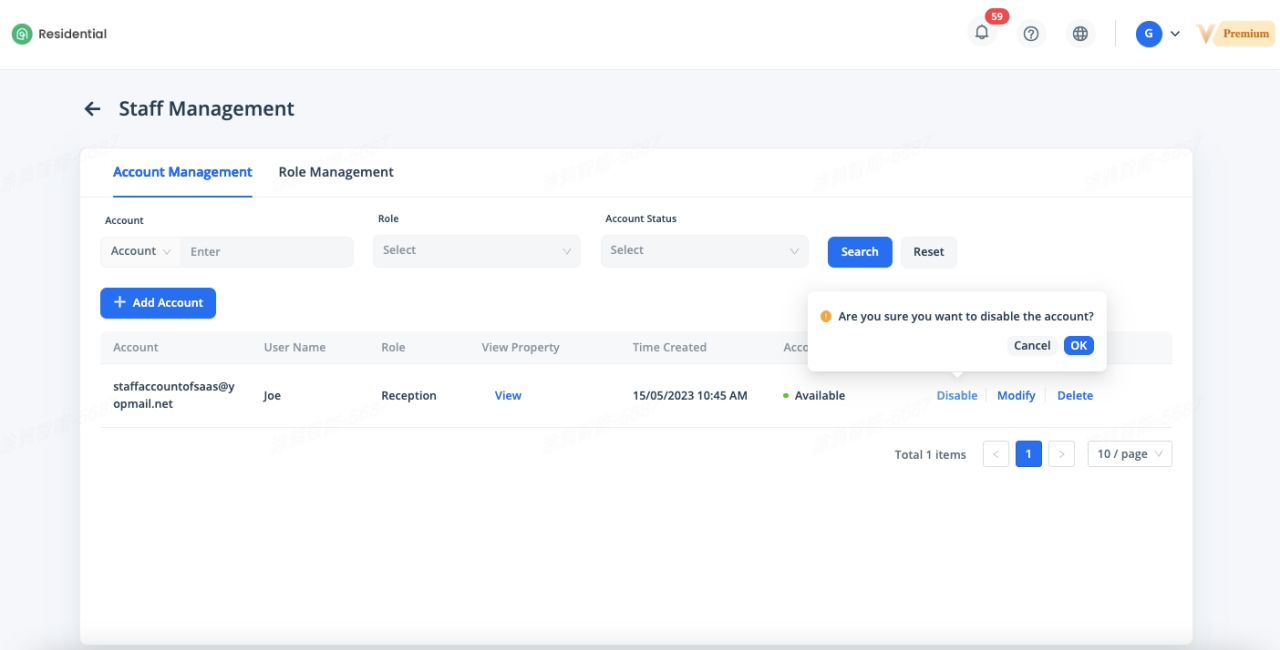
To disable a staff account, click on the [Staff] menu in the upper right corner to enter Staff Management page. Click [Disable] in the Actions column of a staff account under Account Management tab todisable it. The disabled staff account cannot be used for login. To enable the staff account again, click [Enable] in the Actions column of the staff account.
Delete a Staff Account
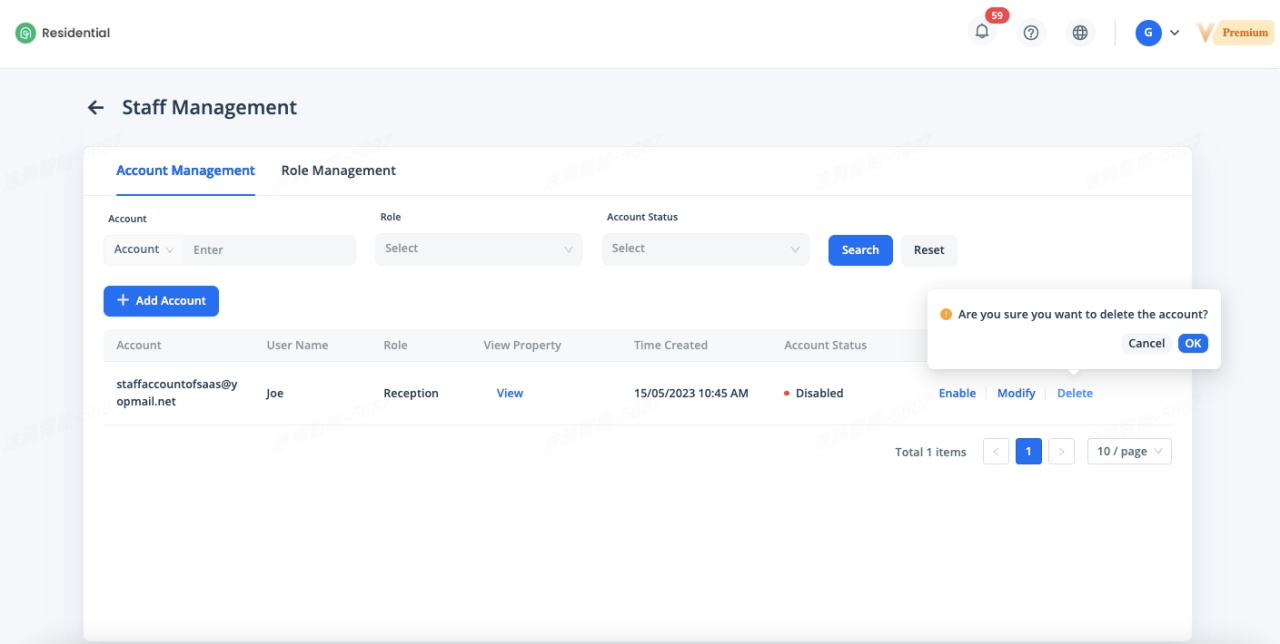
To delete a staff account, click on the [Staff] menu in the upper right corner to enter Staff Management page. Click [Delete] in the Actions column of a staff account under Account Management tab todelete it. The deleted staff account cannot be used for login anymore, and the account data will be deleted. You can use the same email address of a deleted staff account to register for a new account again.
Related Topics