[Property Manager] Move In Management
Last Updated on:2024-09-06 03:20:31
View Unit Status
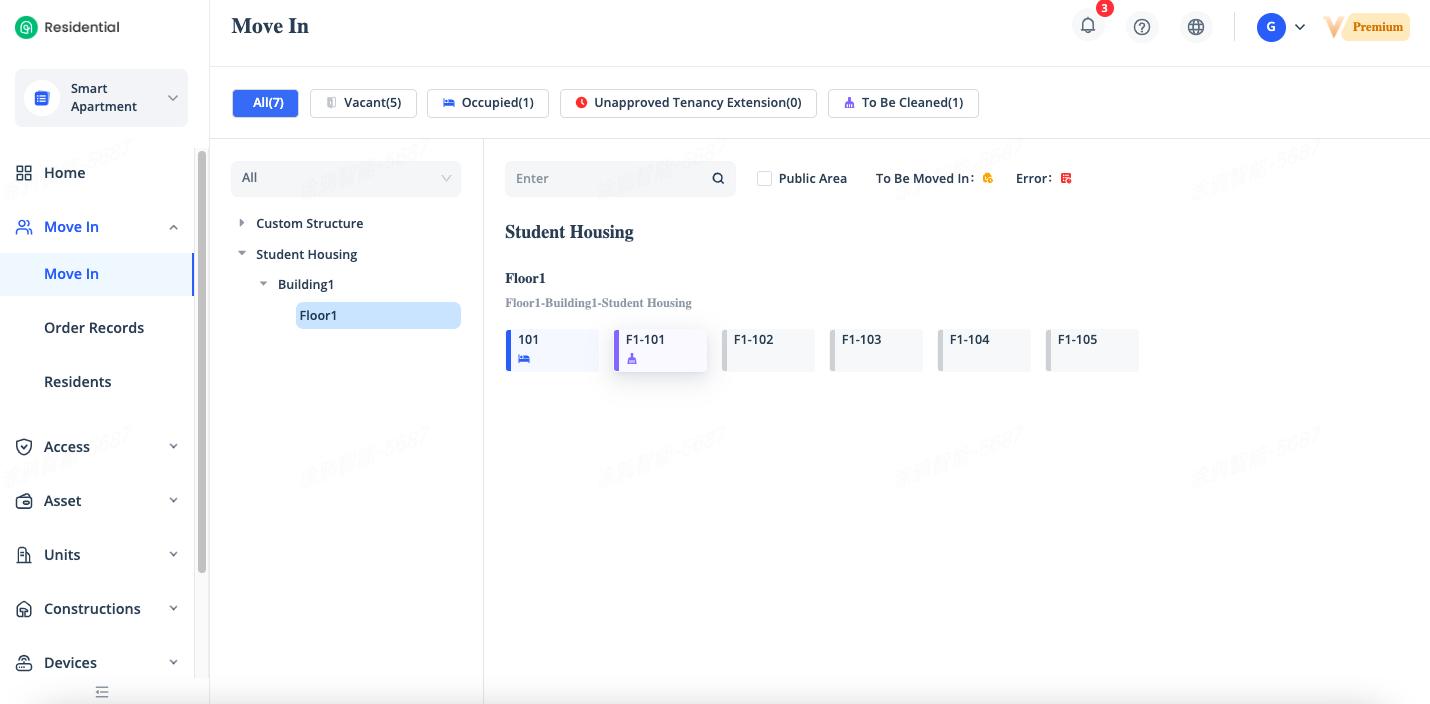
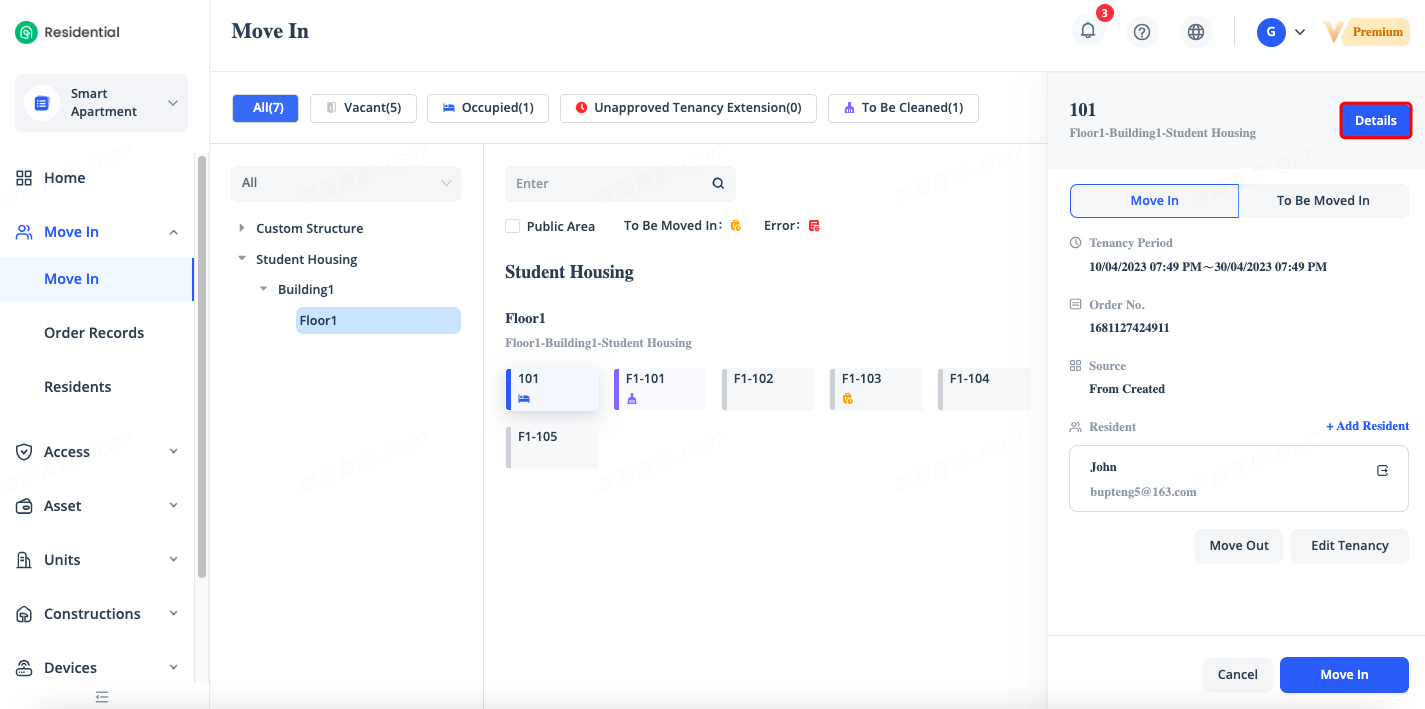
To view the current status of all units, go to [Move In] - [Move In] page. The number on each unit status button in the upper part of the Move In page indicates the number of units in the corresponding state. You can click a unit status button to filter units.
The unit status includes:
Vacant: vacant units available for move-in.
Occupied: units occupied by residents.
Unapproved Tenancy Extension: units with unauthorized overdue residents.
To Be Cleaned: units to be cleaned after move-out.
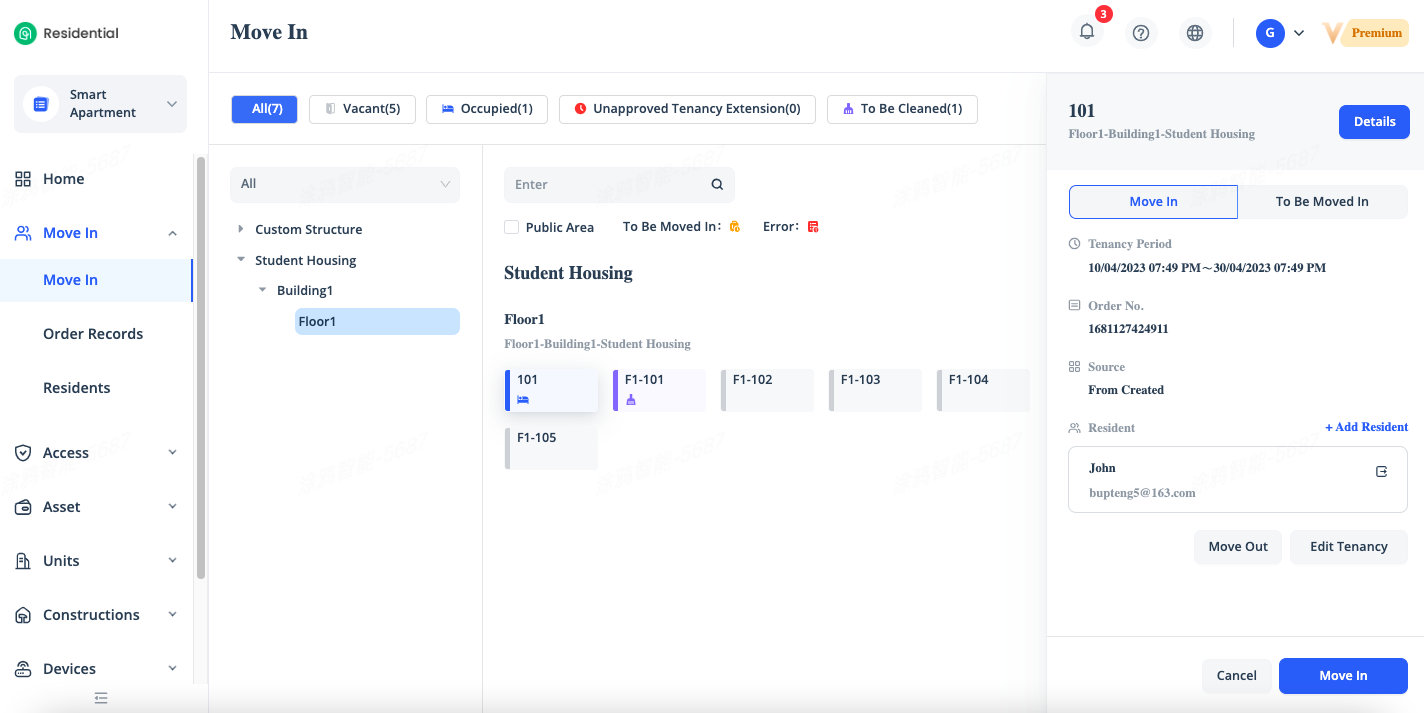
Click the icon of a unit. A navigation panel that displays the current and future orders of the unit appears on the right side of the Move In page. The [Move In] tab displays the Tenancy Period, Order Number, Source and resident information of the current order.
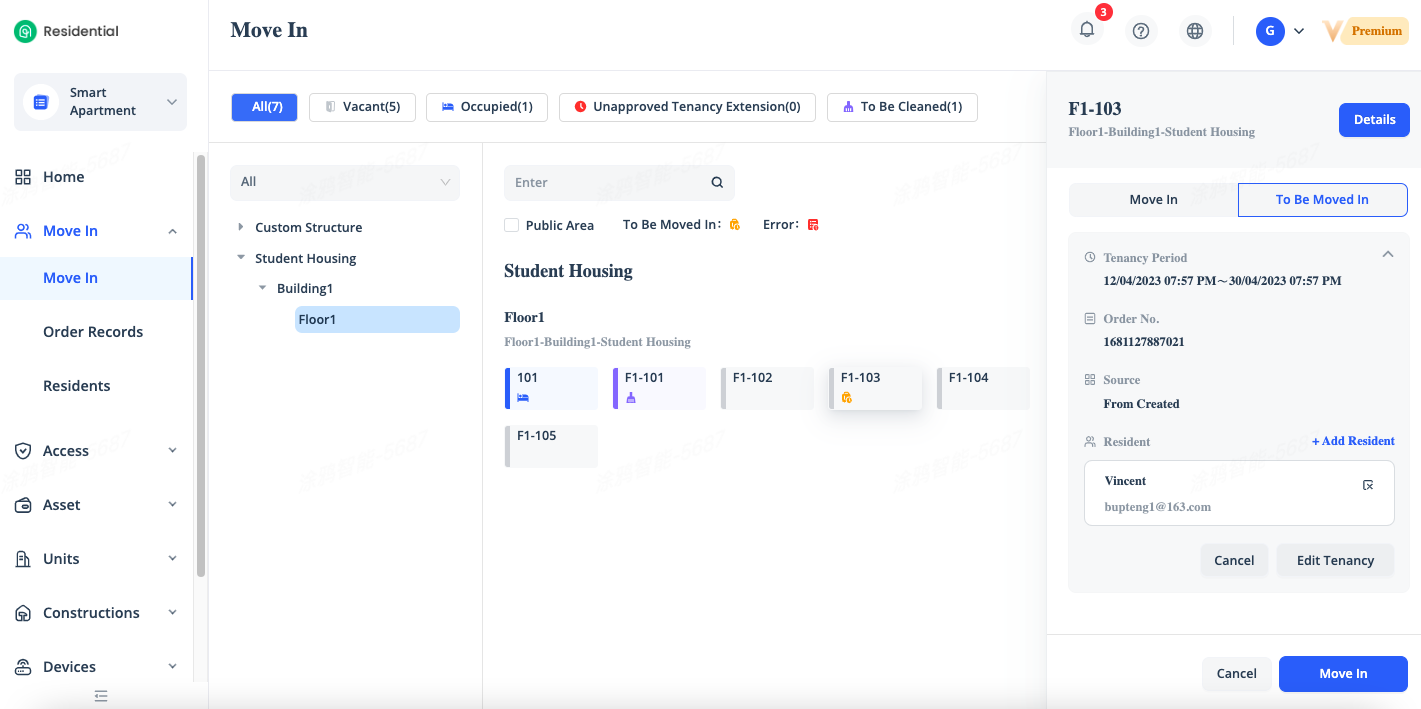
The [To Be Moved In] tab displays the orders which the move-in time will arrive soon.
View Unit Details
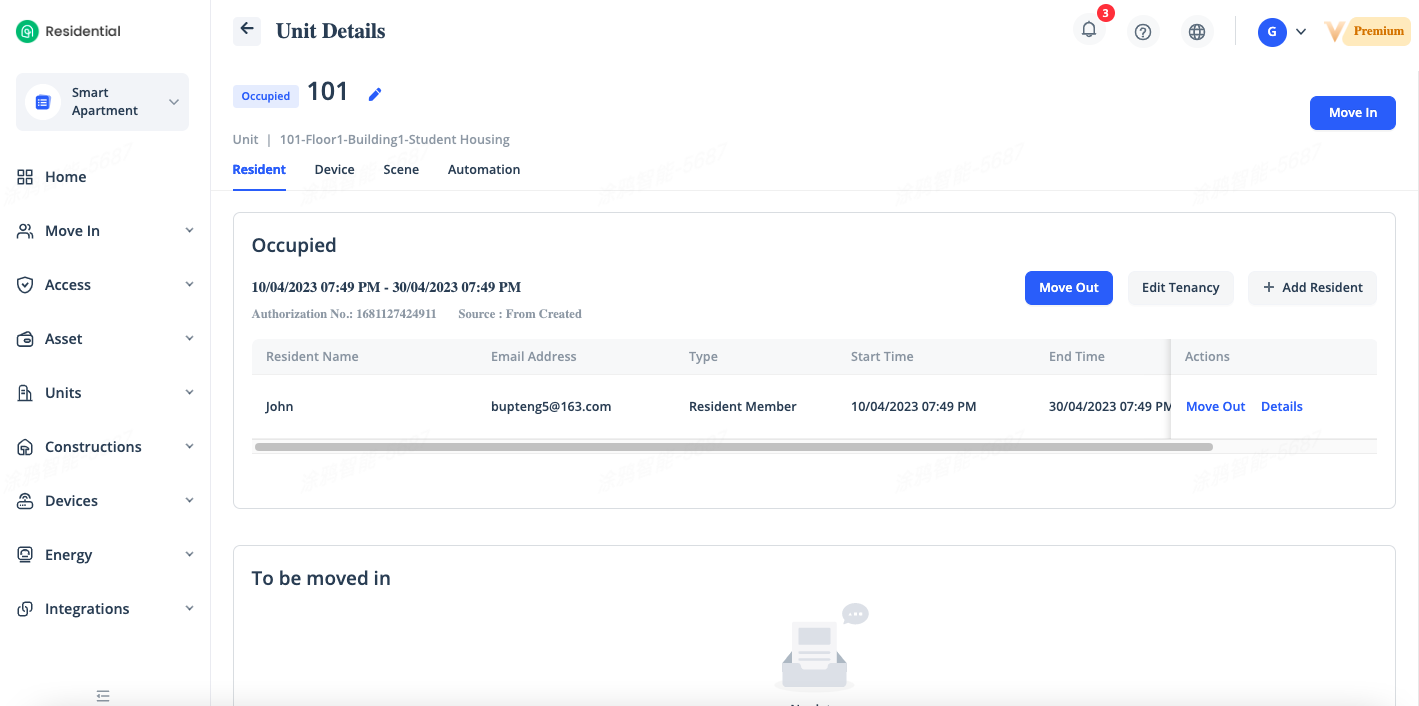
To view unit details, click a unit icon on the Move In page. Click [Details] in the right-side panel that appears. The Unit Details page displays the order list, device list, and basic information of the unit.
The [Resident] tab displays the orders for the current and future residents with the resident information and other order details.
The [Device] tab displays the installed devices in the current unit with detailed device information, including the device name, type, ID, and status.
The [Scene] tab displays the created scenes in the current unit with detailed scene information, including the scene name, status, details, switch status, template.
The [Automation] tab displays the created automations in the current unit with detailed automation information, including the scene name, status, details, switch status, template.
View Resident Details
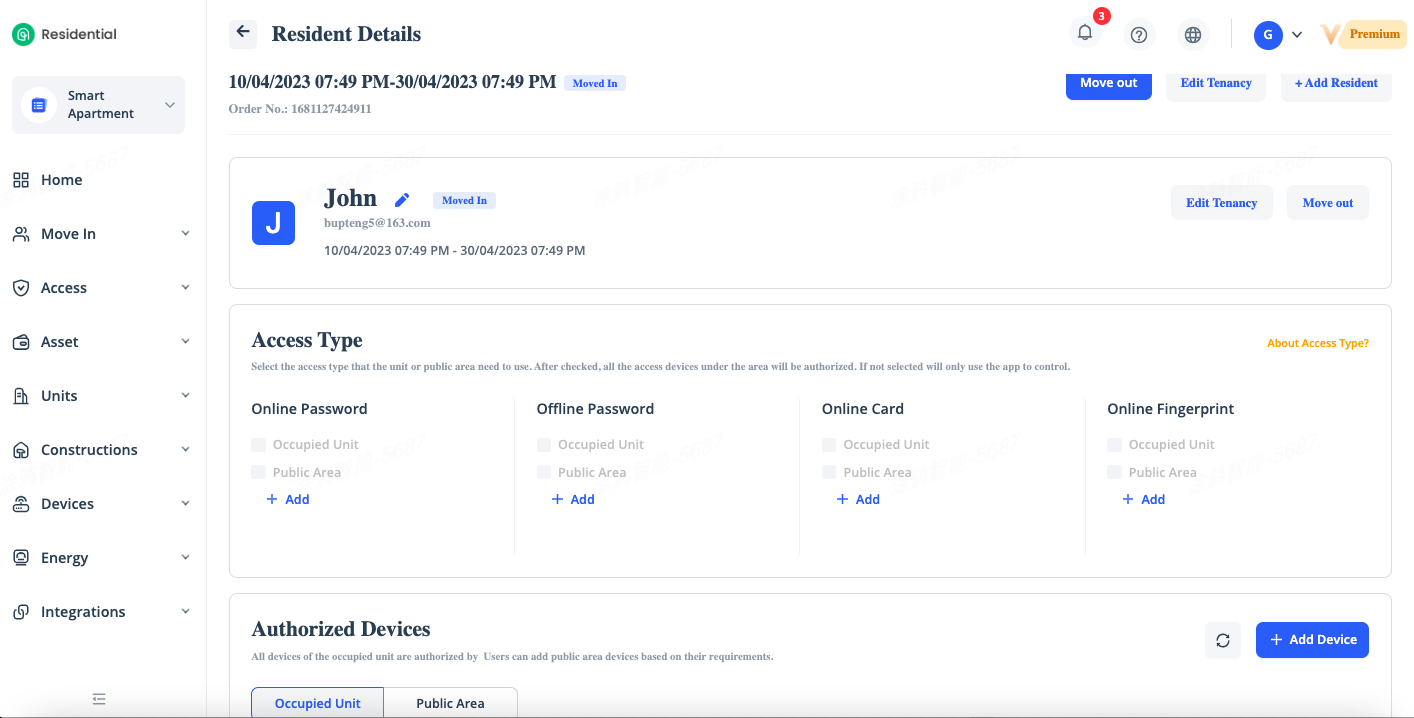
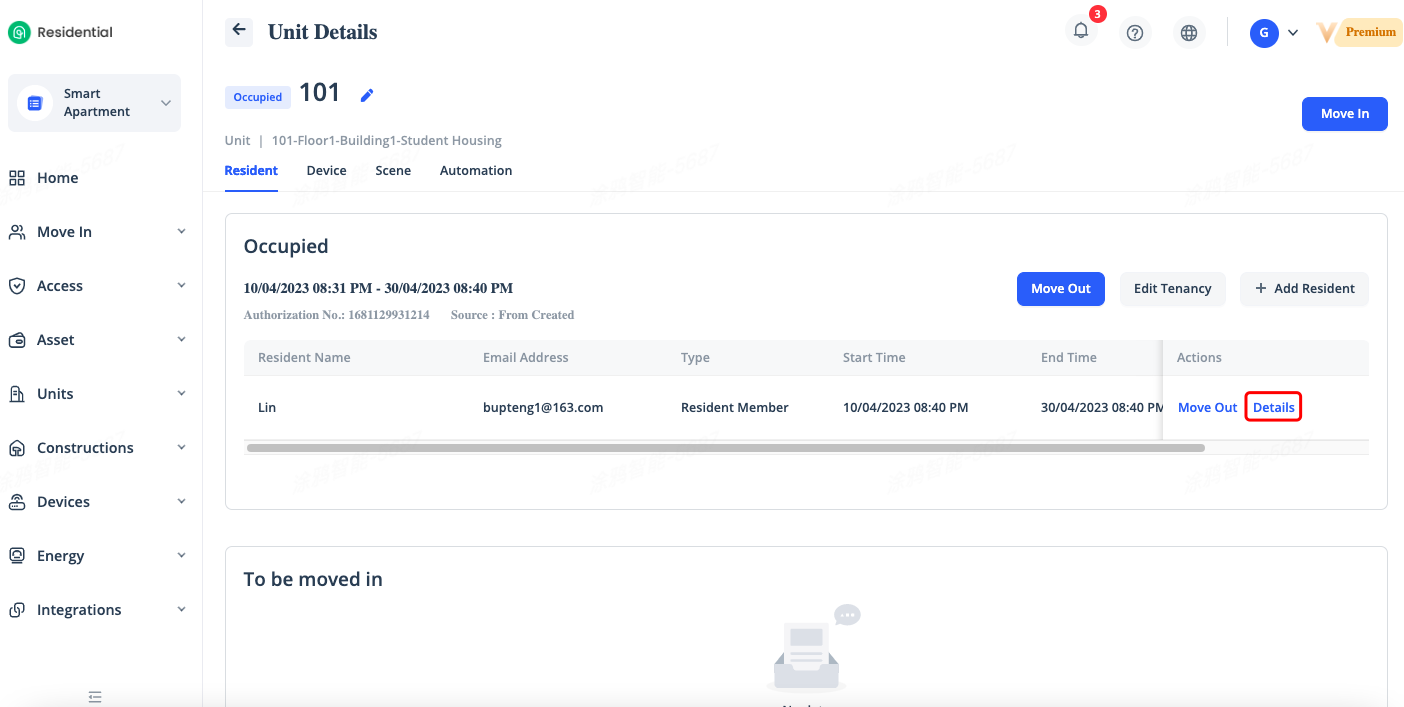
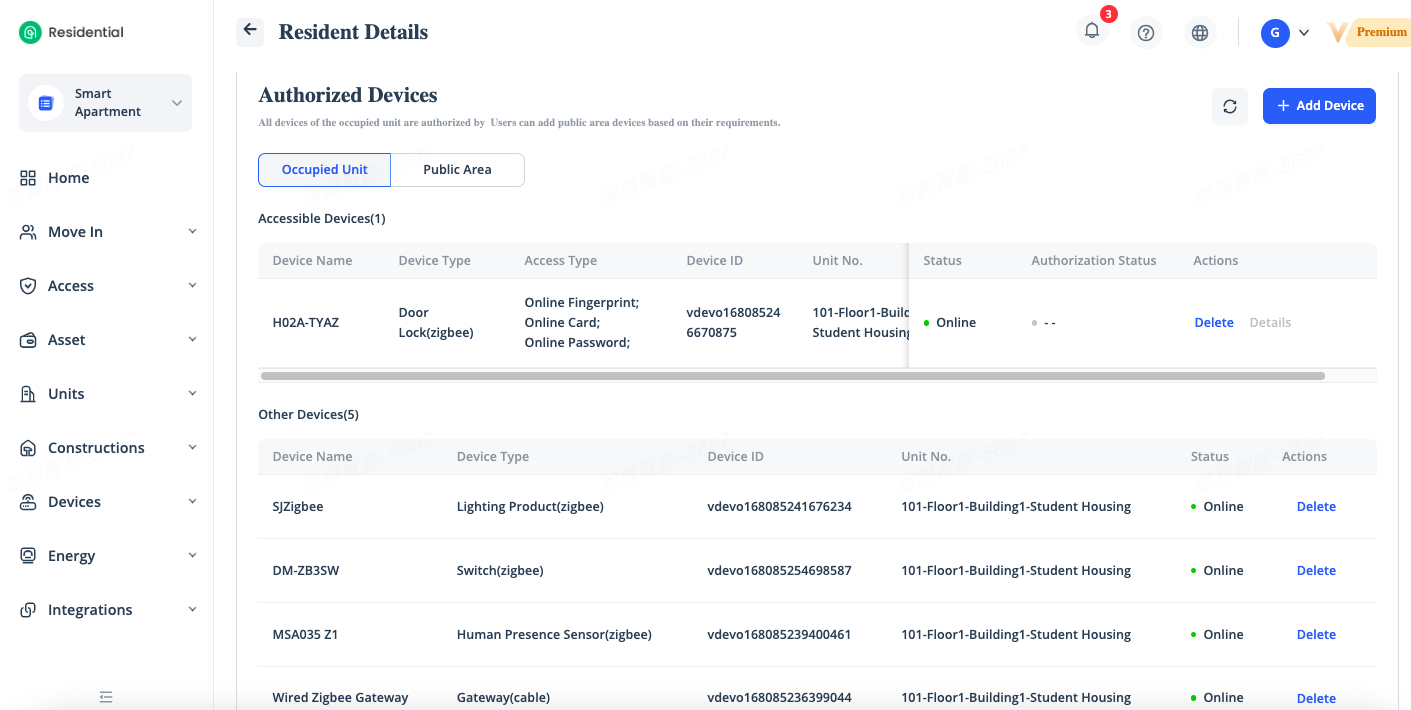
To view the details of a resident in a unit, go to the Unit Details page of the unit and click[Details] in the Actions column of the resident in the Occupied section of the Resident tab. On the Resident Details page, you can view the resident details and authorized devices. You can view the authorized devices in the occupied unit or in the public area.
Move In Resident
By moving in process, the control authority of the unit and public area devices are authorized to the resident, and the resident can log in to the App to control the corresponding devices and scenes.
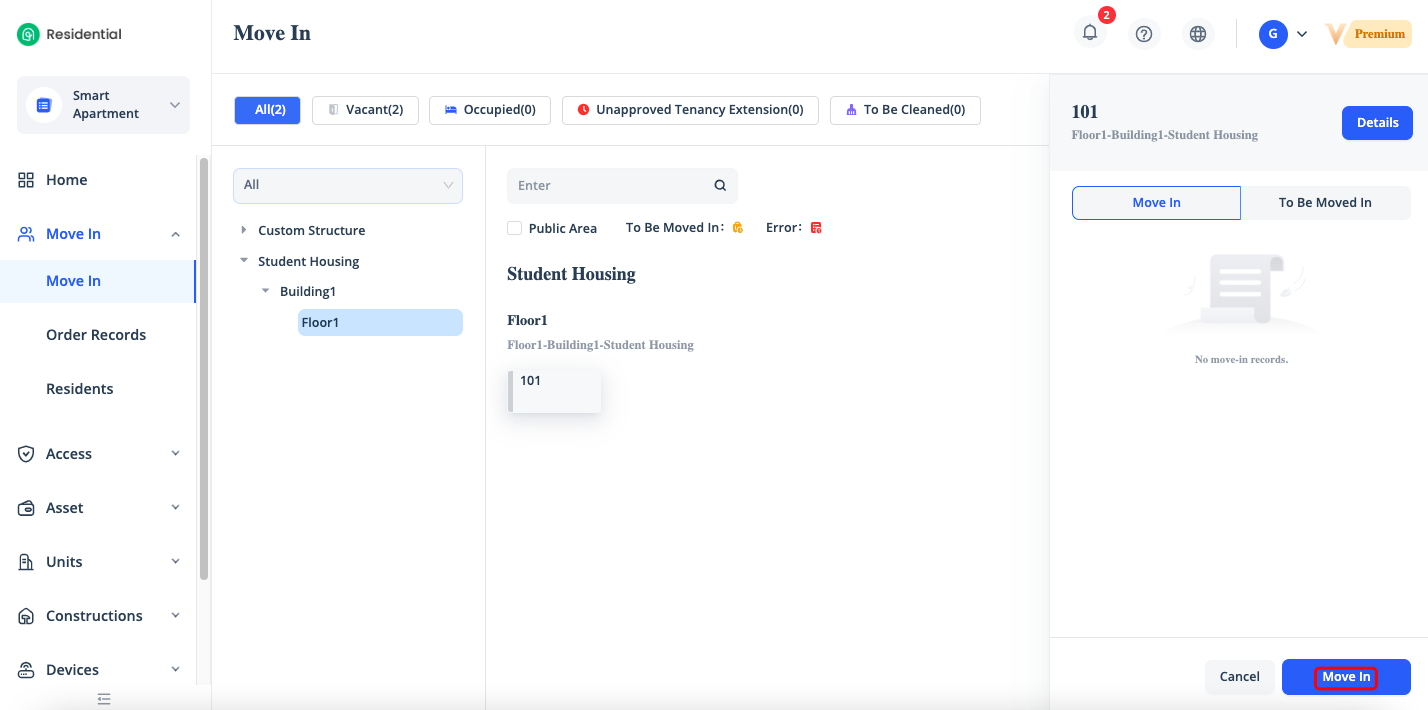
Click [Move In] - [Move In], select the unit you want to move in the resident, Click [Move In] in the bottom right corner.
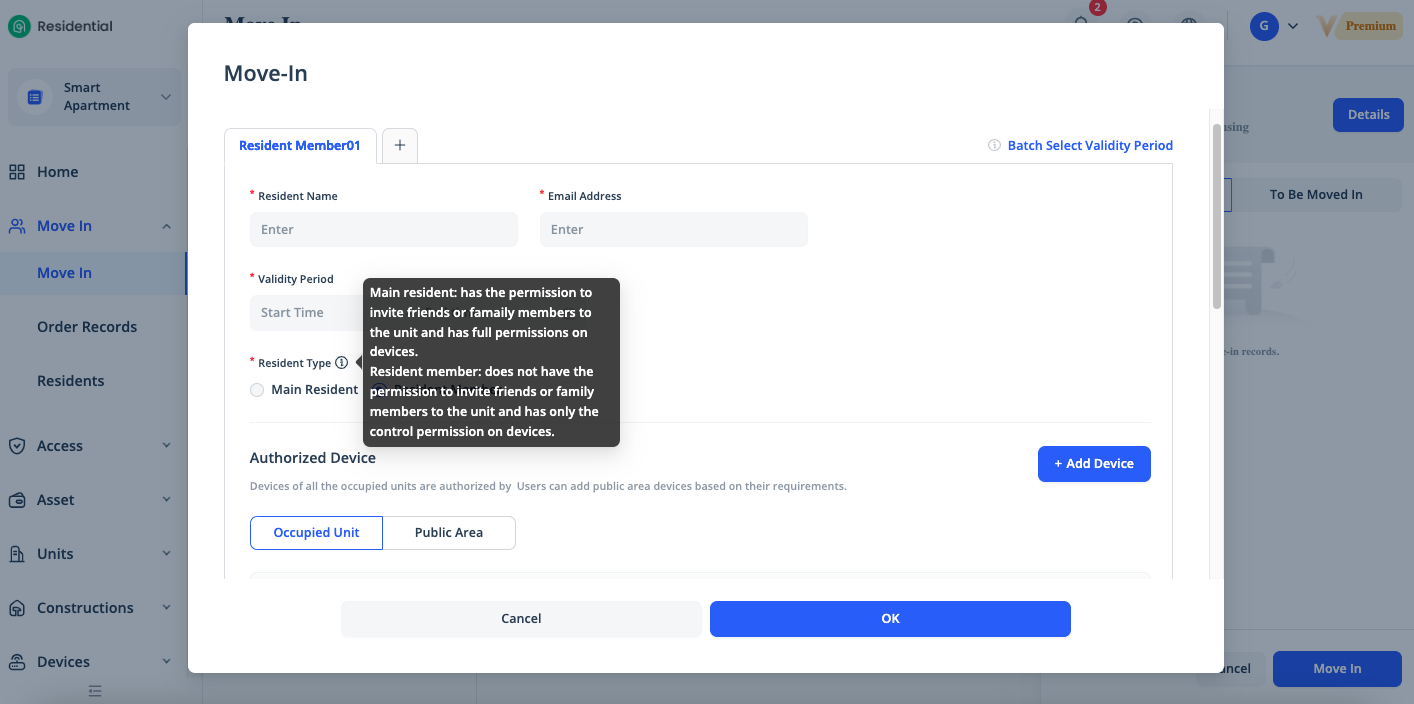
Resident Member: Specify the name and email address of the resident. The email address will be used as a login account for the Smart App. When the move-in time is reached, residents will receive an email that reminds them of the move-in and informs them of the granted permissions of devices. If the resident has not registered for the Smart App, the system will automatically create an App account and send an email reminder. The resident can log in to the Smart App by using the account and initial password contained in the email. Click [+] button to move in more residents in a unit, a maximum of five residents are allowed to be added in a unit.
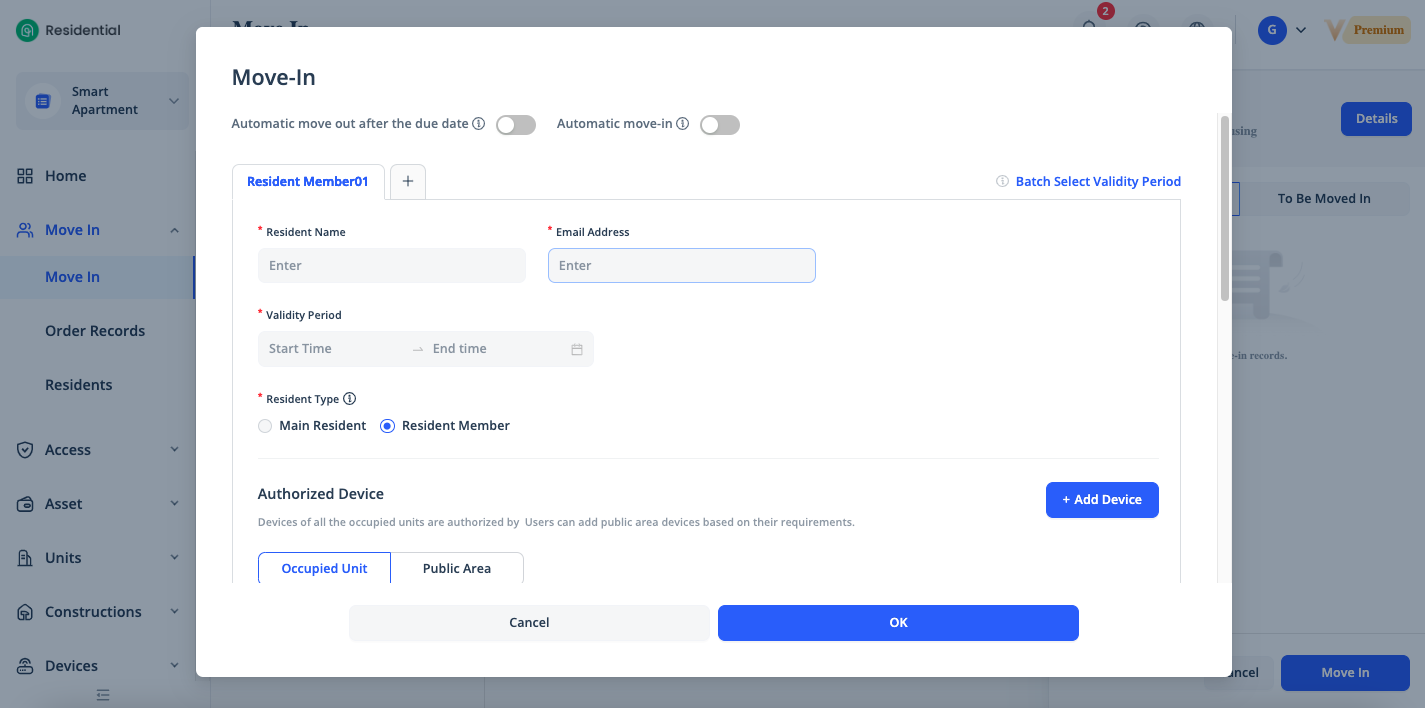
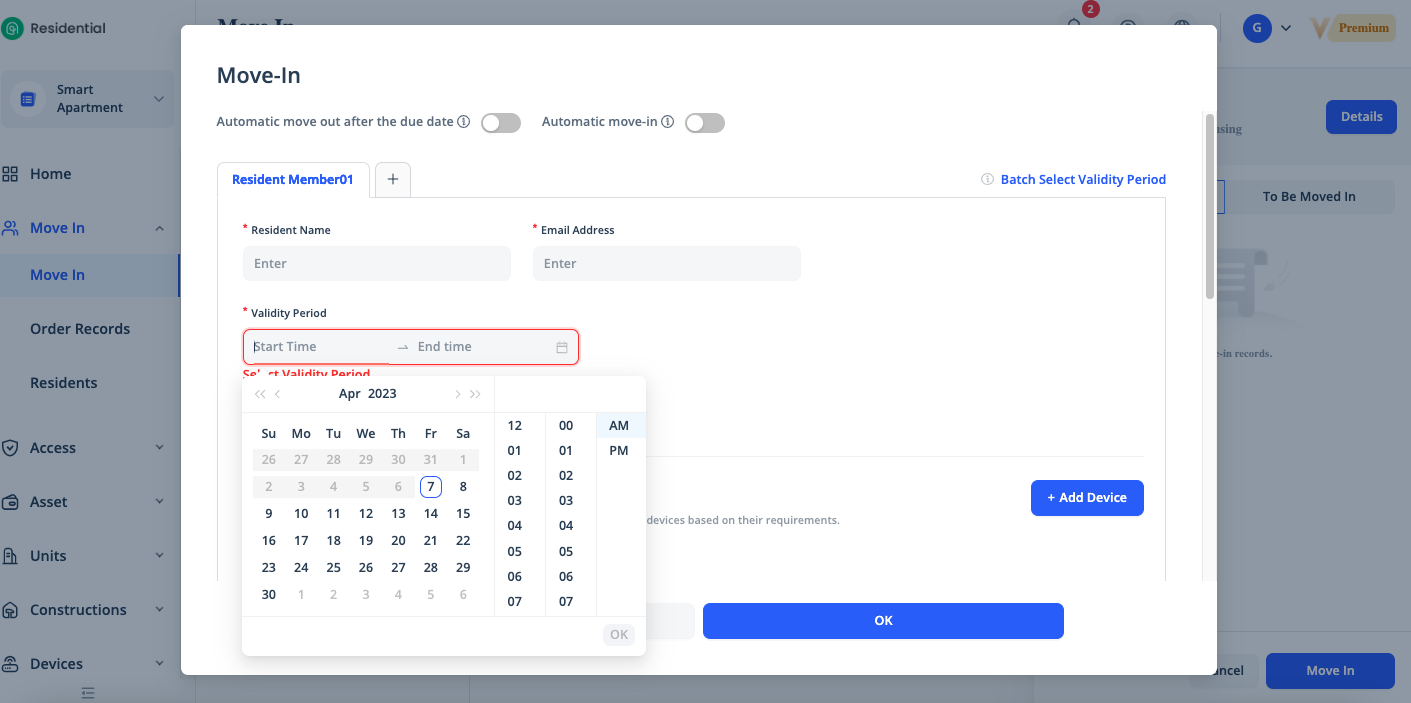
Validity Period: Specify the resident by selecting the Start Time and End Time,which must be accurate to minutes. During this period, resident can control the devices in the unit by using the Smart App. If you select a future point in time for the Start Time, the "To Be Moved In" status icon will be displayed on the corresponding unit, and the order will be displayed on the [To Be Moved In] tab of the right-side panel of the unit.
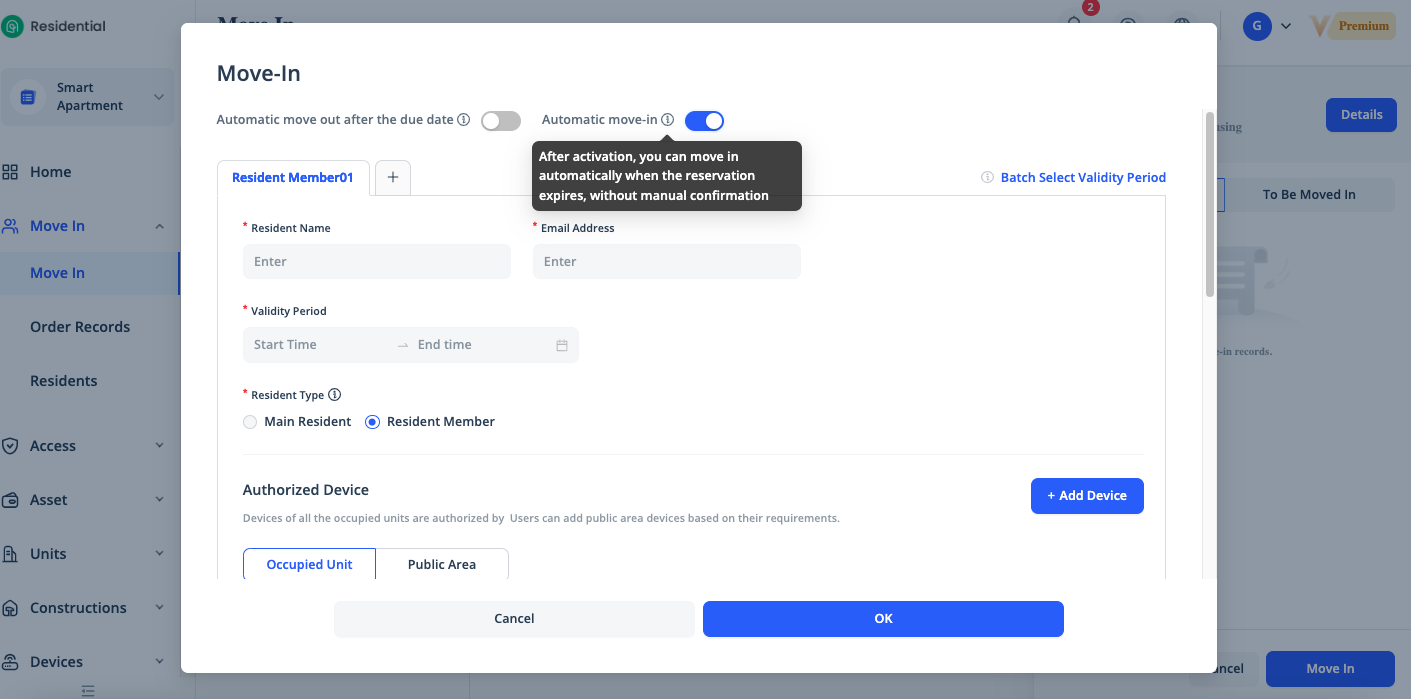
Automatic move-in: Enable or disable the automatic move-in feature as needed. If you enable this feature, the system will automatically move-in the corresponding residents without manual confirmation and grant permissions of devices at the scheduled move-in time.
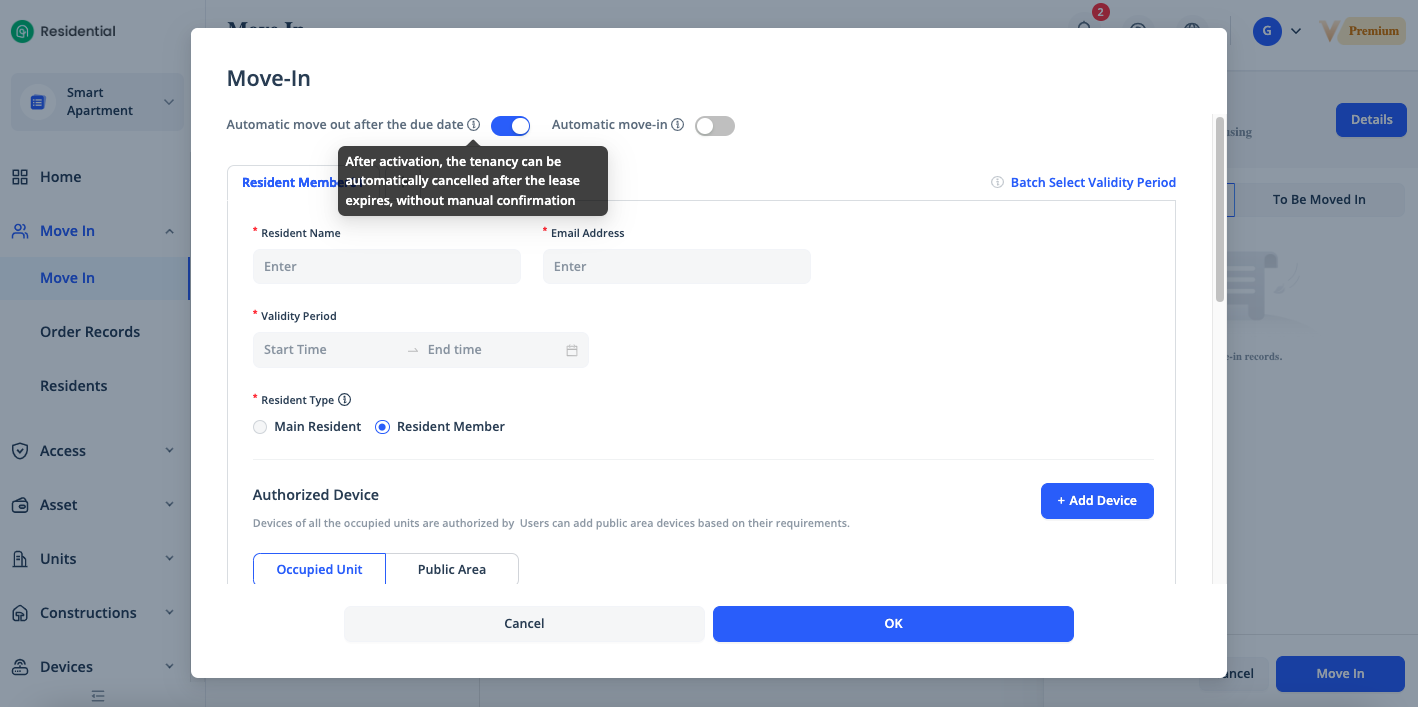
Automatic move-out after the due date: Enable or disable the automatic move-out feature as needed. If you enable this feature, the system will automatically move-out for the corresponding residents and revoke permissions of devices at the scheduled move-out time.
Resident Type: Select the type of the resident. The main resident has permission to invite other guests to the unit and has full permission on devices. Resident members can only control the devices in the unit by using the Smart App and have no higher permissions.
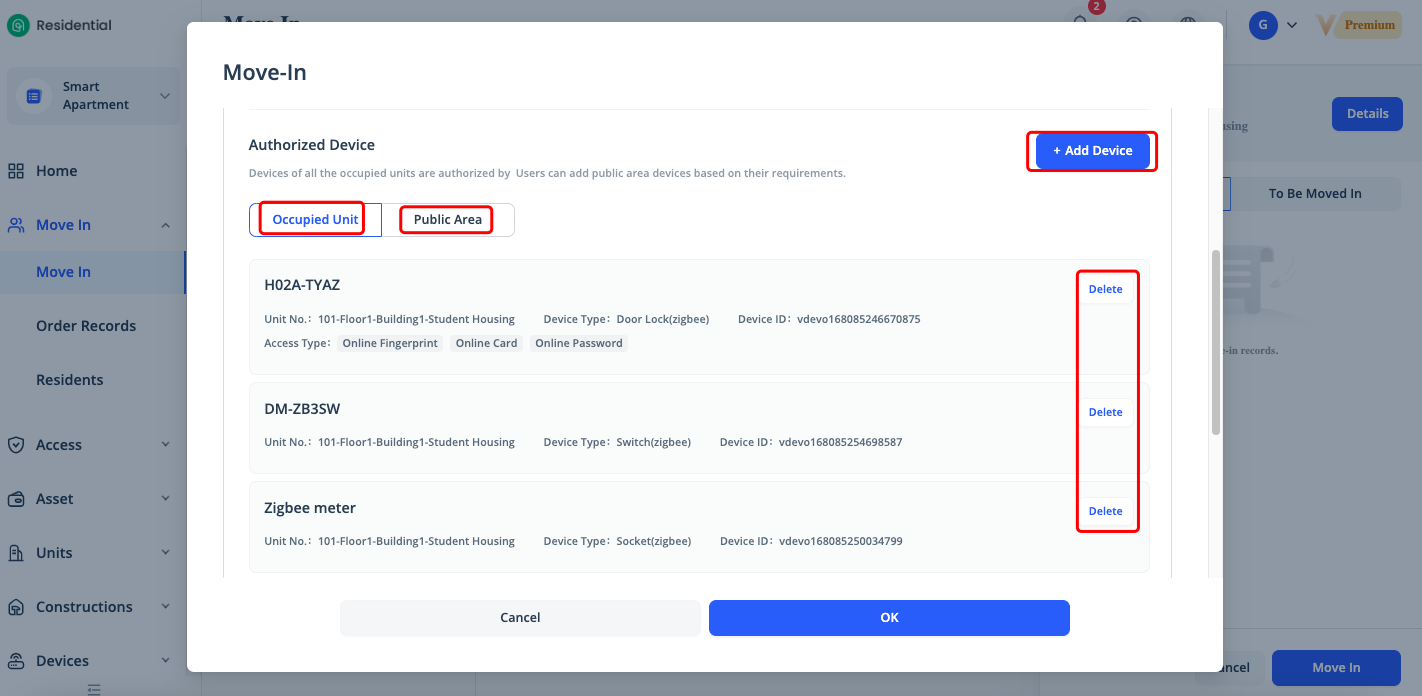
Authorized Device: Select the devices to authorize for the residents. All of the devices installed in a unit are authorized to the moved-in residents by default but you can delete some of them. You also can click [Public Area] - [Add Device] to authorize the devices installed in the public area to the residents.
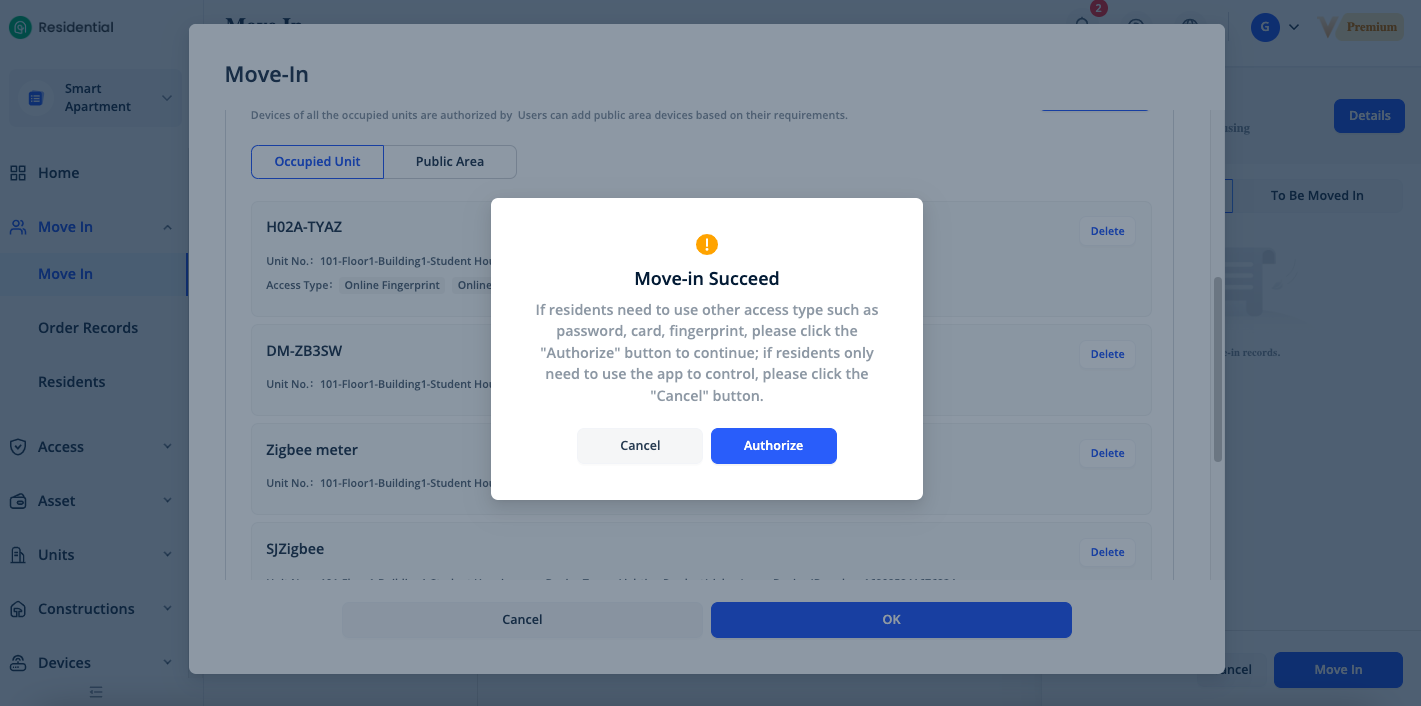
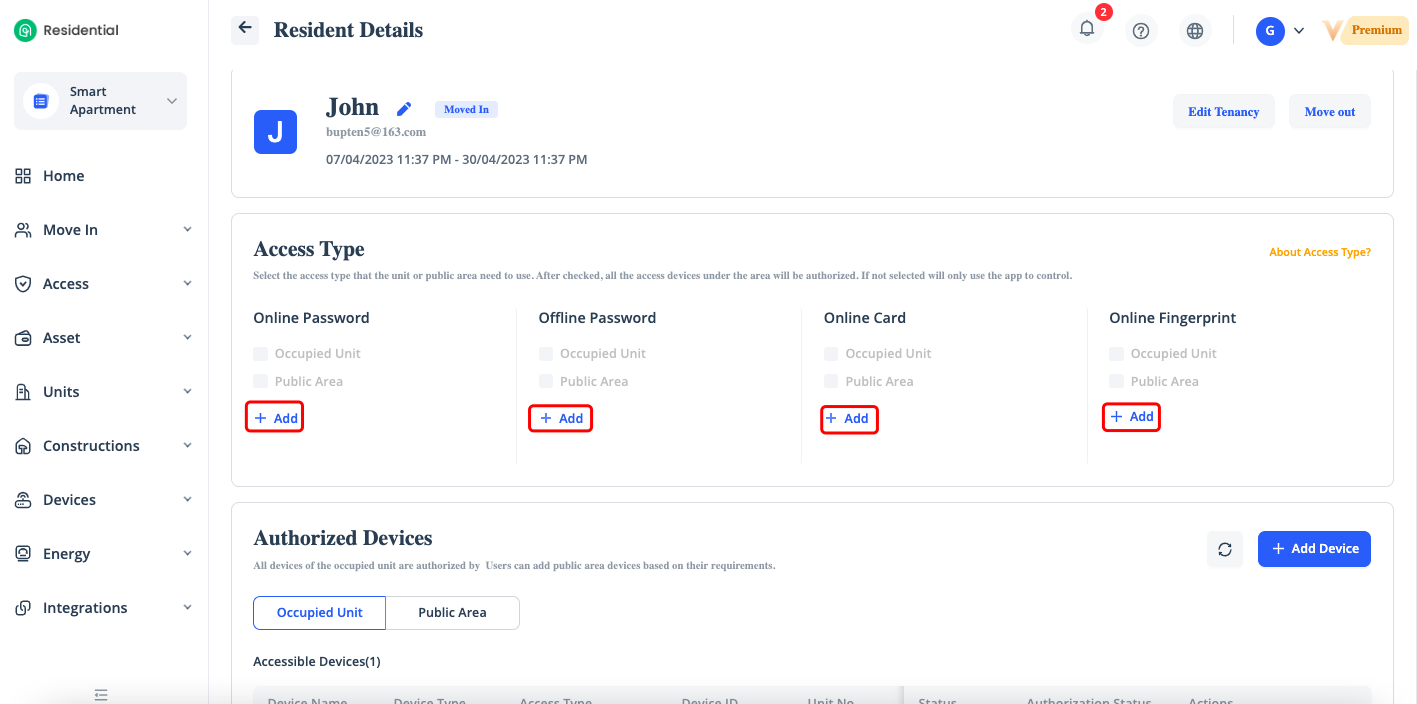
If some of the access devices such as door locks and access controller are installed in the unit and public areas, and the residents need to use these access methods such as password, card, fingerprint, please click the "Authorize" button to continue to create the access methods to the residents. If residents only need to use the app to control the smart devices, please click the "Cancel" button.
Add a Resident
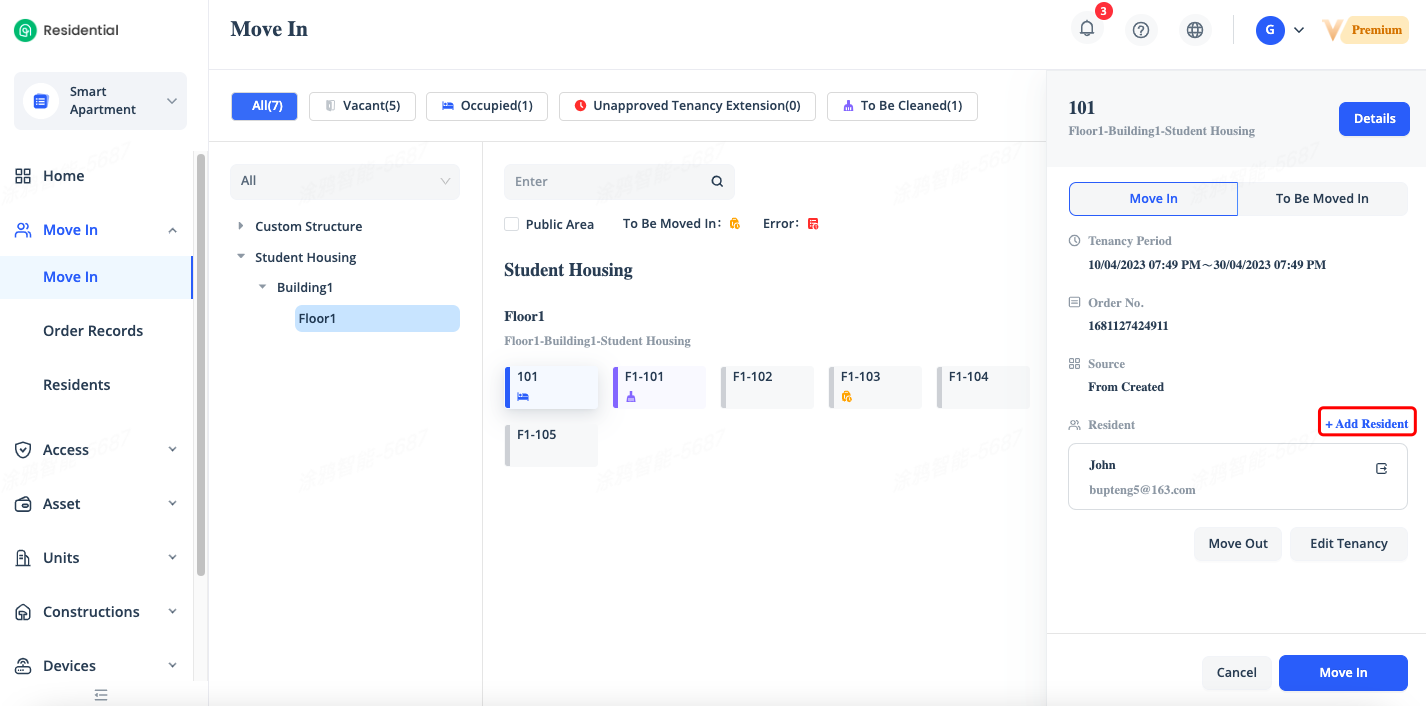
To add an extra resident to a unit, click the unit icon on the Move In page, click [Add Resident] in the right-side panel that appears to add a resident. Alternatively, click Details to go to theUnit Details page and then click Add Resident in the Occupied section. The resident will receive a move-in reminder email after being added and the resident can control the authorized devices after logging in to the Application.
Modify Tenancy
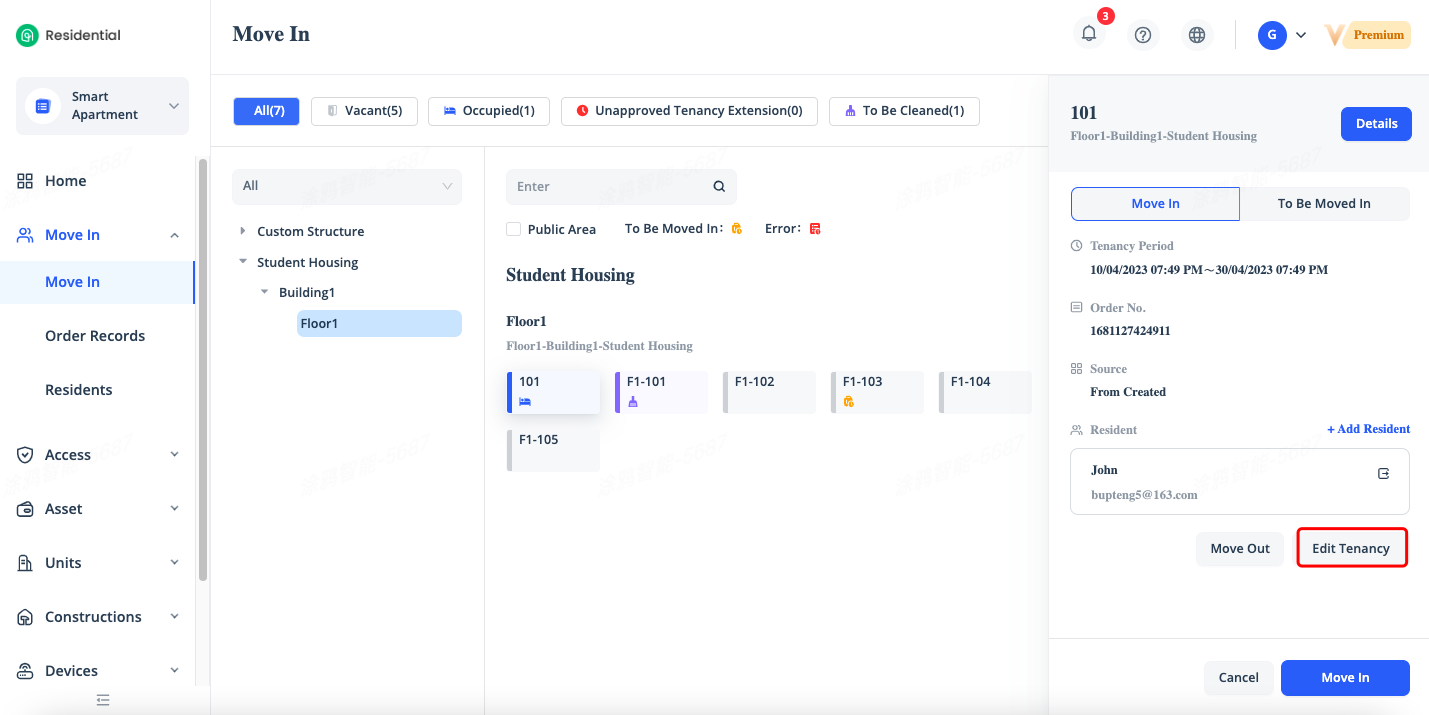
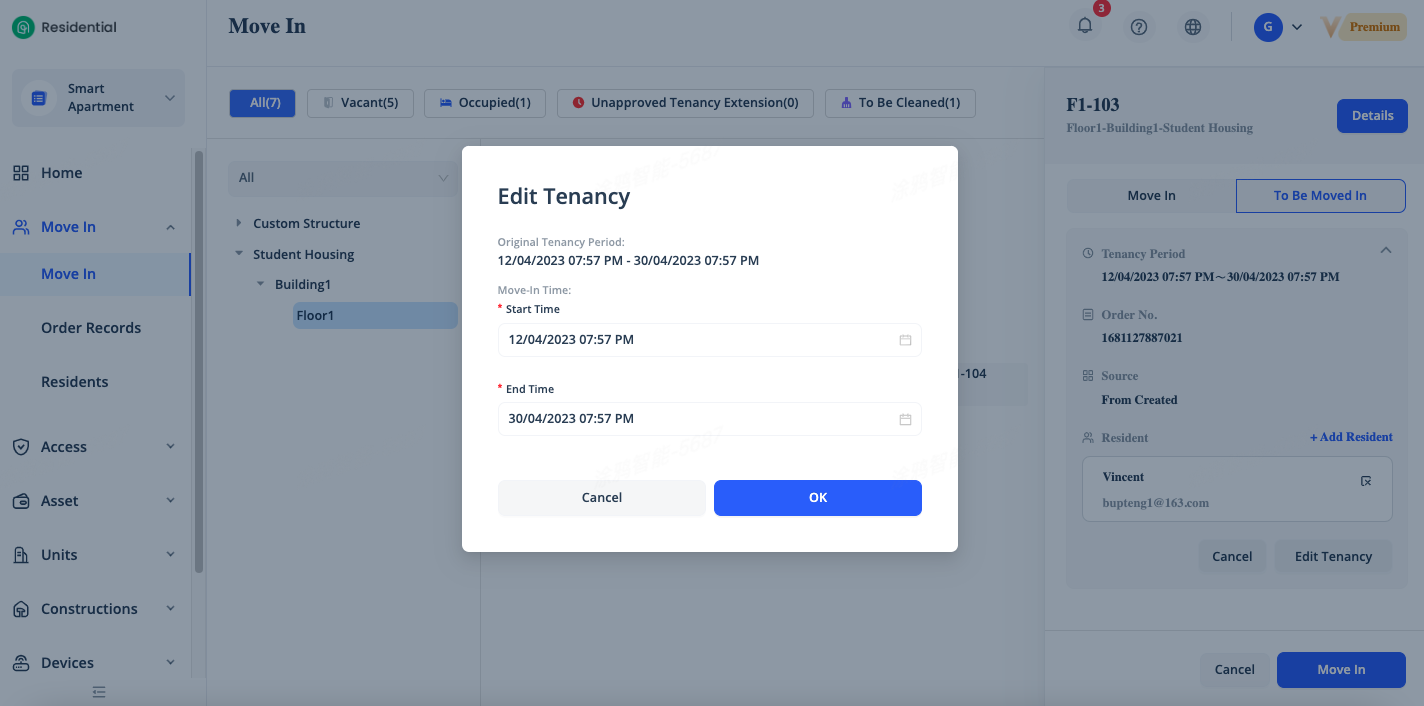
To modify the tenancy for an order of a unit, click the unit icon on the Move In page, find the order on the Move In tab or the To Be Moved In tab in the right-side panel that appears. Then, click [Edit Tenancy] for the order. In the dialog box that appears, you can change the move-in time or move-out time as required. For orders displayed on the Move In tab, you can change only the move-out time to extend or shorten the tenancy.
For orders displayed on the To Be Moved In tab, you can change both the move-in and move-out time to extend or shorten the tenancy. Note that the modified tenancy of orders on the To Be Moved In tab cannot overlap with the tenancy of orders on the Move In tab.
Move Out
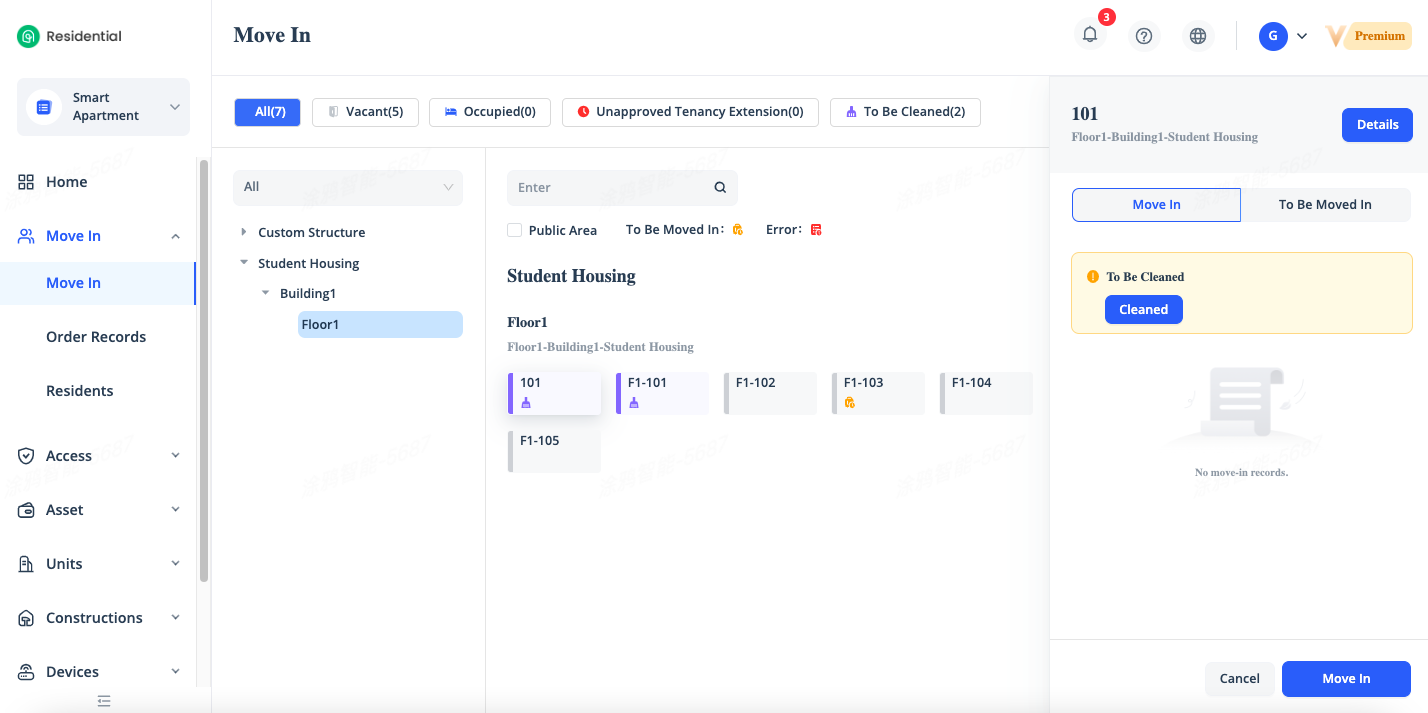
To move out all residents from a unit, click the unit icon on the Move In page. In the right-side panel that appears, find the order on the Move In tab or the To Be Moved In tab, click [Move Out] for the order.
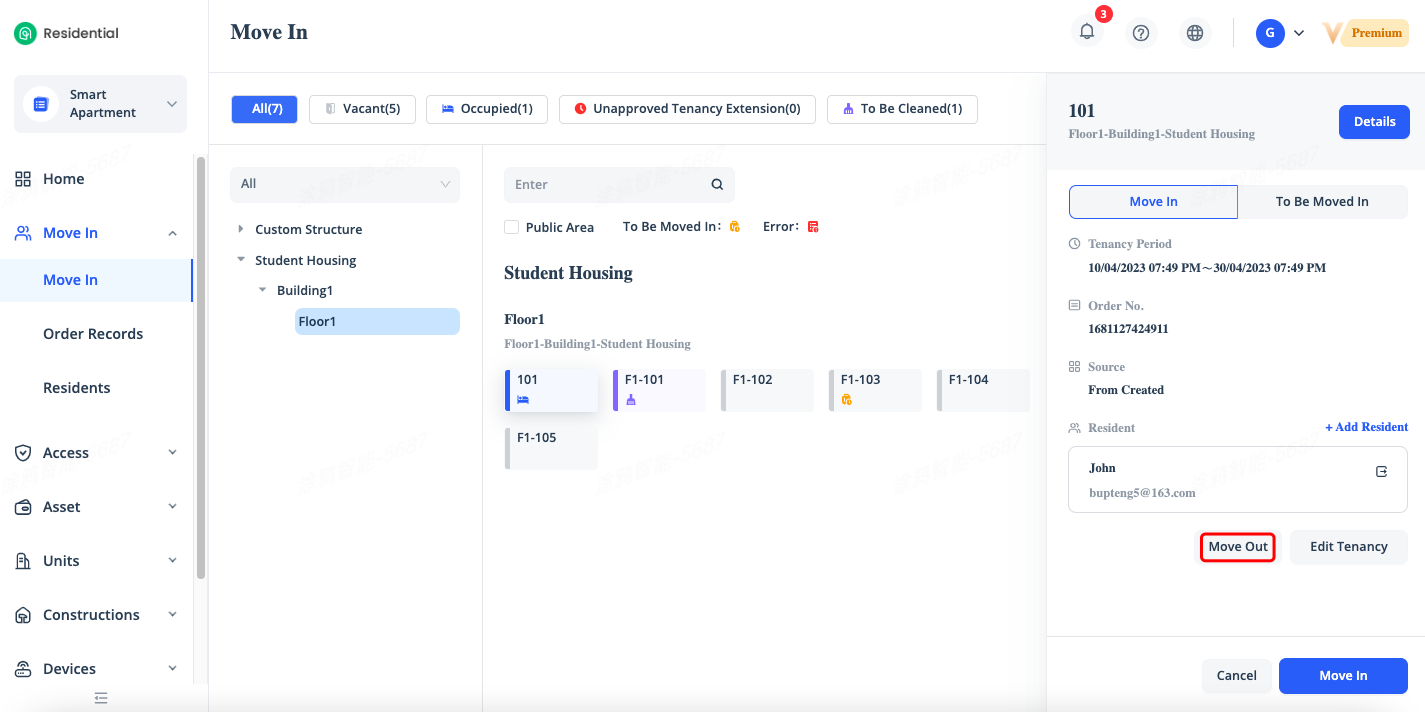
After the move-out, the unit status changes to [To Be Cleaned]. You can click [Cleaned] to make the unit ready for moving in again.
Cancel a Reservation Order
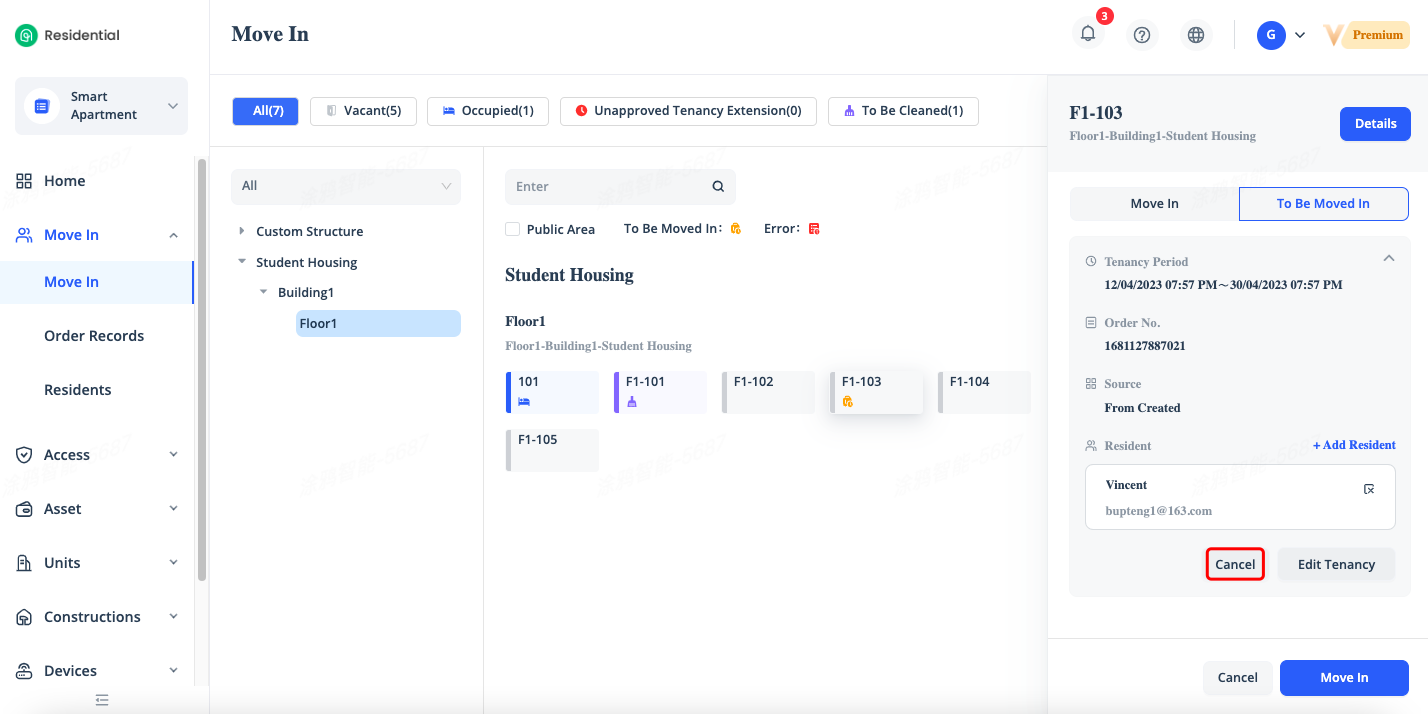
To cancel a reservation order for a unit, click the unit icon on the Move In page, click [To Be Moved In] tab for the order which displays the order details and click [Cancel]. Canceled orders can be found on the Order Records page.
Move a Resident Out
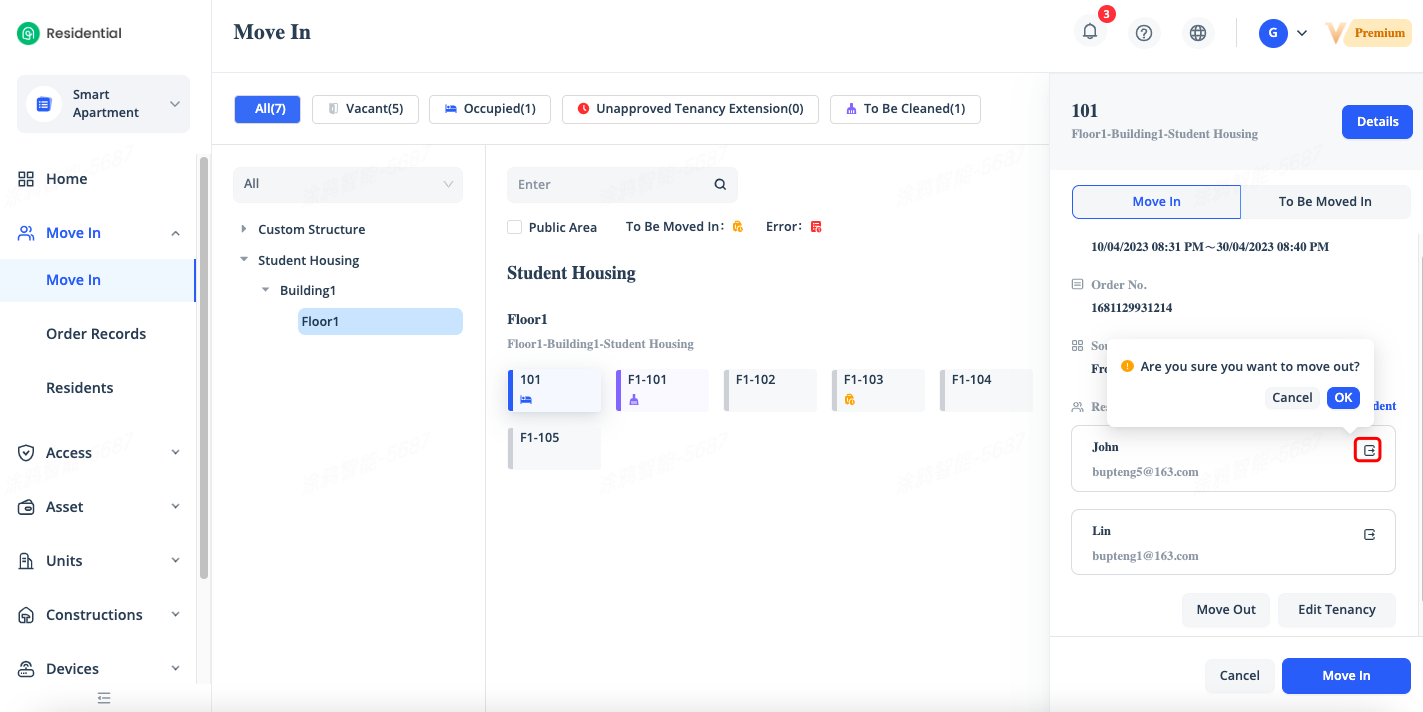
To move out a resident from a unit, click the unit icon on the Move In page, find the order on the Move In tab or the To Be Moved In tab, click [Move Out] icon of the resident and click [OK] to move one resident out.
Modify Device Authorization for Residents
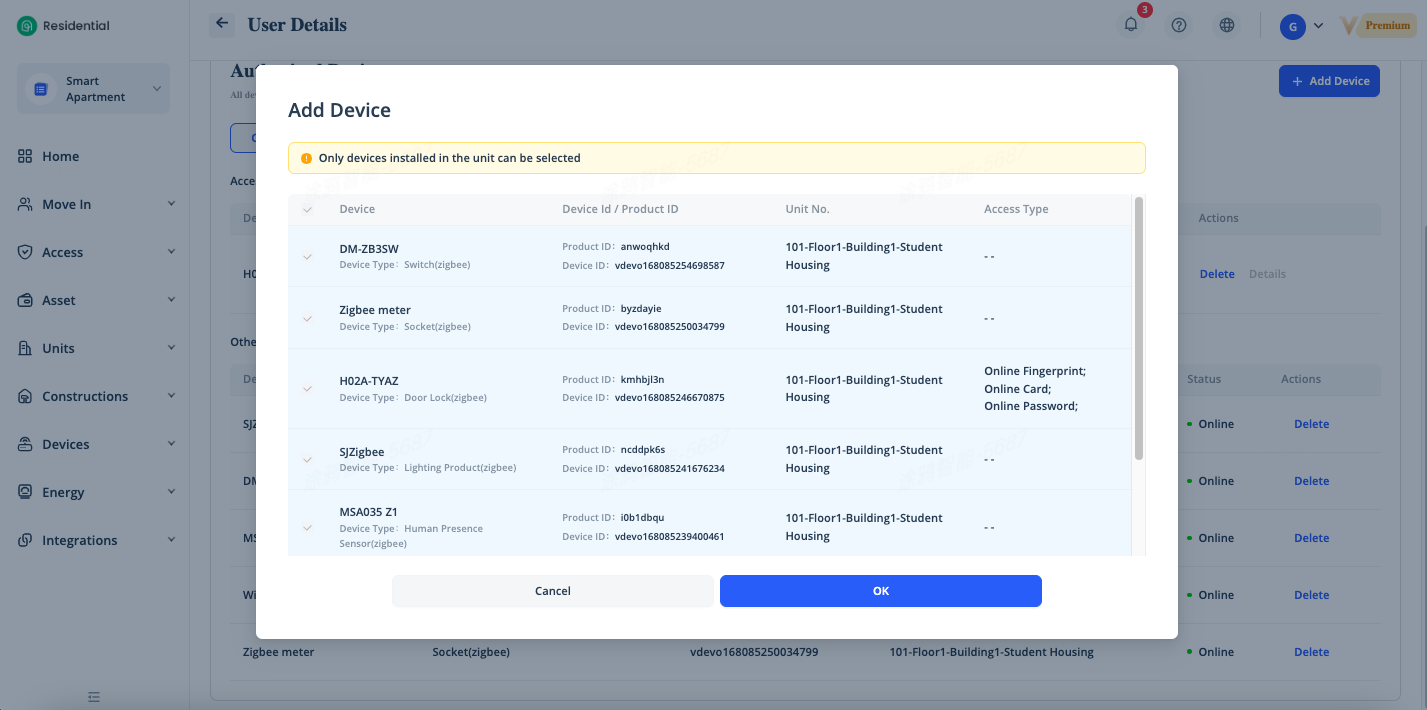
To add or remove authorized devices for a resident, go to the Unit Details page, click Details of the resident, under Authorized Devices page, you can click [Add Device] to add devices in the occupied unit or public area, or click [Delete] in the device list to delete the corresponding authorized device. Devices installed in the unit are authorized to its residents by default.
Query Order Records
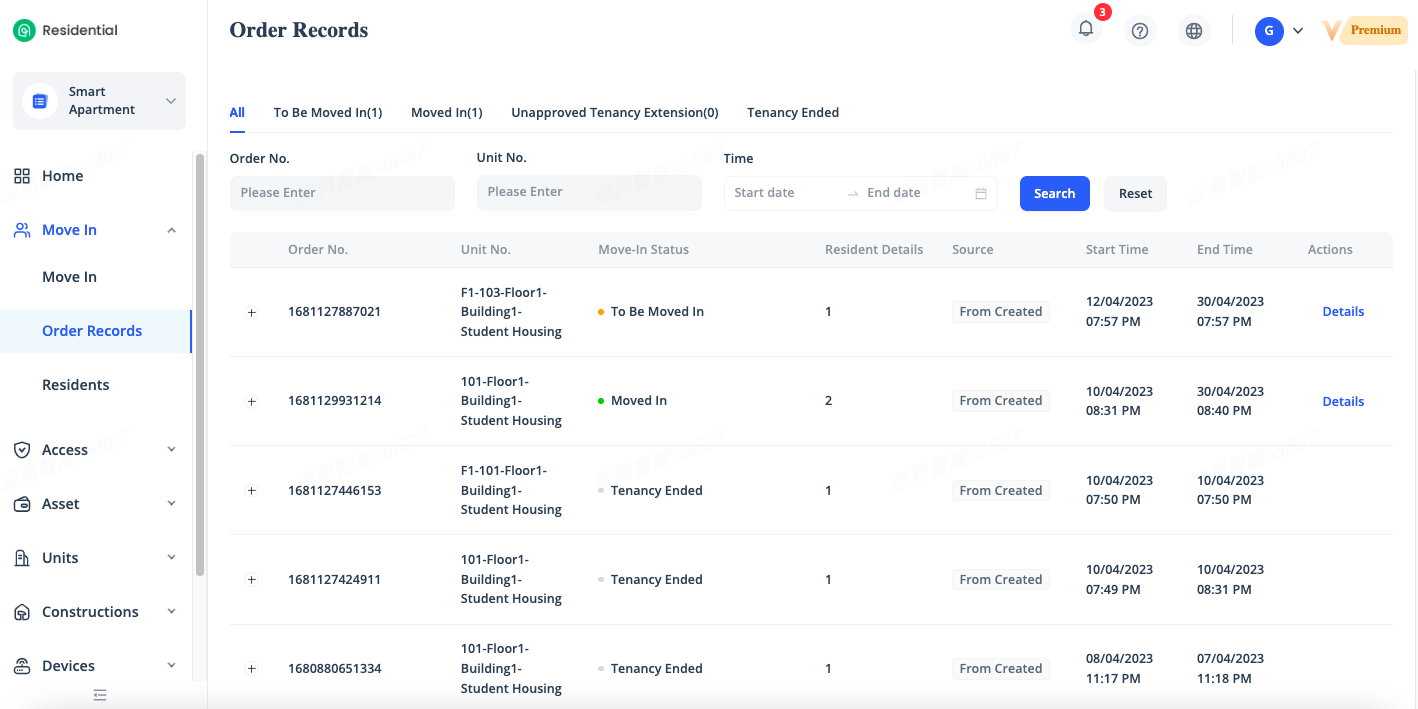
To query historical orders, go to [Move In] - [Order Records]. On the Order Records page, you can find orders of five tabs on the top, which are All, To Be Moved In, Moved In, Unapproved Tenancy Extension, and Tenancy Ended. The To Be Moved In, Moved In, and Unapproved Tenancy Extension tabs display the numbers of orders in the corresponding states. You can click a tab to query orders in the corresponding state.
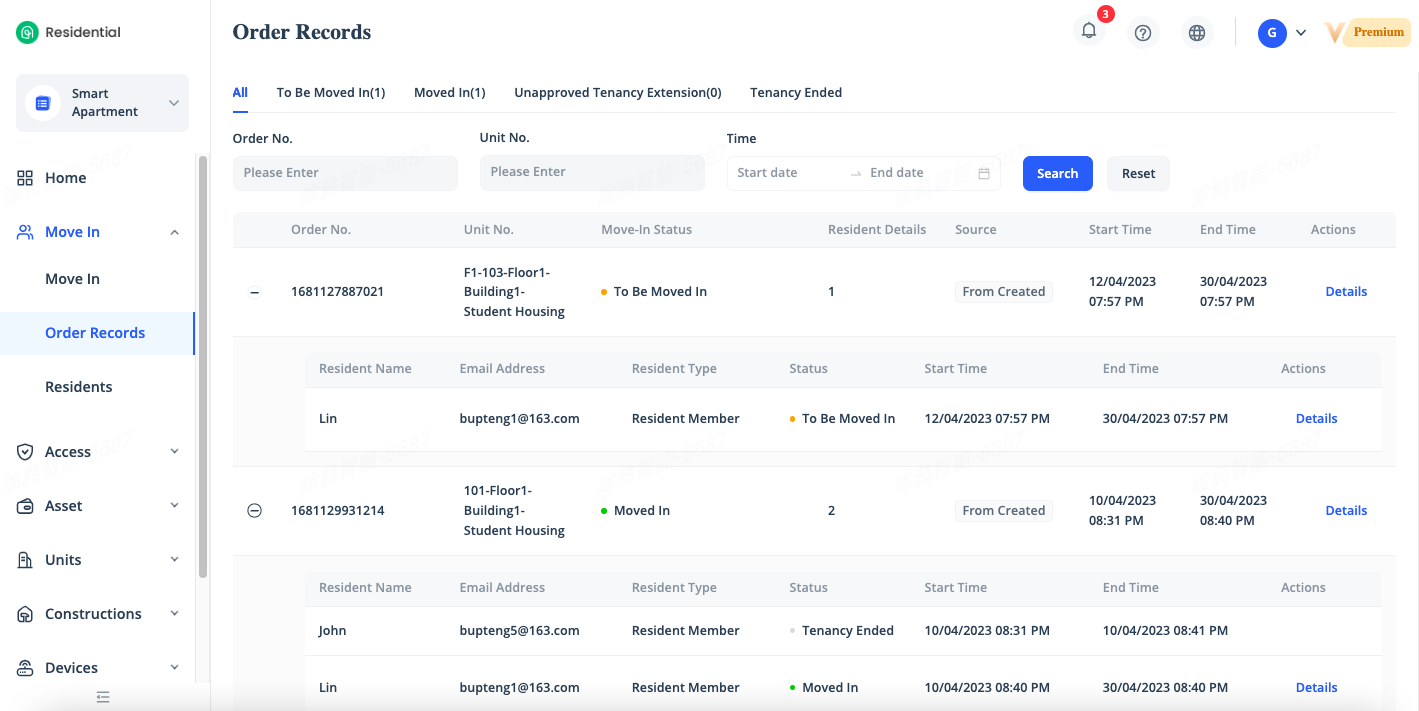
Click the [+] icon on the left side of an order to view the information about the order, such as the resident information. You can view the residents of all orders. In the order list, you can click [Details] in the Actions column of an order to view the unit details of the order. You also can also click Details in the Actions column of a resident to view the details of the resident. Note that you cannot view the unit details and resident details of orders that have been closed or canceled.
Query Residents
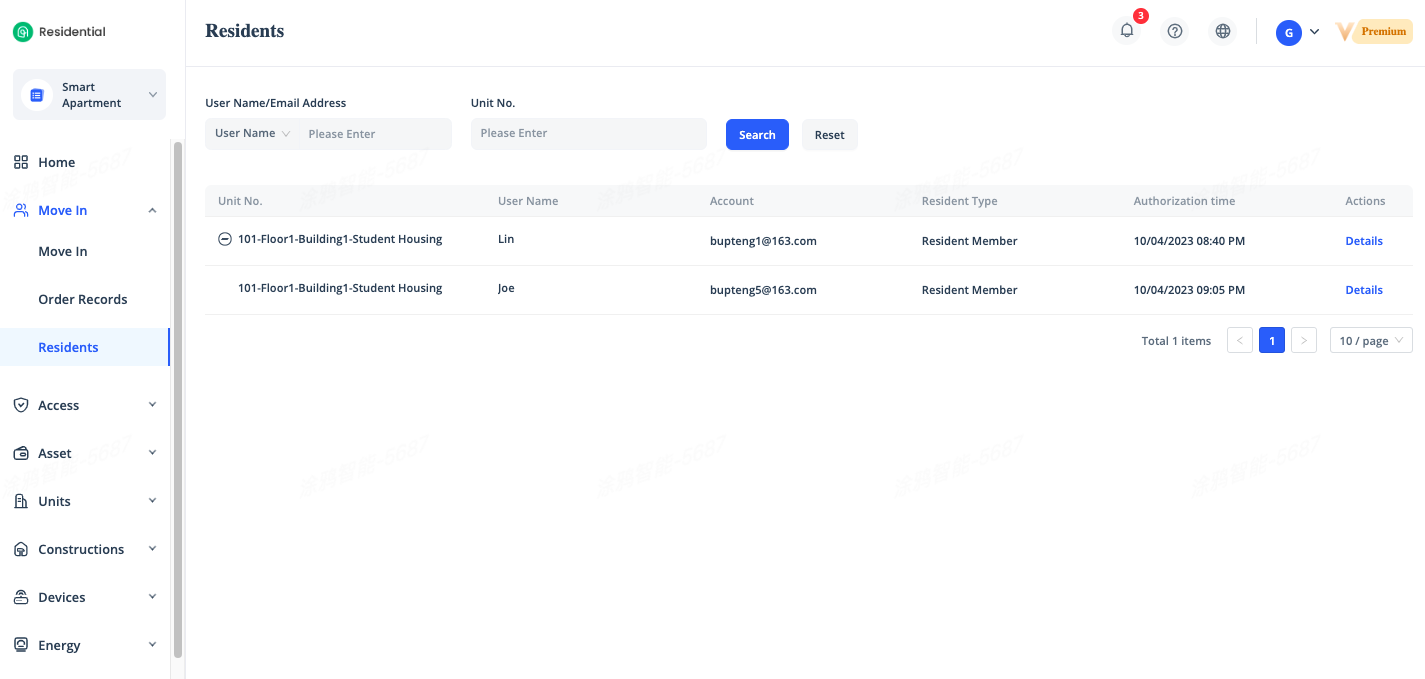
To query residents information, go to [Move In] - [Residents], on the Residents page, you can find all moved-in residents. Residents are organized by unit. Click the [+] icon on the left side to view all existing residents of the unit.
Click [Details] to view the resident details. You can view the unit occupied by the resident to view the tenancy and authorized devices of the resident.
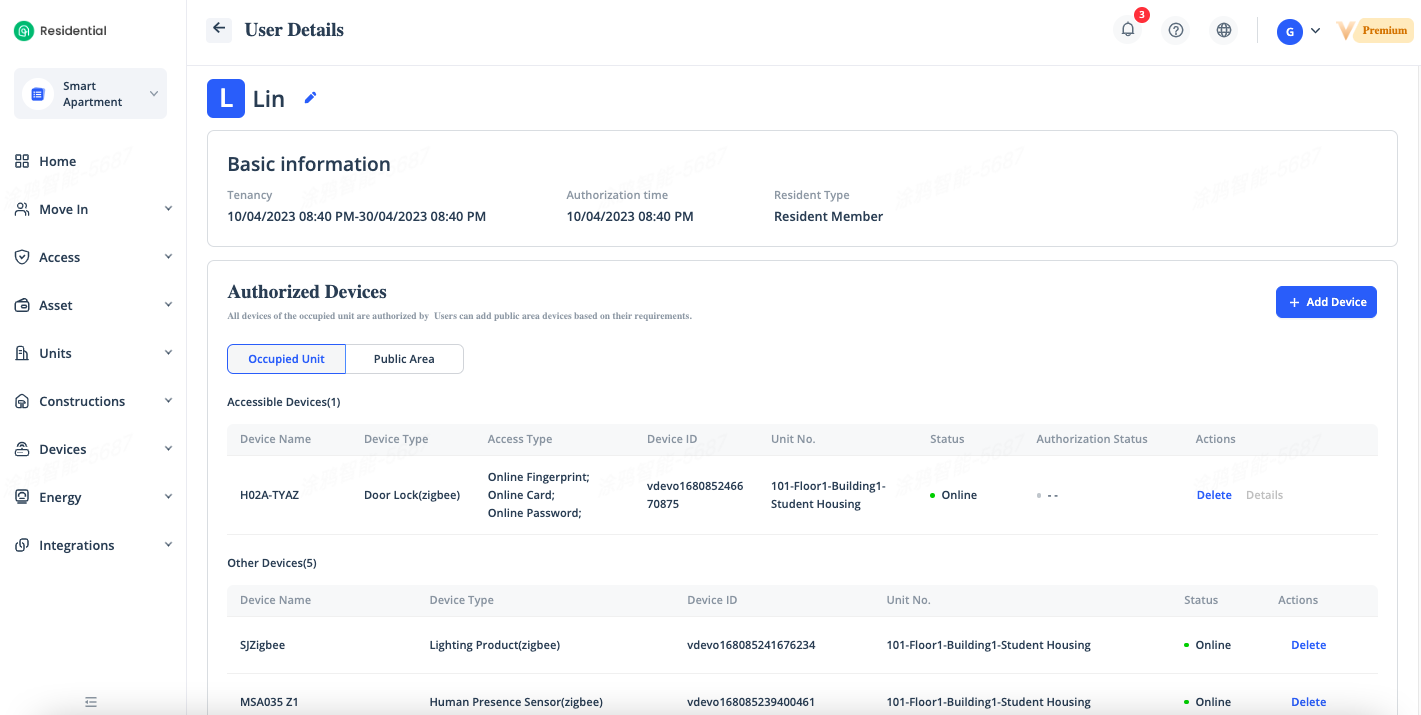
You can click [Add Device] to add the devices of the occupied unit and public area. You can also click Delete in the device list to delete the corresponding authorized device. All of the devices installed in the unit are authorized to its residents by default.