[Property Manager] Asset Management
Last Updated on:2023-05-29 05:49:37
Room License Assignment
Before starting to add devices to SaaS platform, you need to create units first and then add devices to the corresponding units. Creating units require room licenses. Firstly, make sure that the distributor has assigned licenses to your property manager account, if not, please contact the distributor to assign the unit licenses to property manager account first. The licenses assigned by the distributor will be displayed in the asset management of the property manager account in the upper right corner.
There're two asset menus in property manager account , one is for the property manager to centralize manager the unit licenses for all the properties. Assigning the unit license to the property needs to be done on the asset page in the upper right corner.
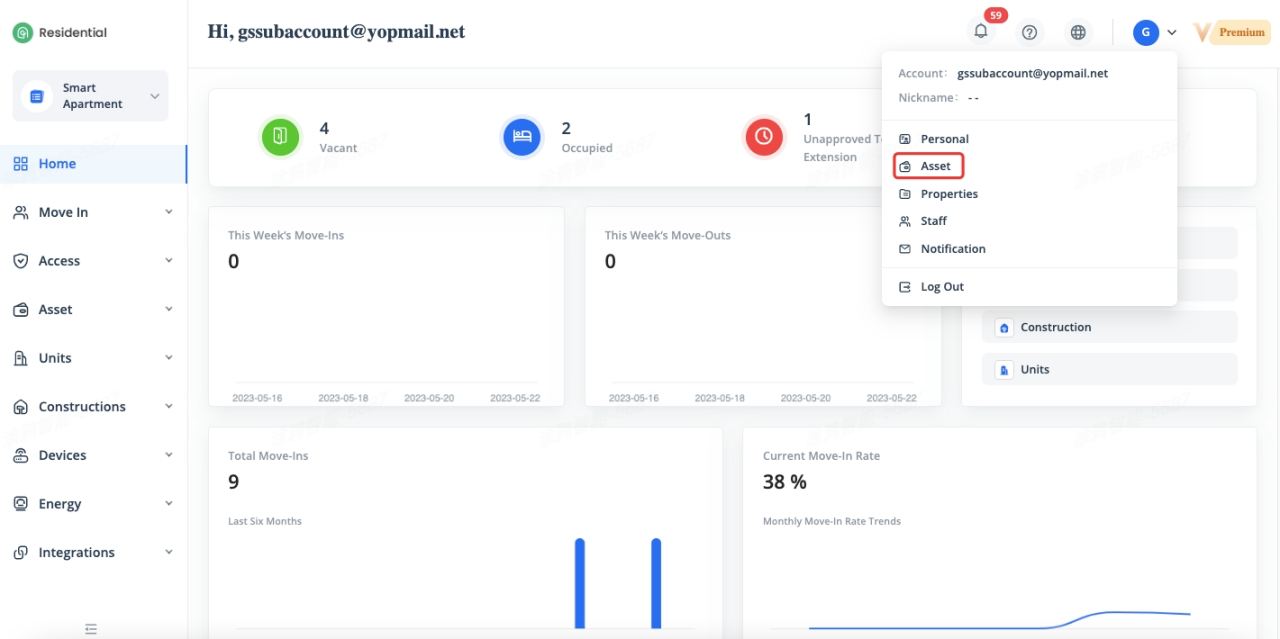
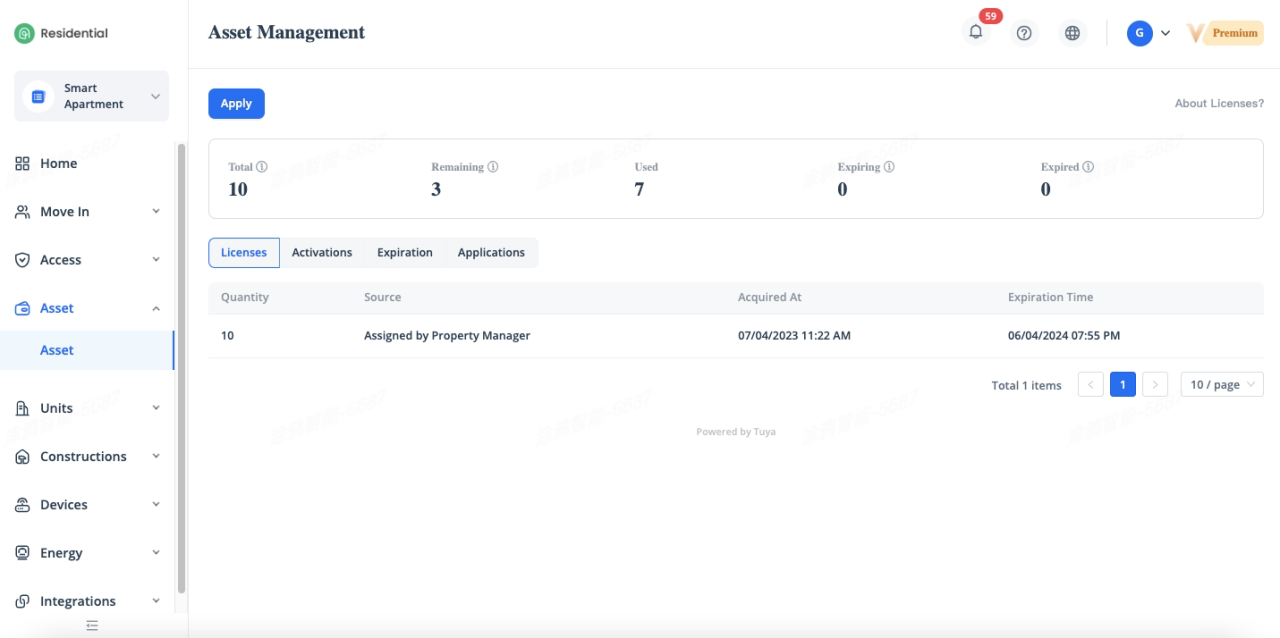
And the other one shows the license status of current property. Click [Asset] - [Asset] to check the status of current property, including total license, remaining license, used license, expired license, expiring license and the license records.
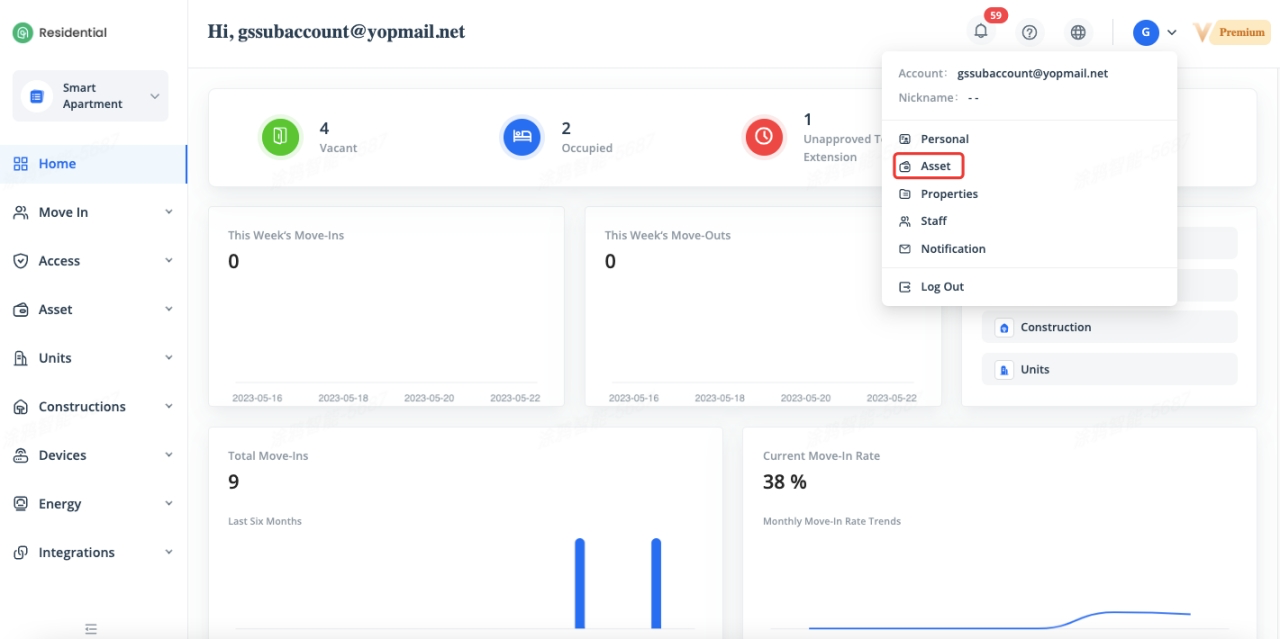
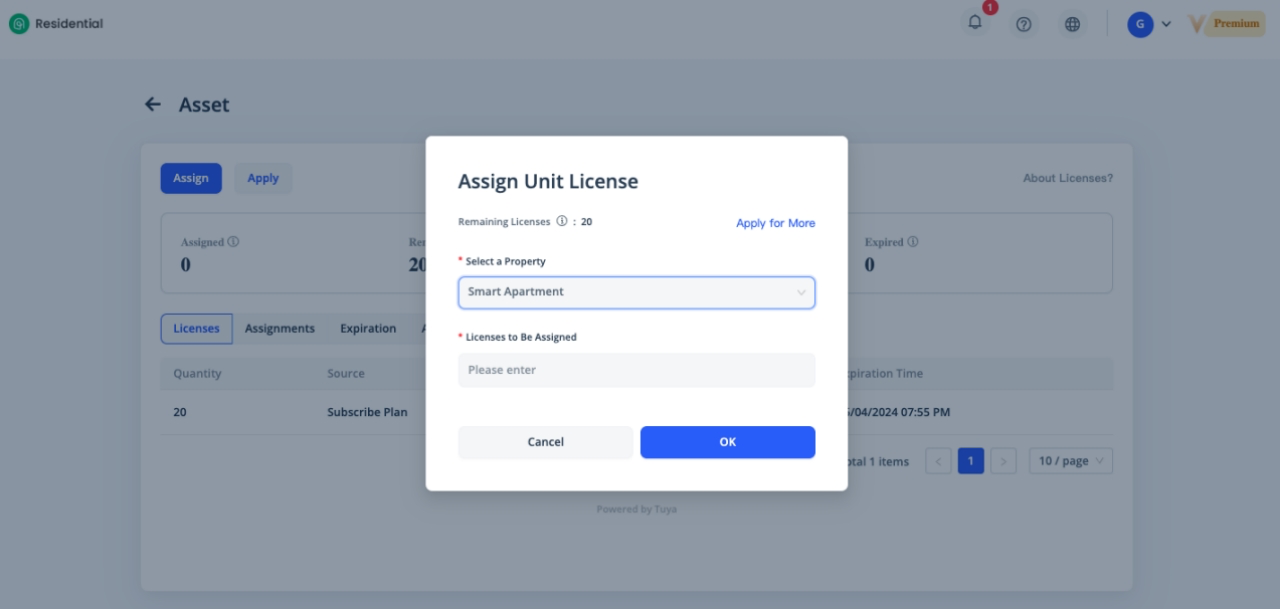
Click on the [Asset] menu in the upper right corner to enter Asset Management page, click the blue button [Assign], select the property which you want to assign the licenses and enter the number of unit licenses, then click [OK], the unit licenses will be assigned to the corresponding property.
Once the assignment is complete, you can go to the [Asset] menu under homepage to check the license status of current property.
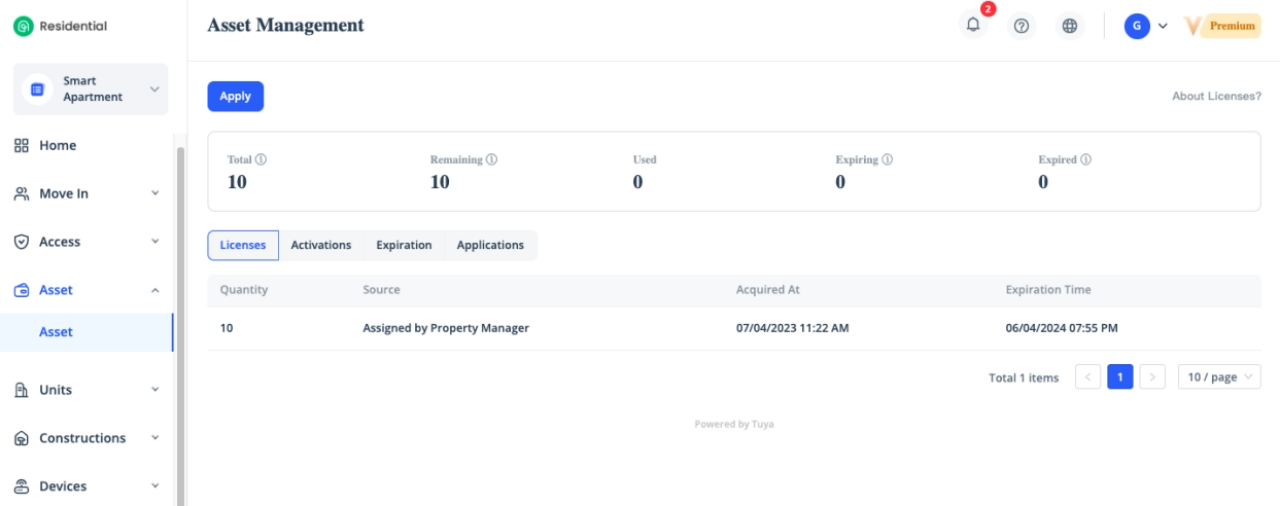
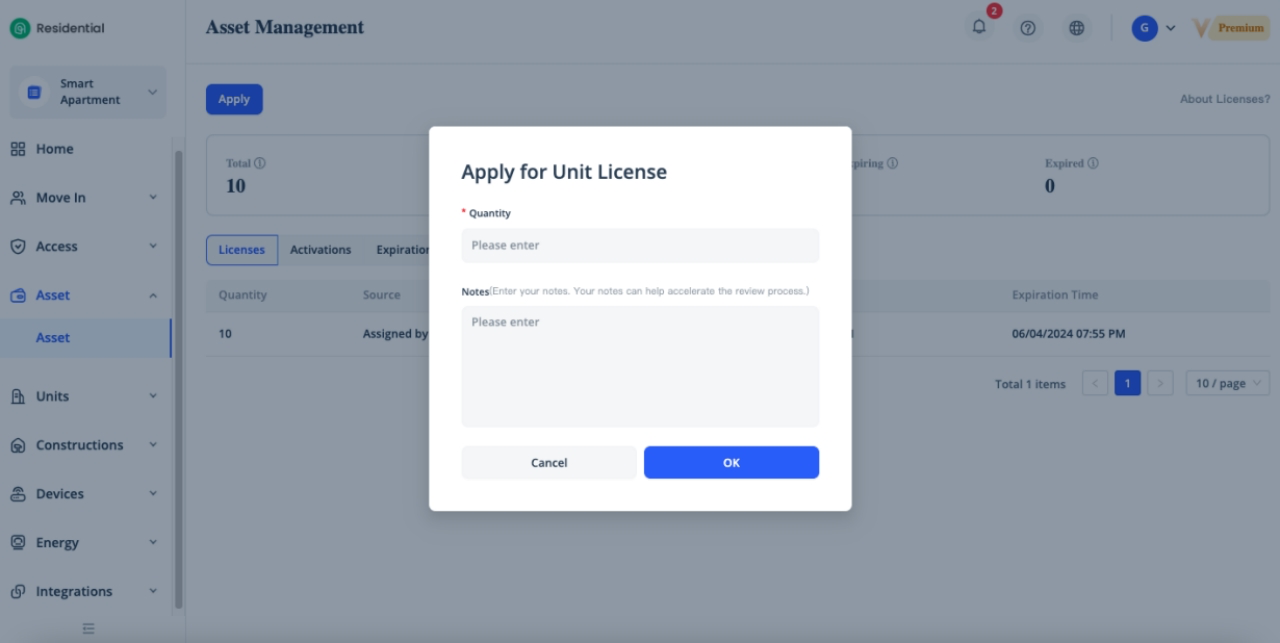
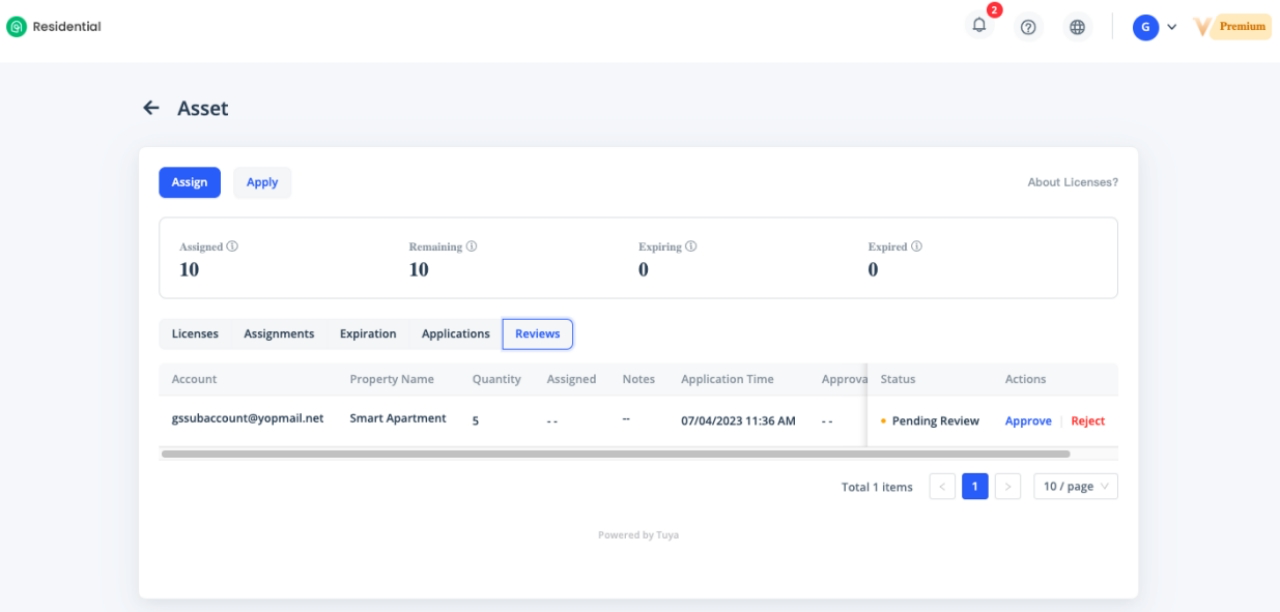
Click [Apply] button to apply more licenses from property manager if you're not a property manager account, the property manager will be received the application and notification once you submit the application.
Device License
We have canceled the device license in the current version. Adding devices in the unit will no longer consume the device licenses and there is no limit to the number of devices added.
Related Topics