[Property Manager] Unit Management
Last Updated on:2023-05-29 05:48:43
Create a Community Structure
Create the space structure of the project, the default root node call Community. According to the selected community type, the system will assign a hierarchical structure by default, such as Building - Floor - Unit. At the same time, you can also customize the hierarchical structure with up to 5 levels.
Click[Unit] - [Unit] - [Add] to create the Community, Community Name, Community Type and Community Structure Classification are required.
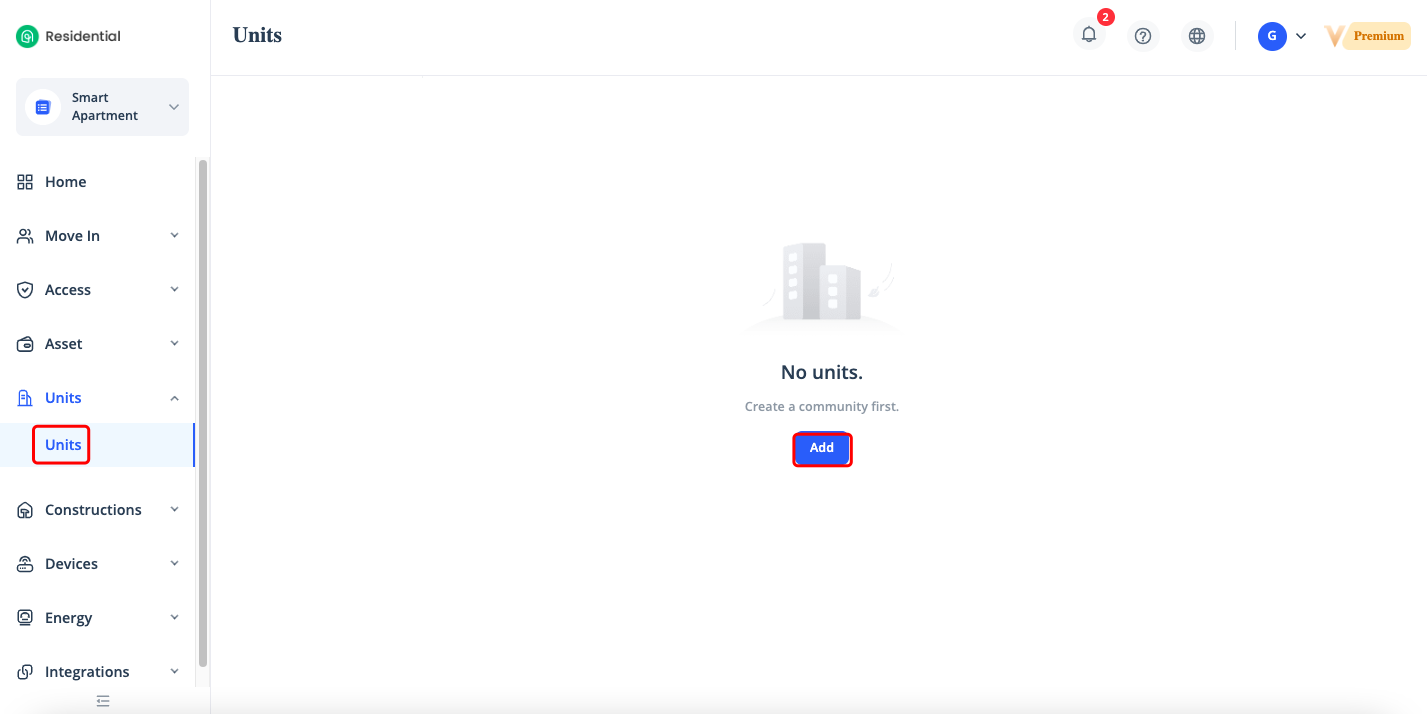
Smart Residential supports various community types, such as apartment, single-family house, etc. The community structure classification varies with the community type. For example, apartment has a three-level structure, which is Building-Floor-Unit, while asingle-family house has only one level, which is Unit. The types and classifications of communities are used to distinguish building structures and rental modes. A unit can be created at the last level of a community.
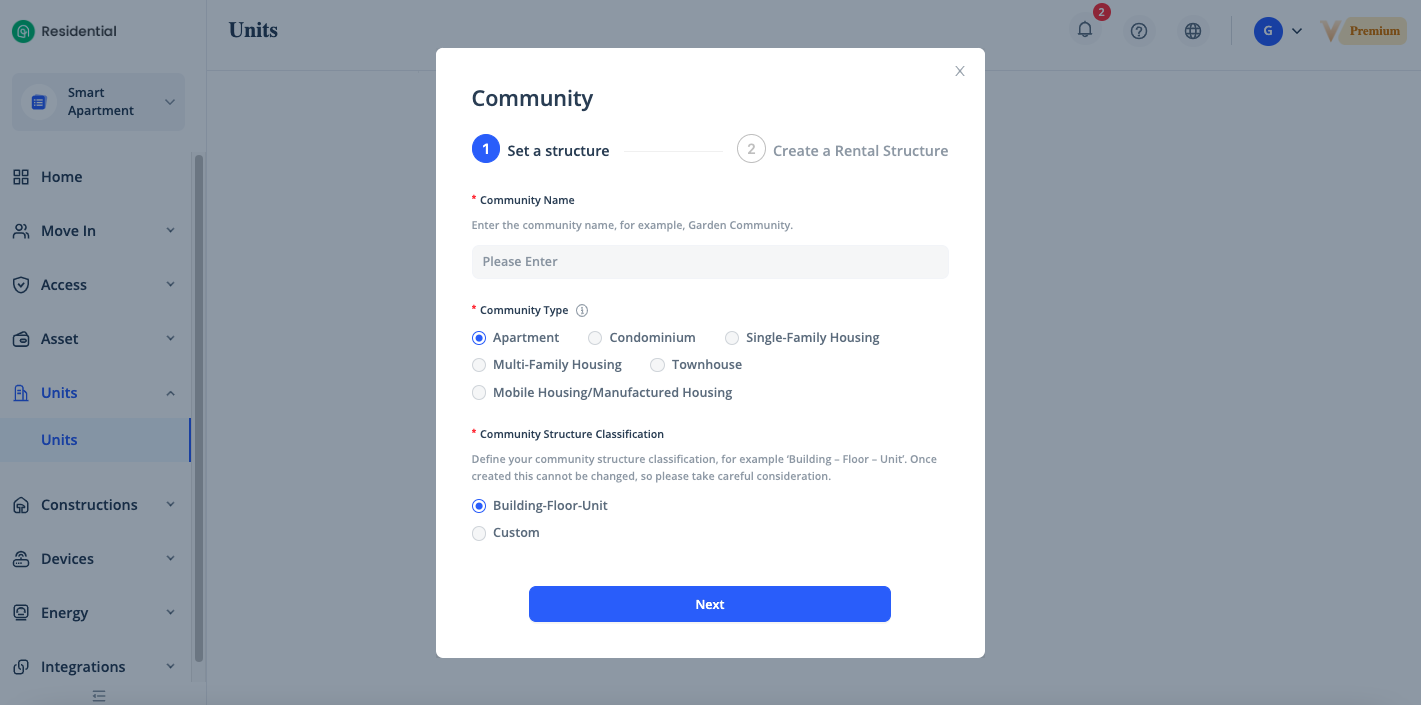
Click [Add Level] to create levels in the community structure, these levels are organized as specified in the previous step.
You also can create, modify, and delete levels as needed in the structure. Click [Submit] to complete the creation.
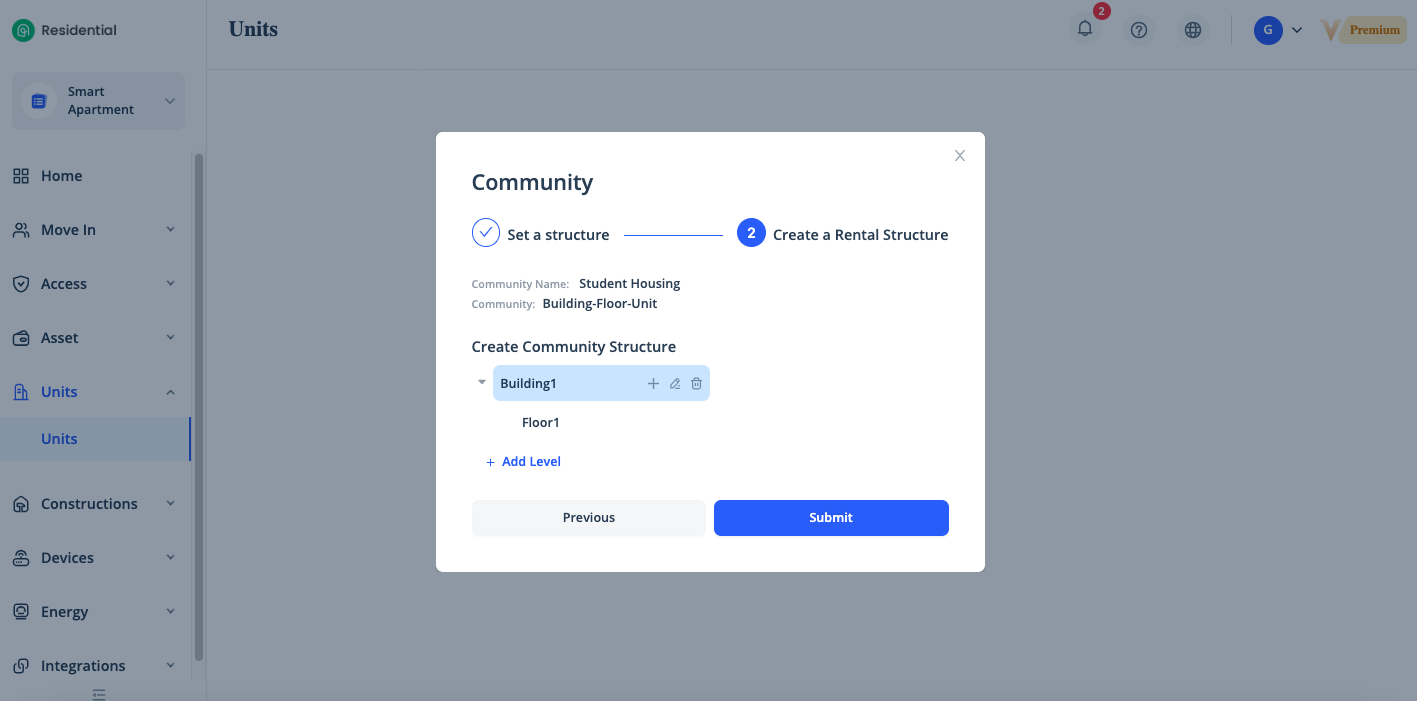
Create Unit and Public Area
There are two community types, Unit and Public Area. The public area can be created at any level, while the unit can only be created at the last level. In addition, only the unit can be authorized to the guest, but the devices which are added in the public area can be authorized to all units' users.
Select the Community Type and enter the Unit No., then a unit will be create.
Unit Activation
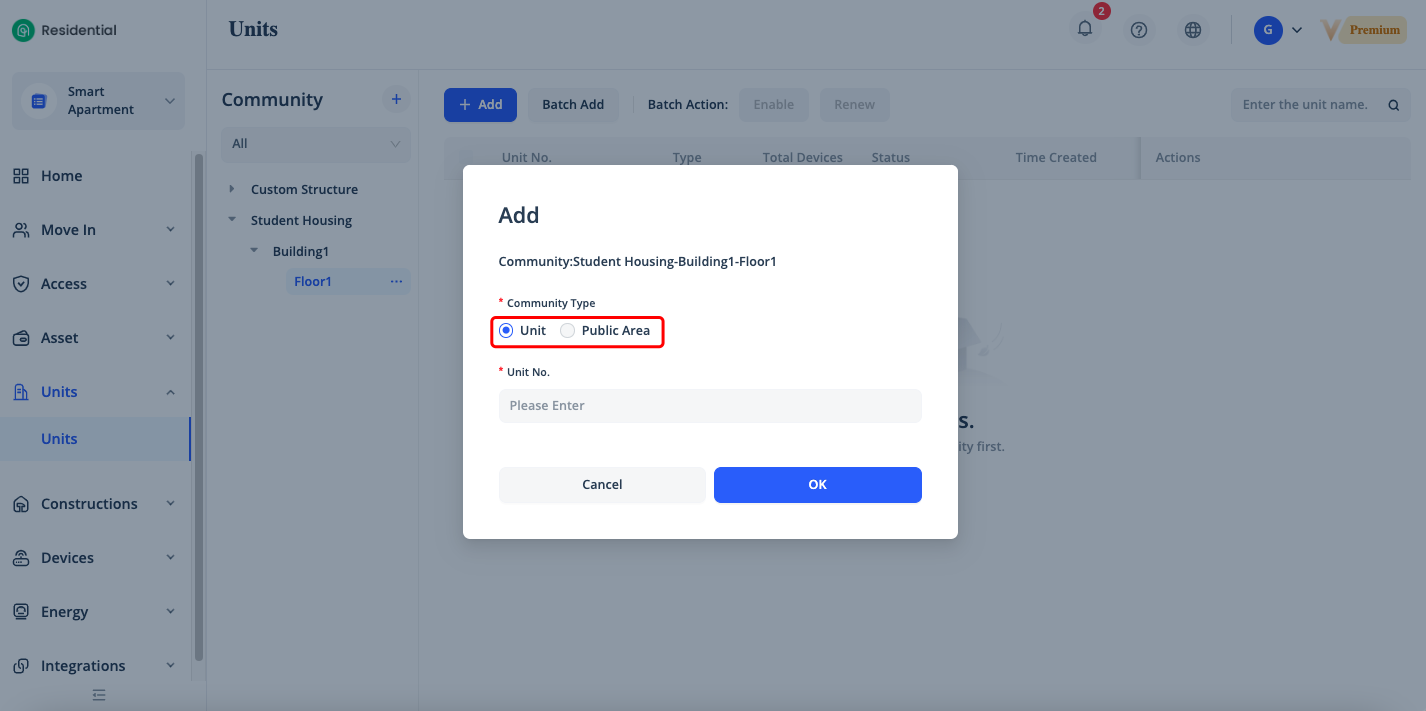
When the unit is created, the unit license will not be consumed immediately, and you need to click [Enable] button to officially activate the unit and consume the unit license. Before the unit is activated, the unit can add devices normally but cannot be authorized to any guests and the configure scene&automation settings until the unit is activated.
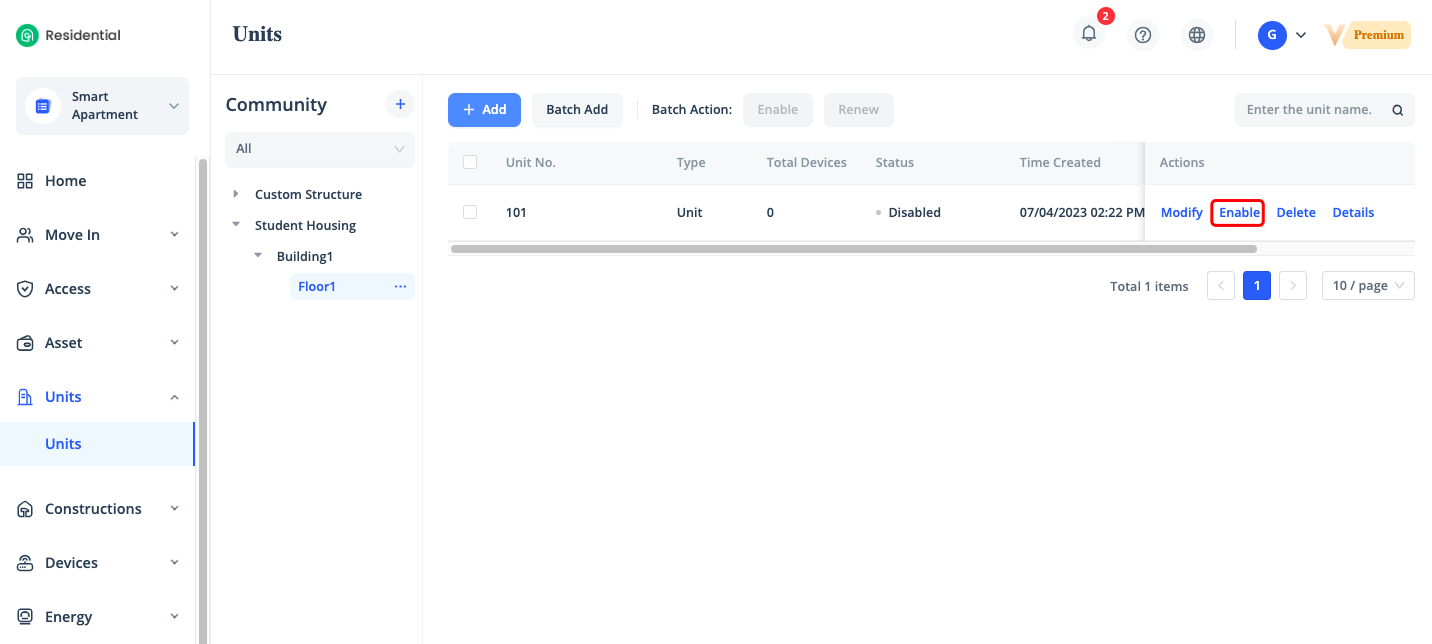
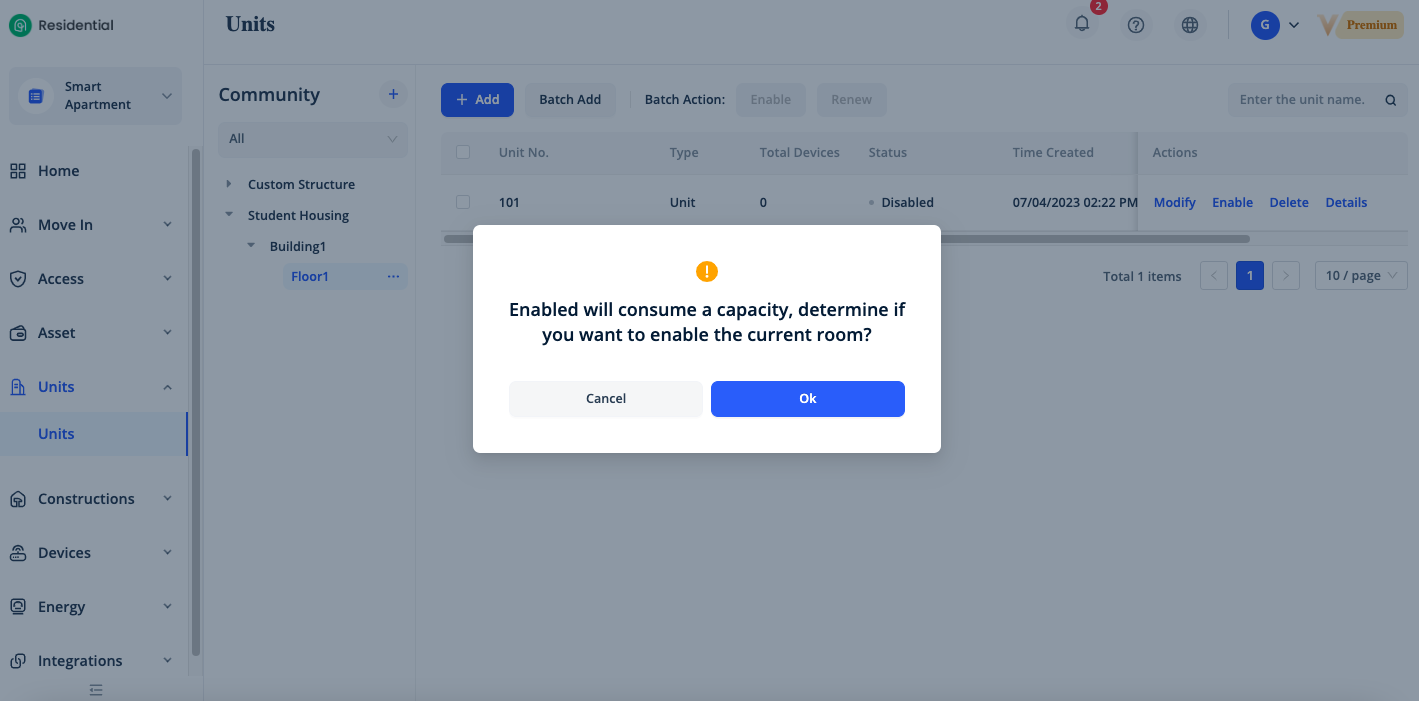
Click [Enable] button, one unit or public area will consum one unit license, click [Ok] to activate the unit.
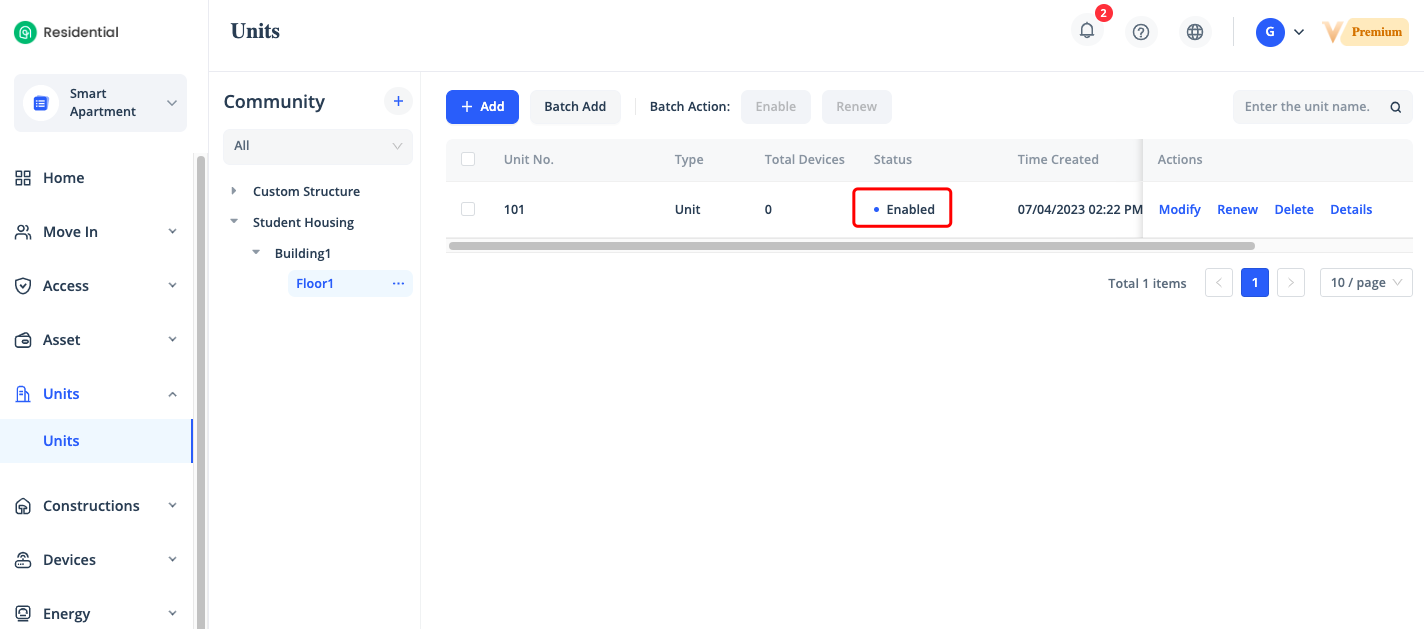
The Status will be changed from Disabled to Enabled after activated.
Create Units in Batches
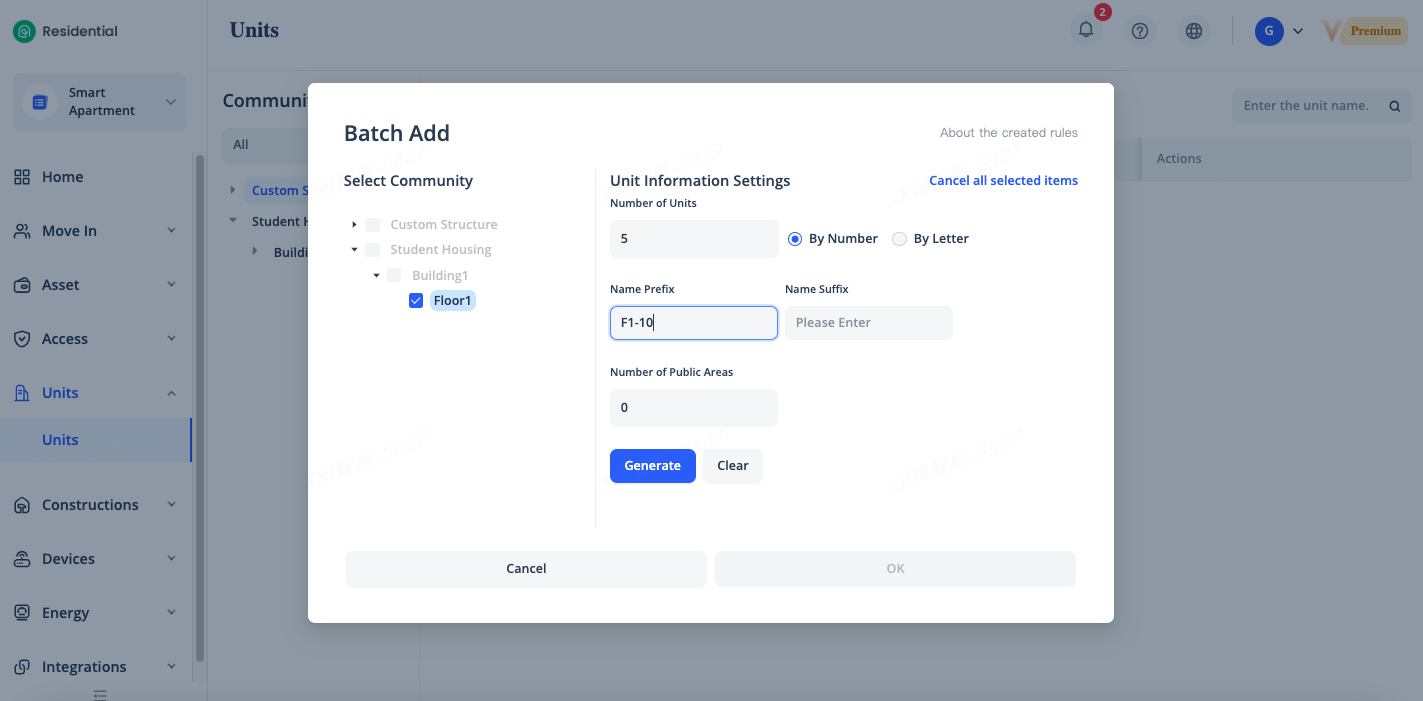
On the [Units] page, click [Batch Add] to create multiple units at one time.
On the left side of the Batch Add dialog box, select the community levels where you want to create units. You can select one or more levels. You can also select a level without selecting its subordinate levels.
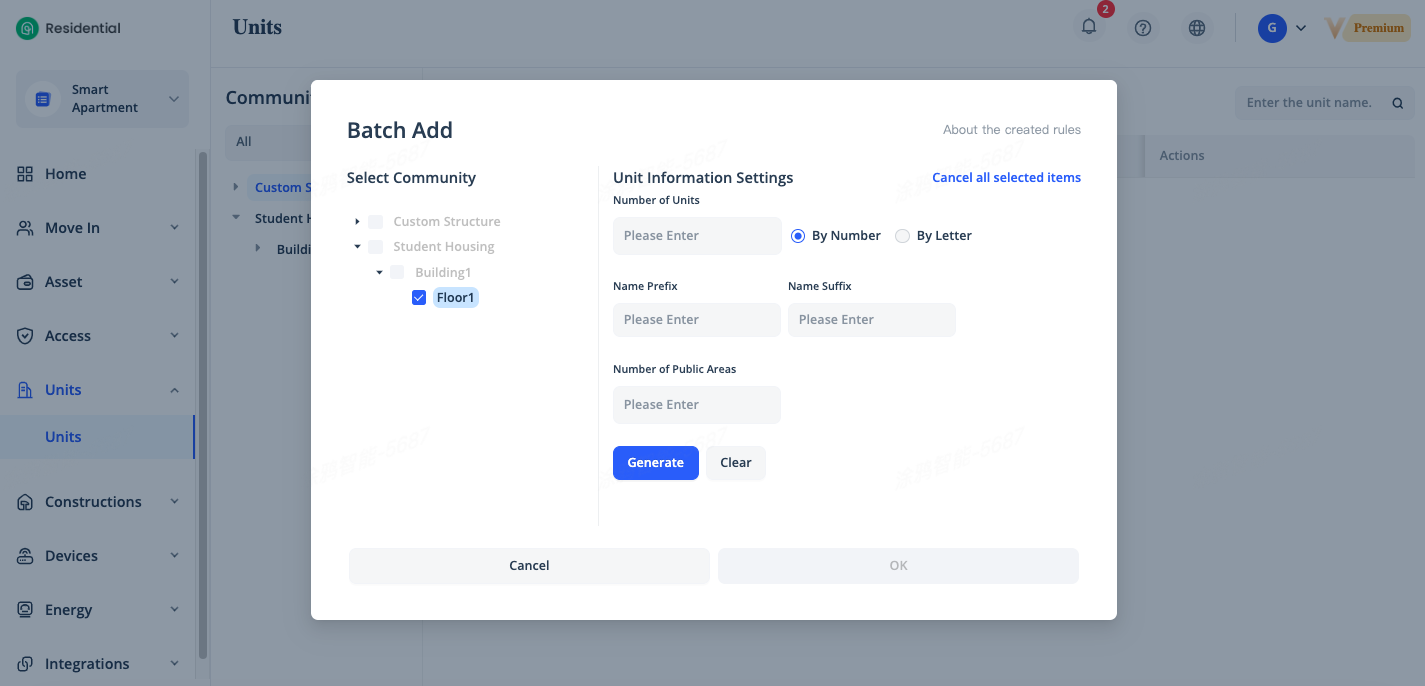
Specify the information of the units on the right side of the dialog box. Enter the numbersof units and public areas. Select By Number or By Letter as the default sequence for theunits. Enter the prefix and suffix of the default names of the units.
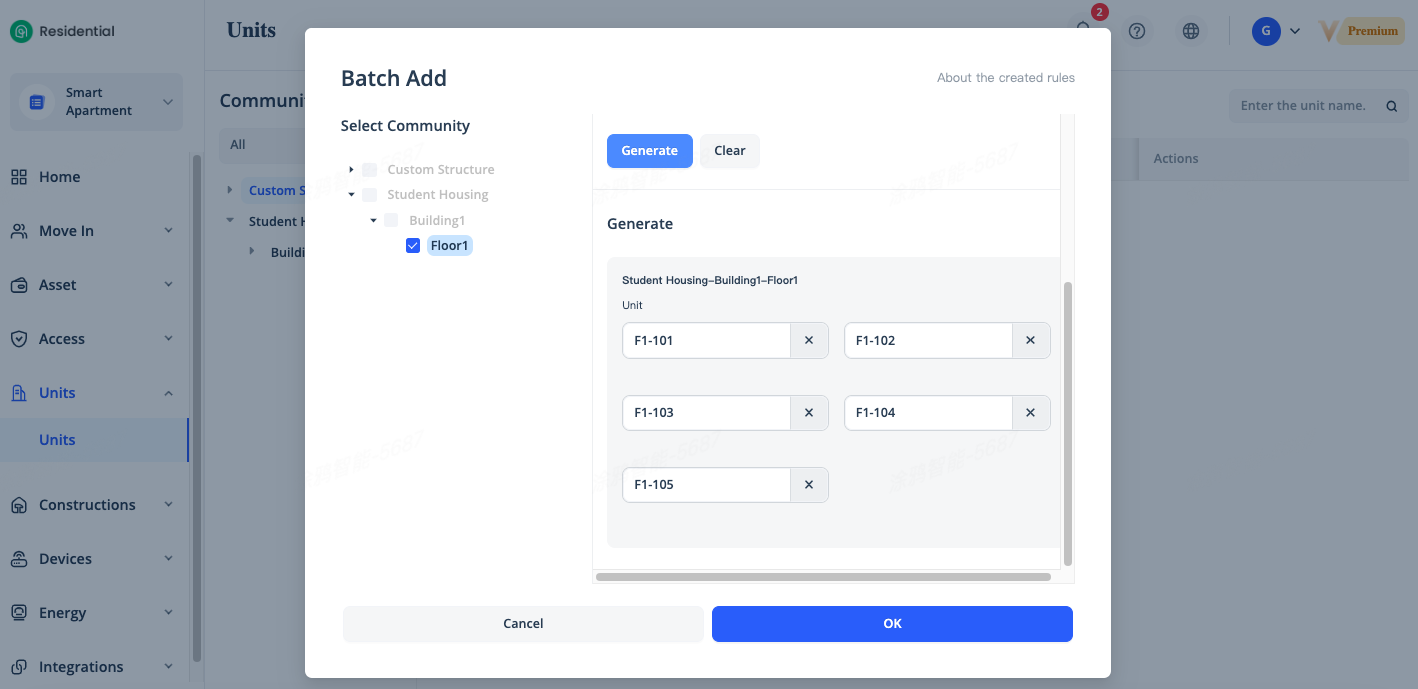
Then, click [Generate] to preview the units to be created. You can also modify the name of a single unit or public area. Click [OK] to create the units.
Modify a Unit
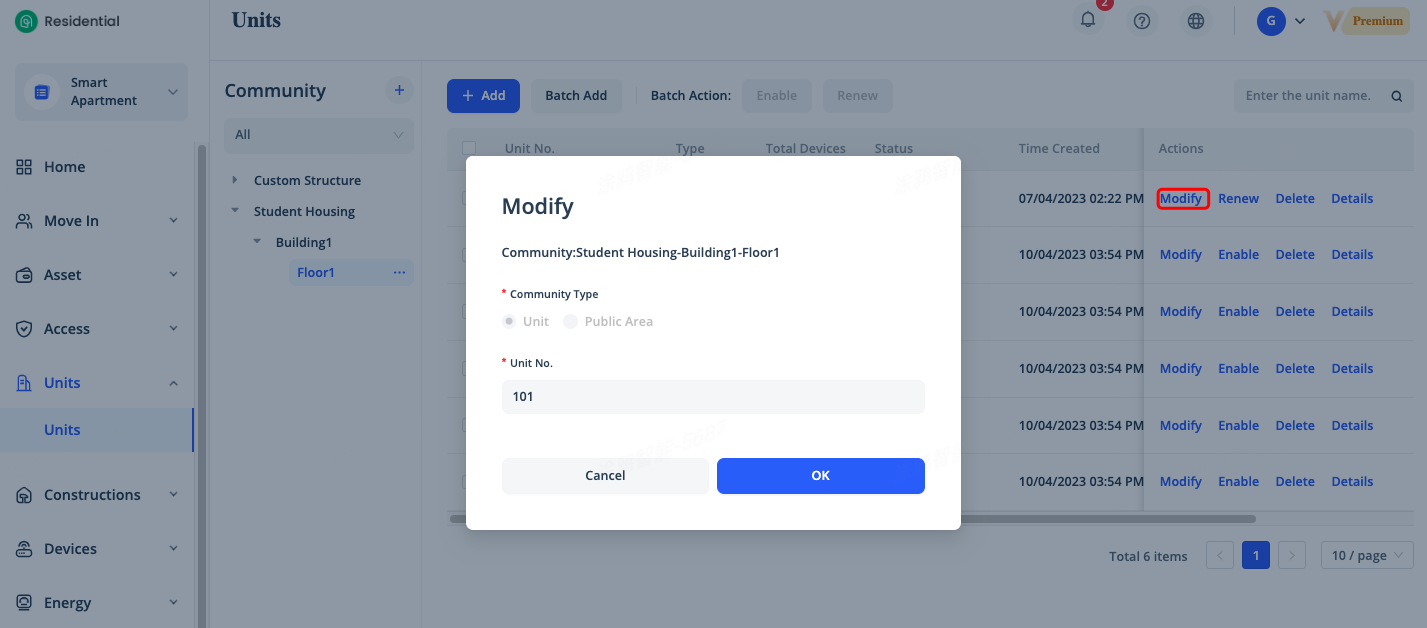
On the Units page, find the unit you want to modify and click [Modify] in the Actions column. You can modify the name of unit in the dialog box that appears. Names of units at the same level must be unique. For example, the names of units at the same floor level must be unique.
Delete a Unit
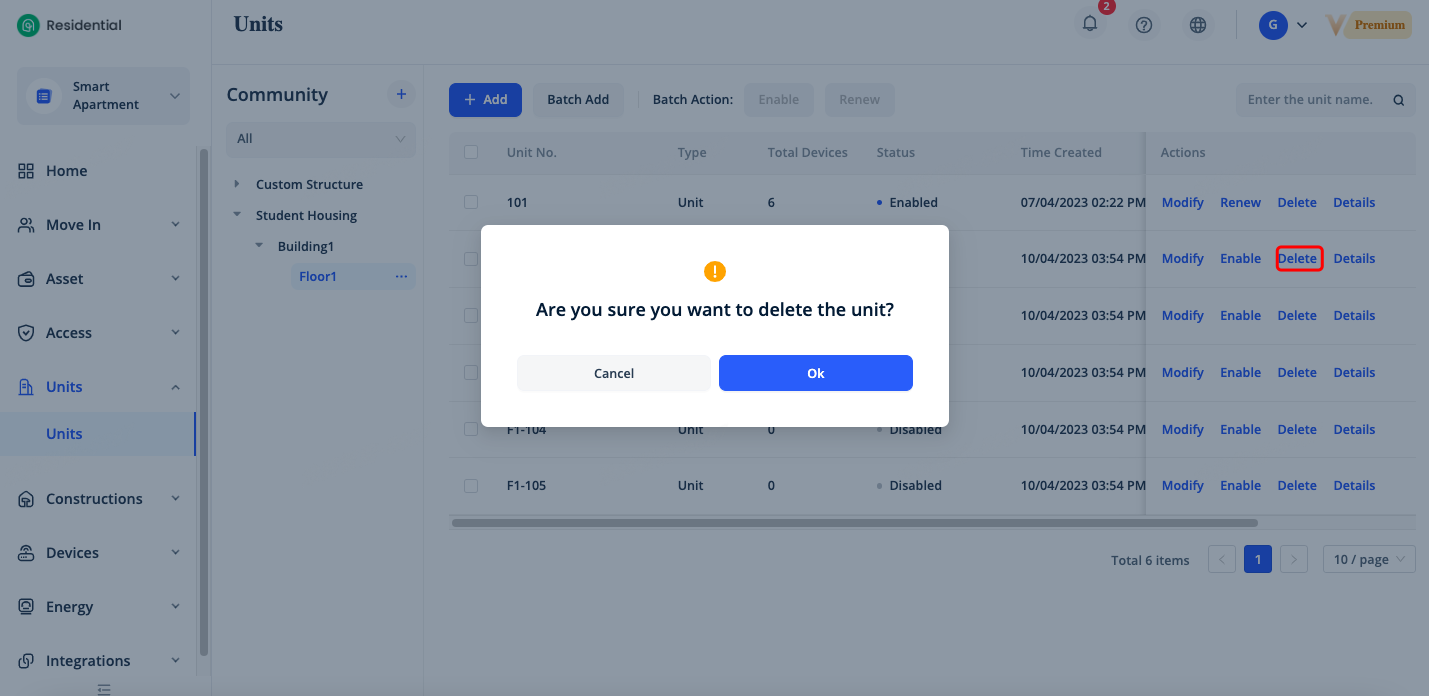
On the Units page, find the unit to you want to delete and click [Delete] in the Actions column, click [OK] to delete the unit in the confirmation dialog box that appears. Only units without any installed devices, residents moved in, or installation and maintenance tasks can be deleted.
Query Units
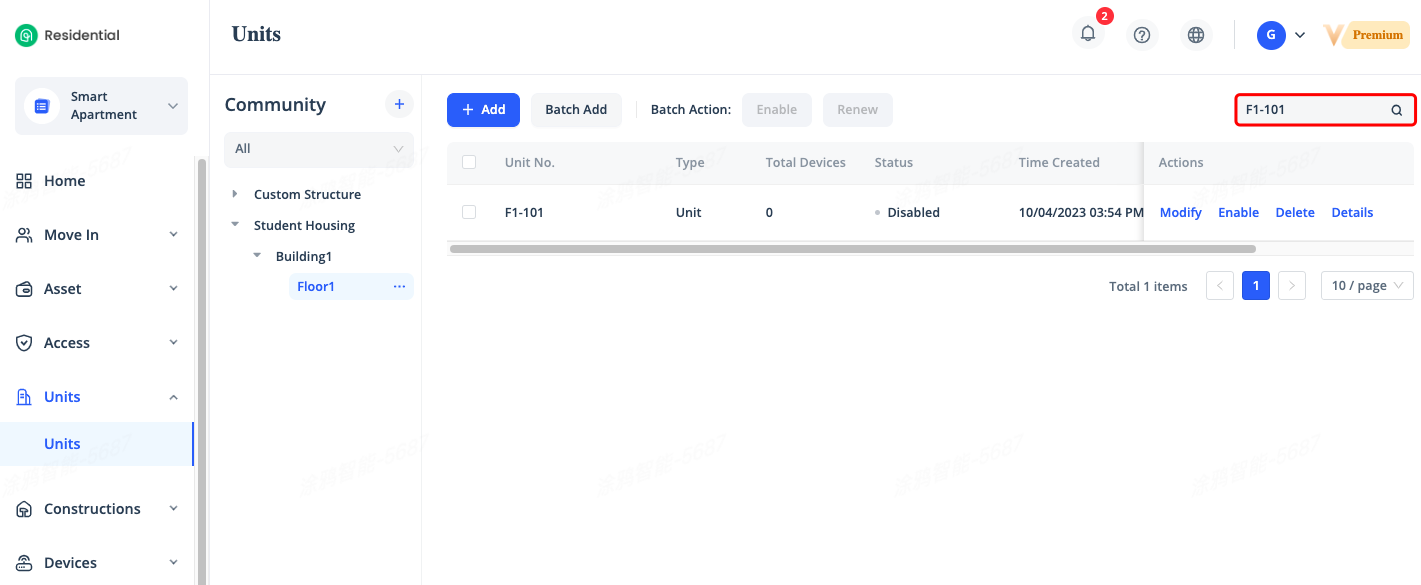
On the Units page, select a level in the Community section to display all units and public areas at the level. Enter the complete unit name in the search box in the top right corner to search for the specified unit.
Modify a Community
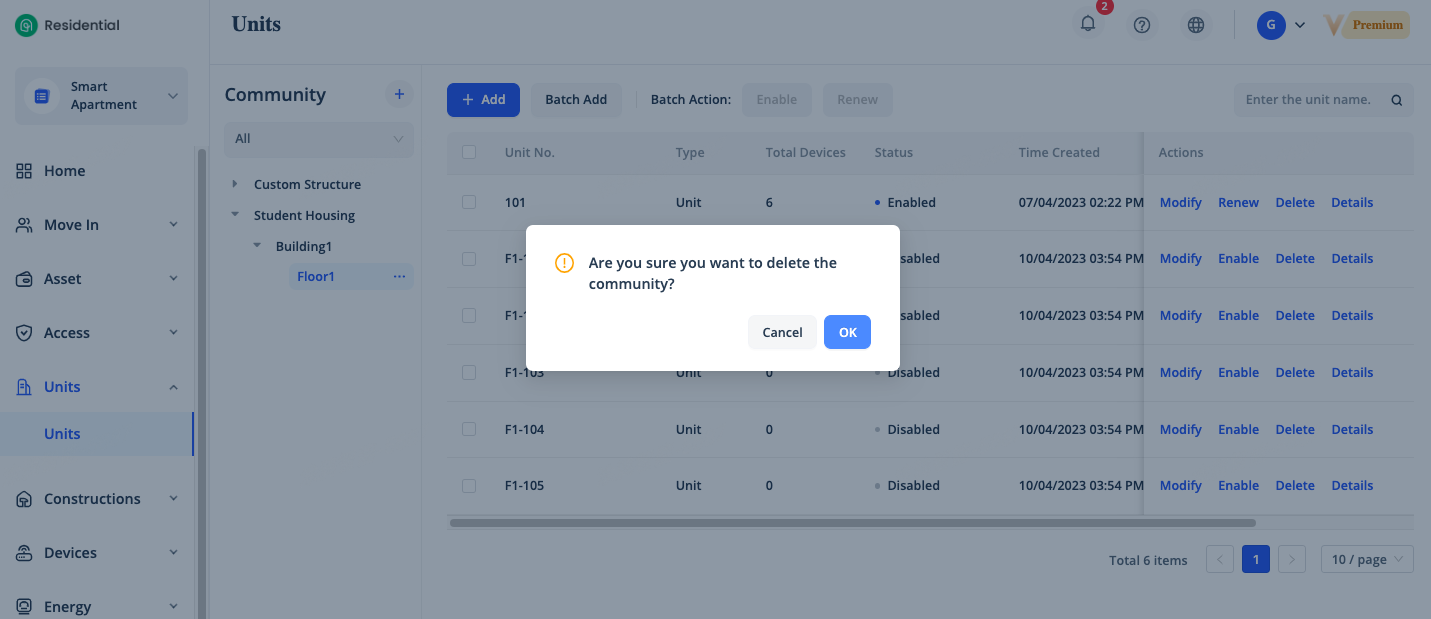
On the Units page, click the community level that you want to modify in the Community section and click the [...] icon to add, modify, or delete the level.
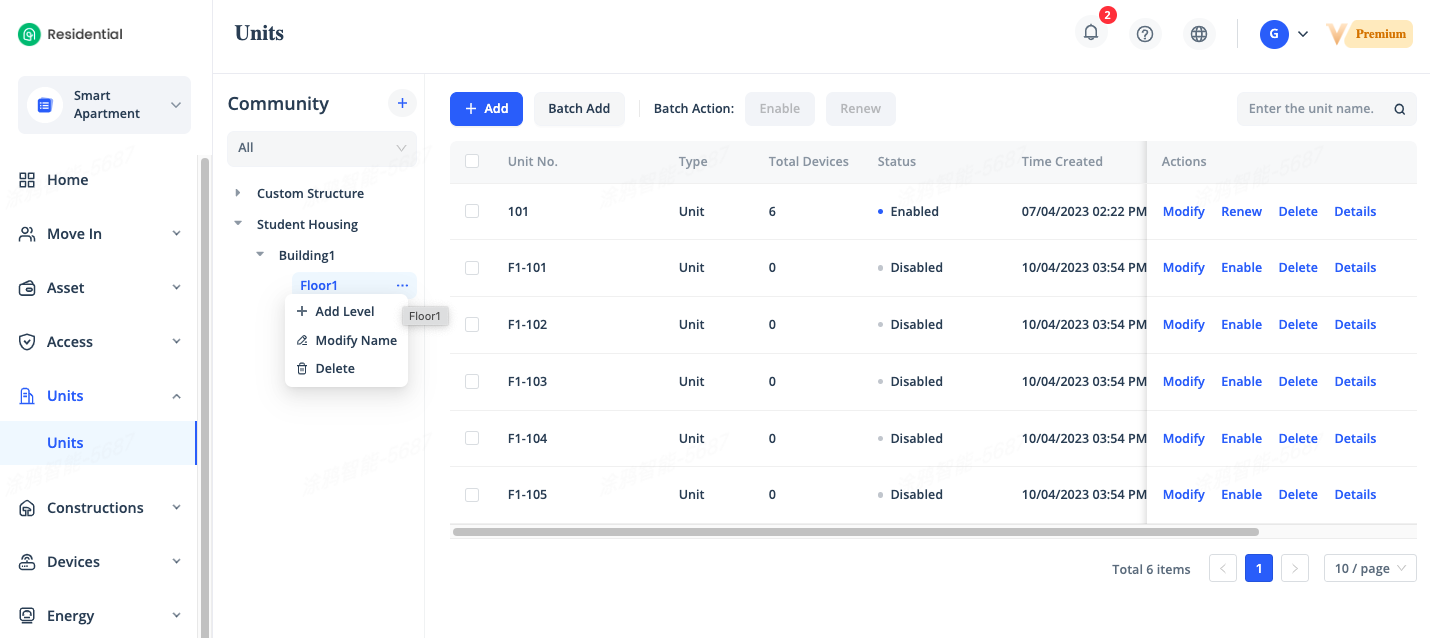
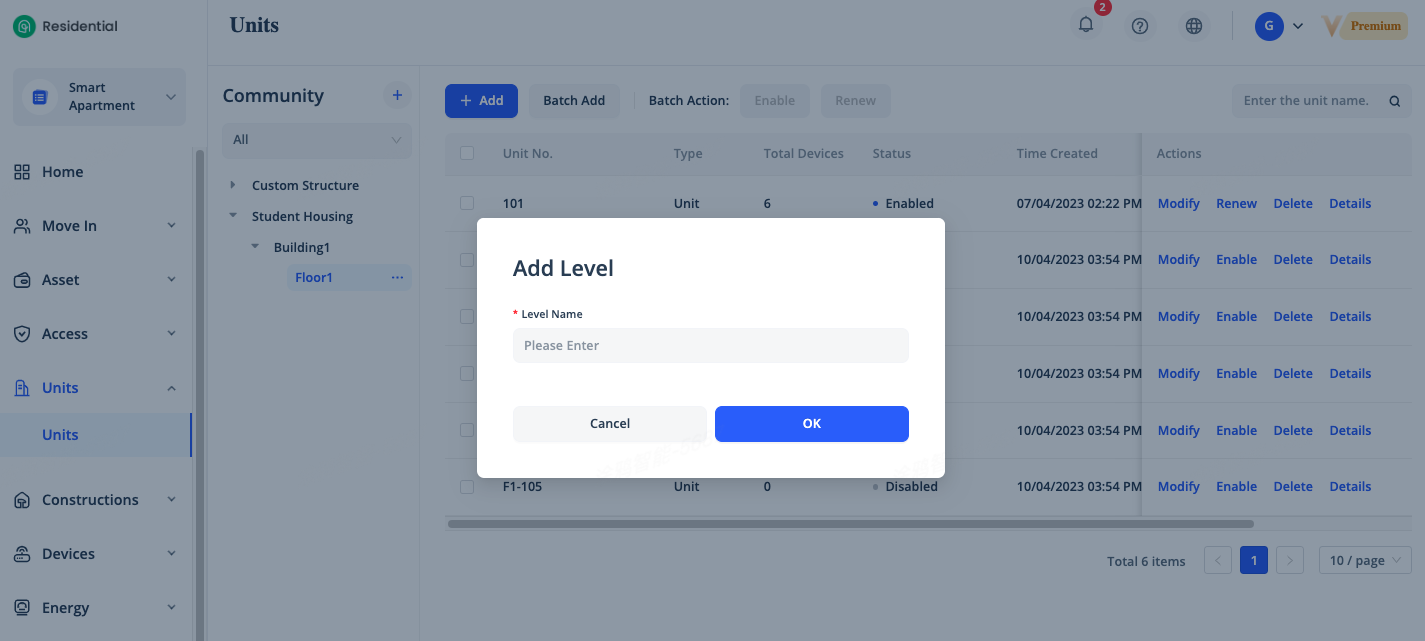
You can click [Add Level] to add a level at the same lever.
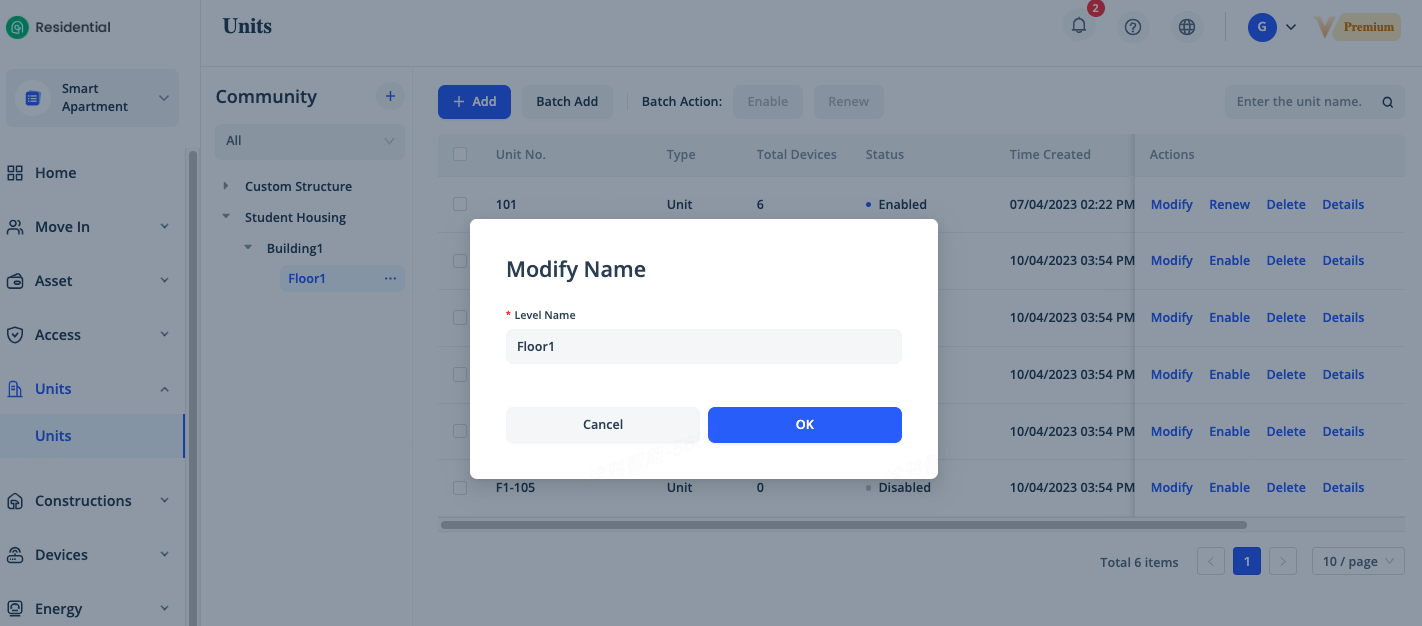
You can click [Modify Name] to modify the name of the level. The names of levels at the same level must be unique. For example, the names of the floor levels that belong to the same building level must be unique.
You can click [Delete] to delete the level. Only levels without units or sub-levels can be deleted.
Related Topics