[Property Manager] Device Management
Last Updated on:2023-05-29 05:49:01
View Device List
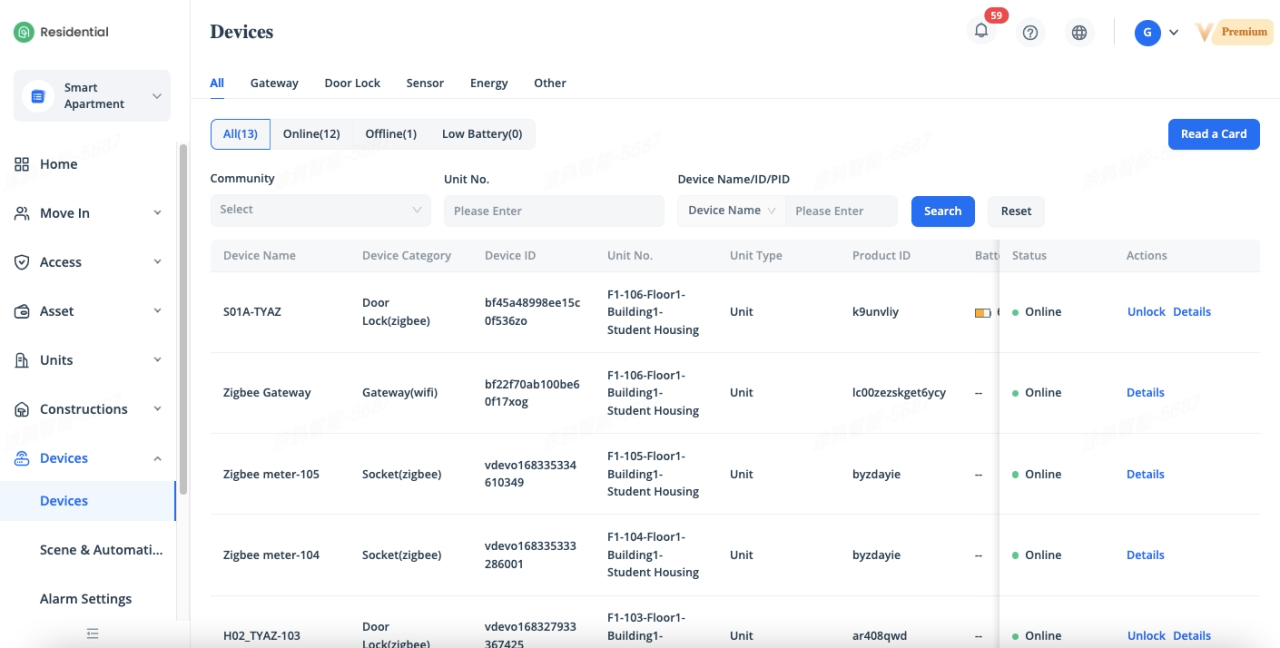
To view the device list of property, click [Devices] - [Devices] to checkeach device’s information and support filtering by community, unit number, device name, device id and product id.
You can check the device information including device name, device category, device id, installed unit number, installed unit type, product id, installation time, online/offline status and battery level, etc.
View Device Details
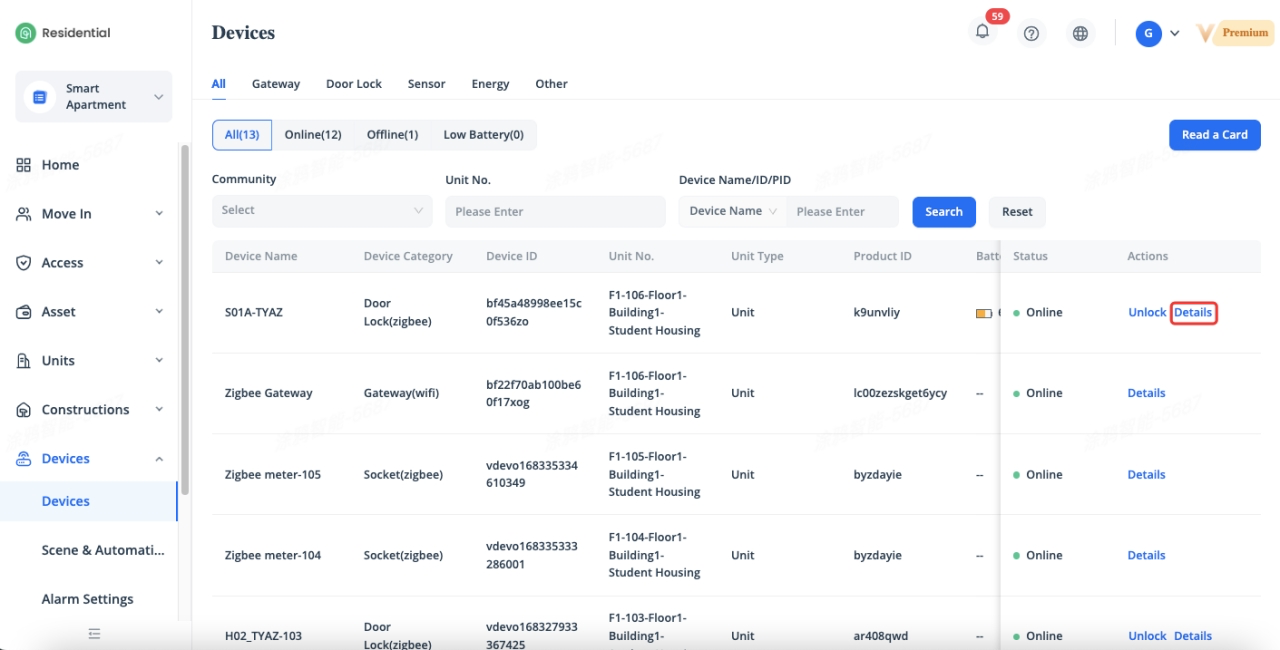
To view the details of device, click [Details] in the Actions column of a device to go to the Device Details page.
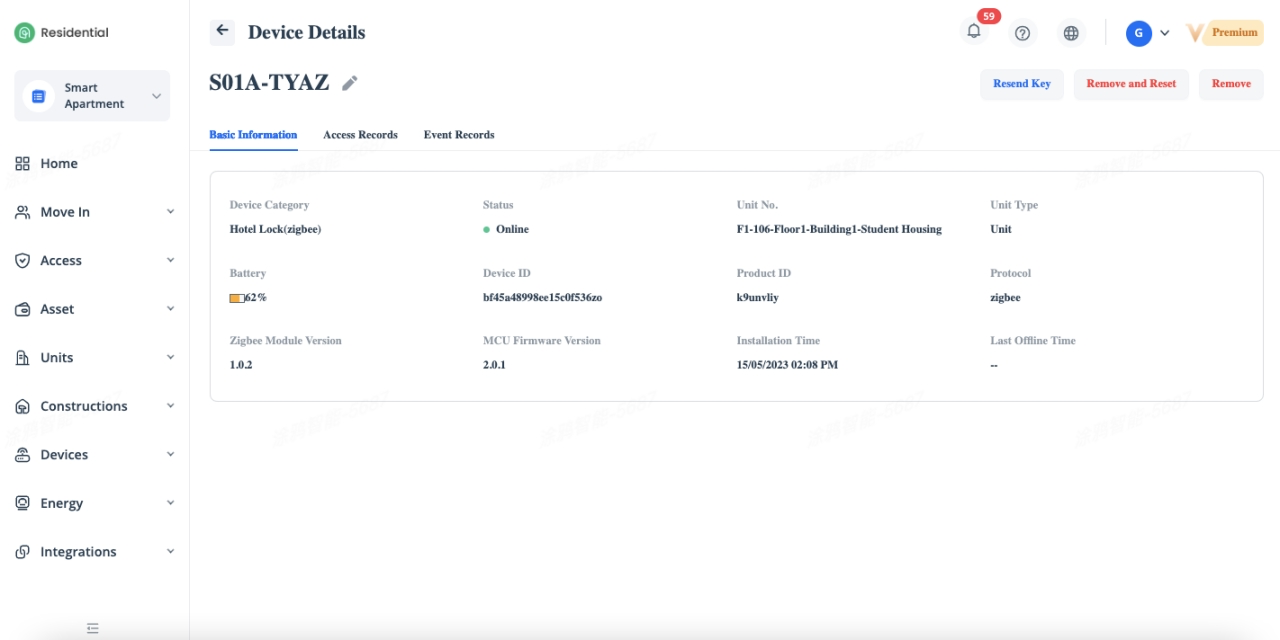
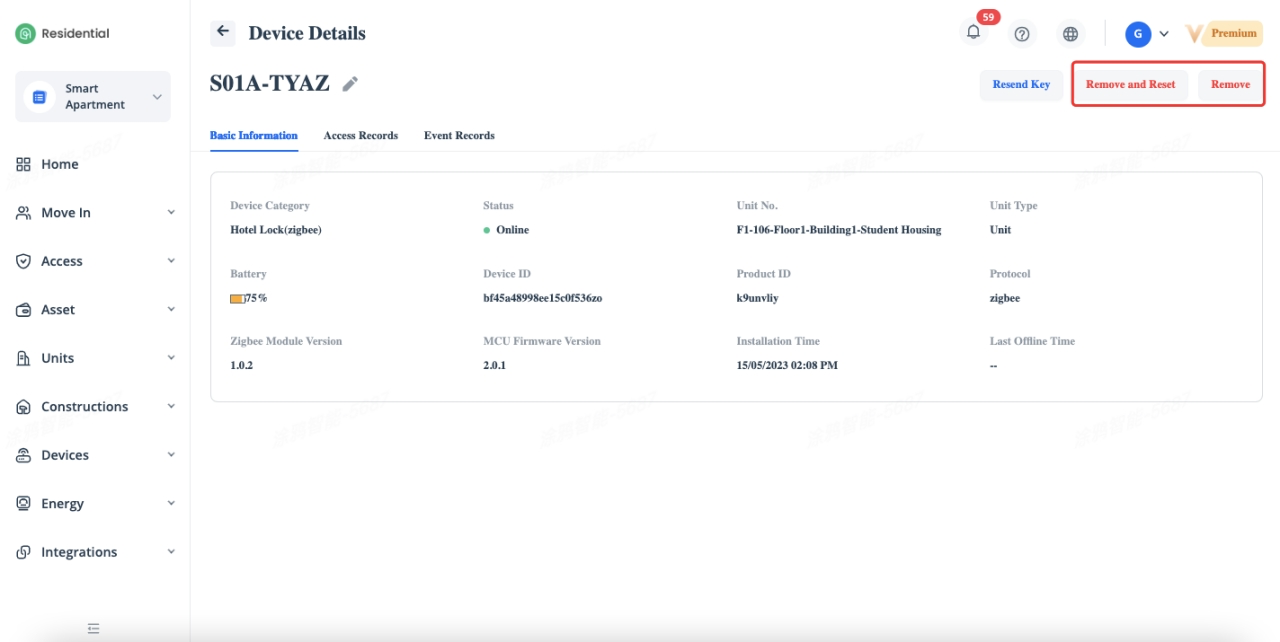
You can check device basic information under Basic Information tab, includes protocol, module version, firmware version, device id, device status, etc.
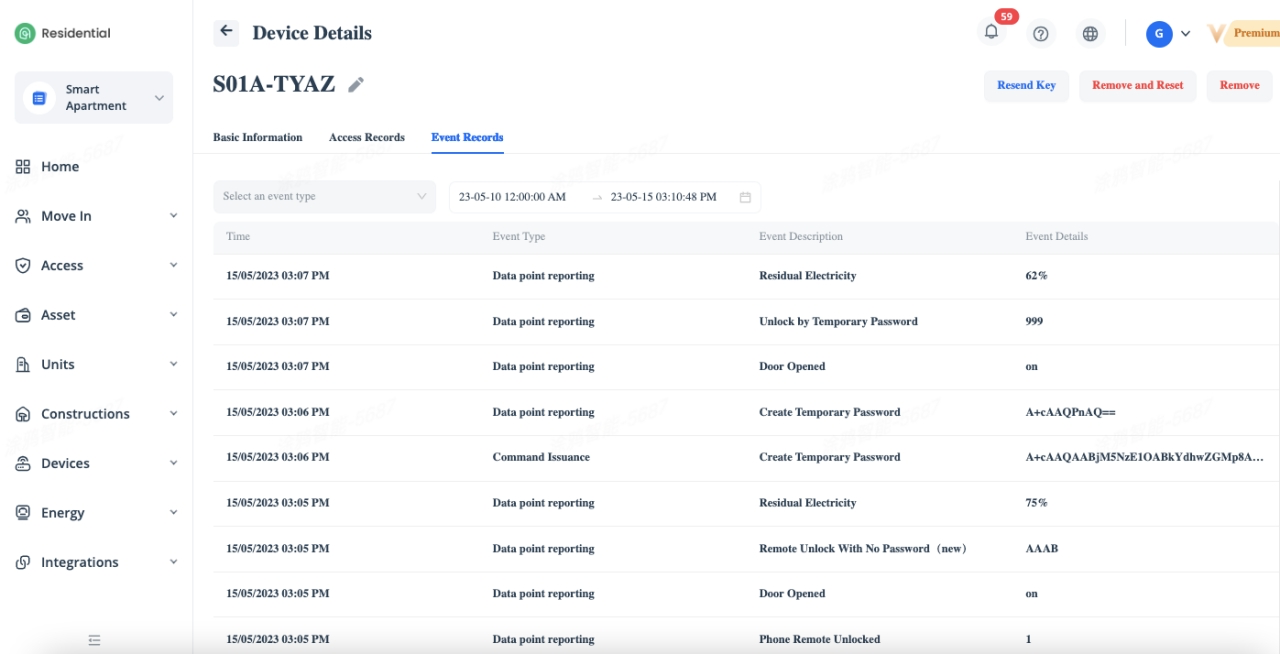
You can check device logs under Event Records tab, including online, offline, command issuance, data point report, etc.
If the device is an access device such as door lock, Access Records tab will be displayed under Device Details. You can check device access records under Access Records tab, including access time, access user, access type and access method.
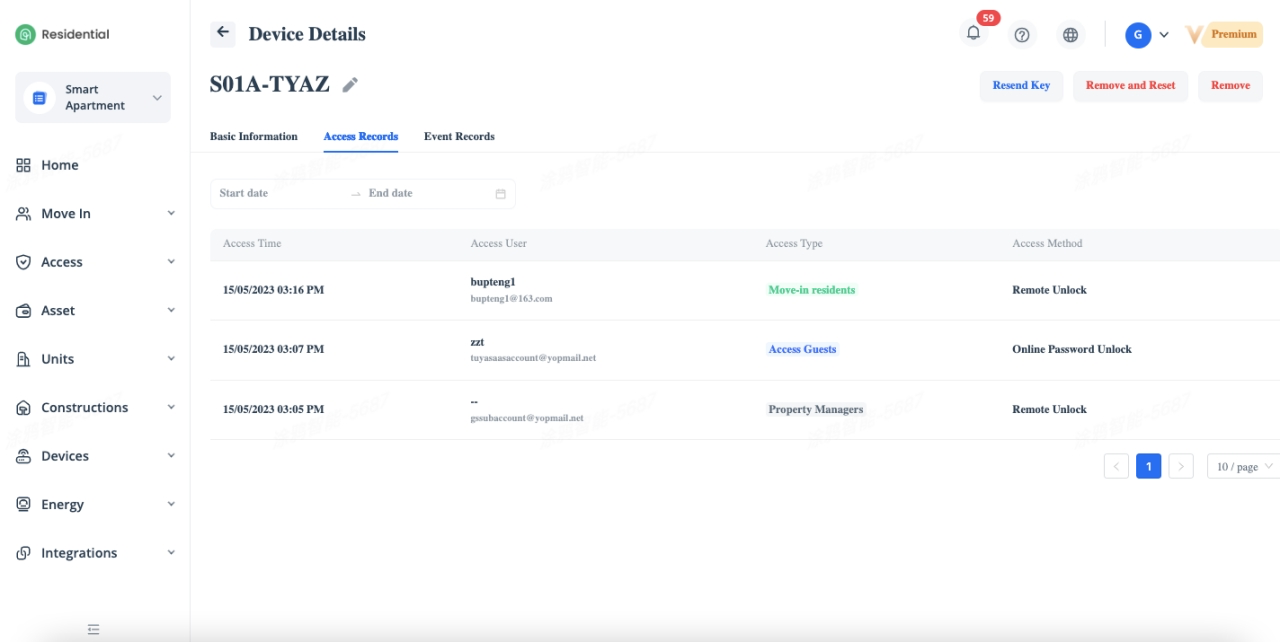
To remove the of device from SaaS platform, click [Details] in the Actions column of a device to go to the Device Details page. There are two options for you to remove the device, one is [Remove] to remove the device without restoring factory settings, another one is [Remove and Reset] with restoring factory settings.
Set Up Scene and Automation in Units
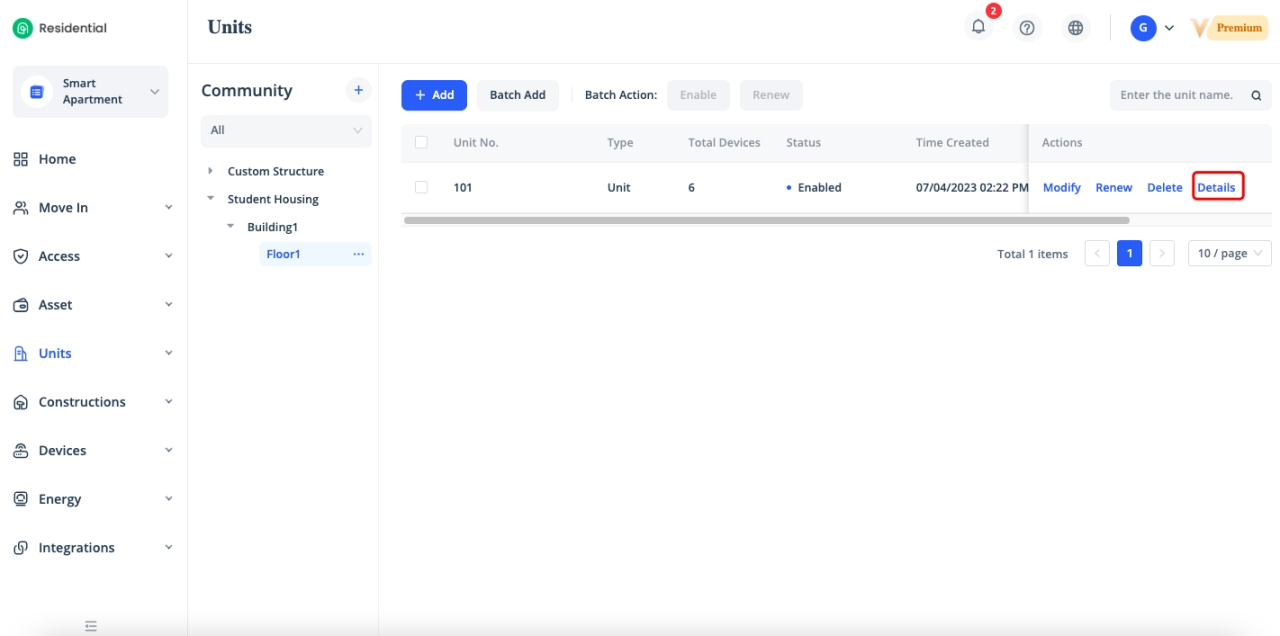
Click [Units], click [Details] of the corresponding unit to enter Unit Details.
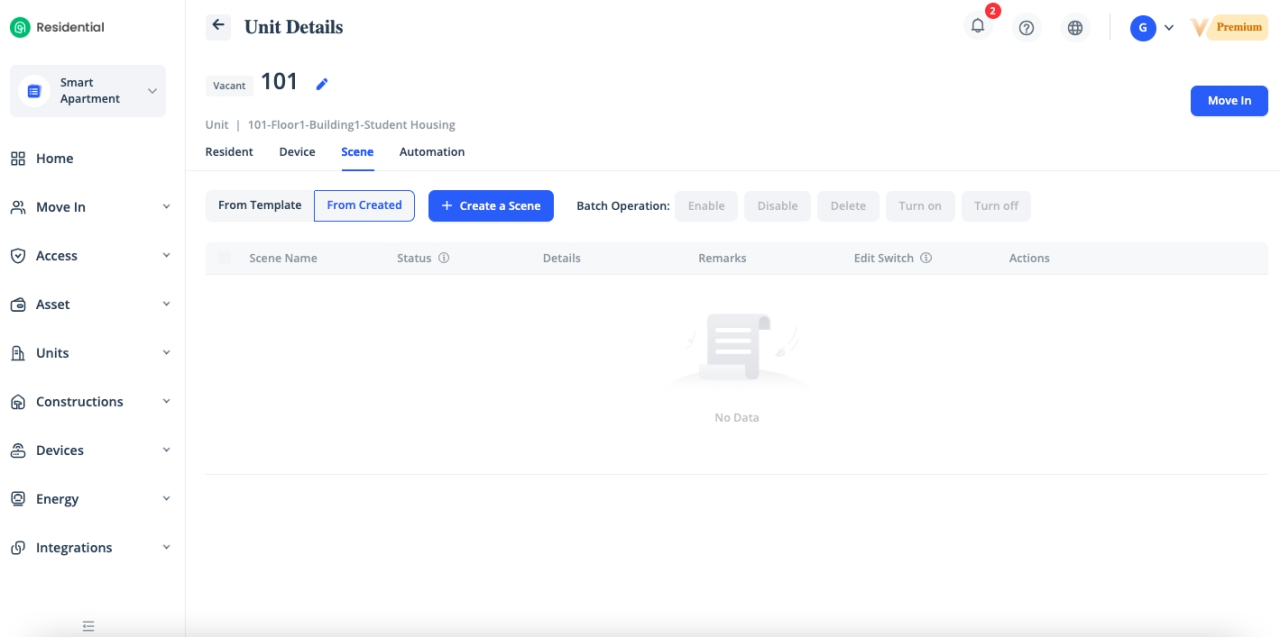
Click [Scene] - [From Created] - [Create a Scene] to set up the scene settings.
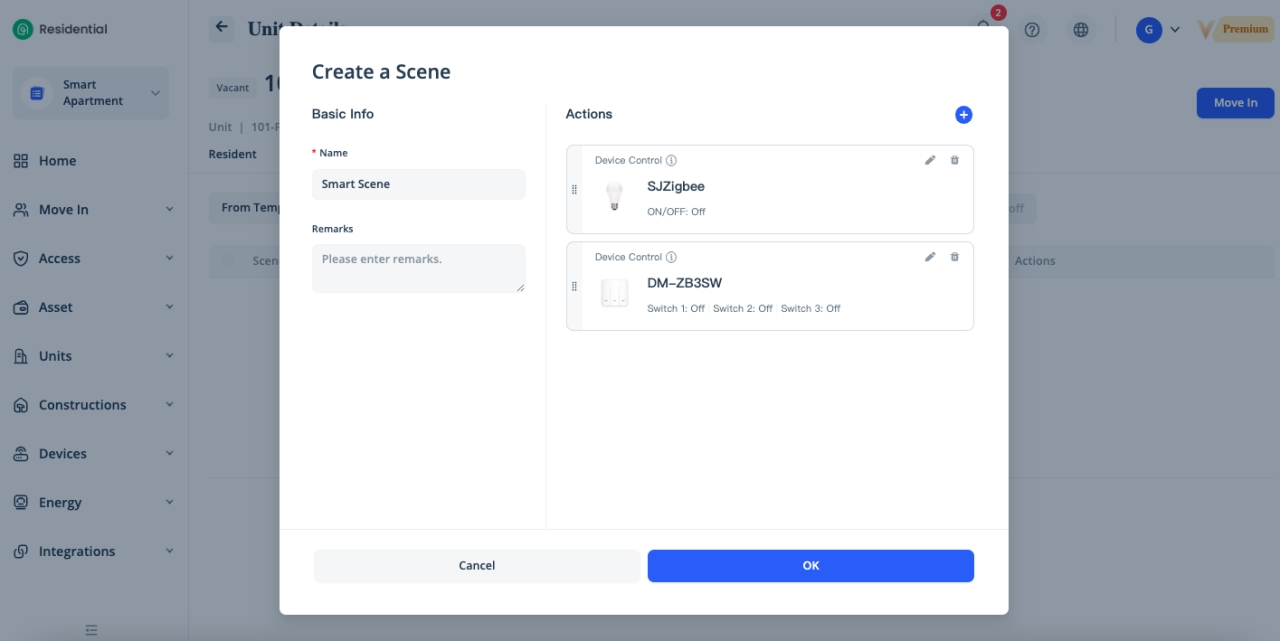
Enter the Name of scene, select the Actions which you want to execute, it can be Device Control, Scene, Delay Time, Automation and Notification. Click [OK] to complete the scene configurations.
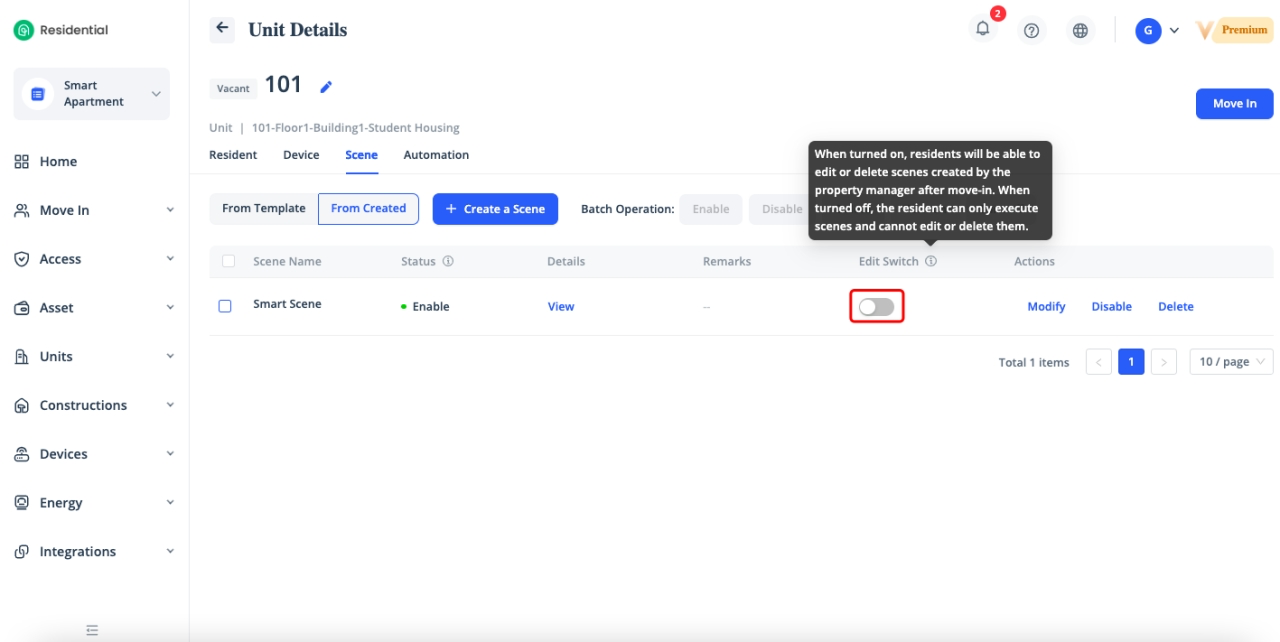
There's button used for scene edit permission control, when turned it on, guests will be able to edit or delete scenes which created by the property manager after move-in. When turned it off, the guests can only execute scenes and cannot edit or delete them.
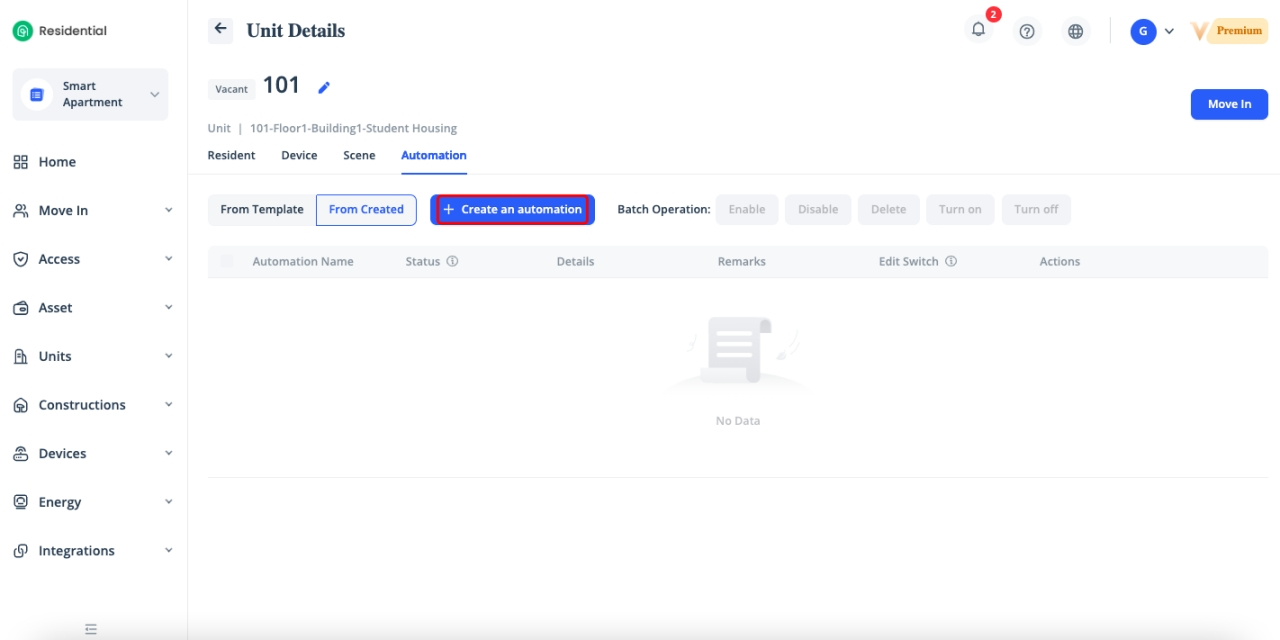
Click [Automation] - [From Created] - [Create an automation] to set up the automation settings.
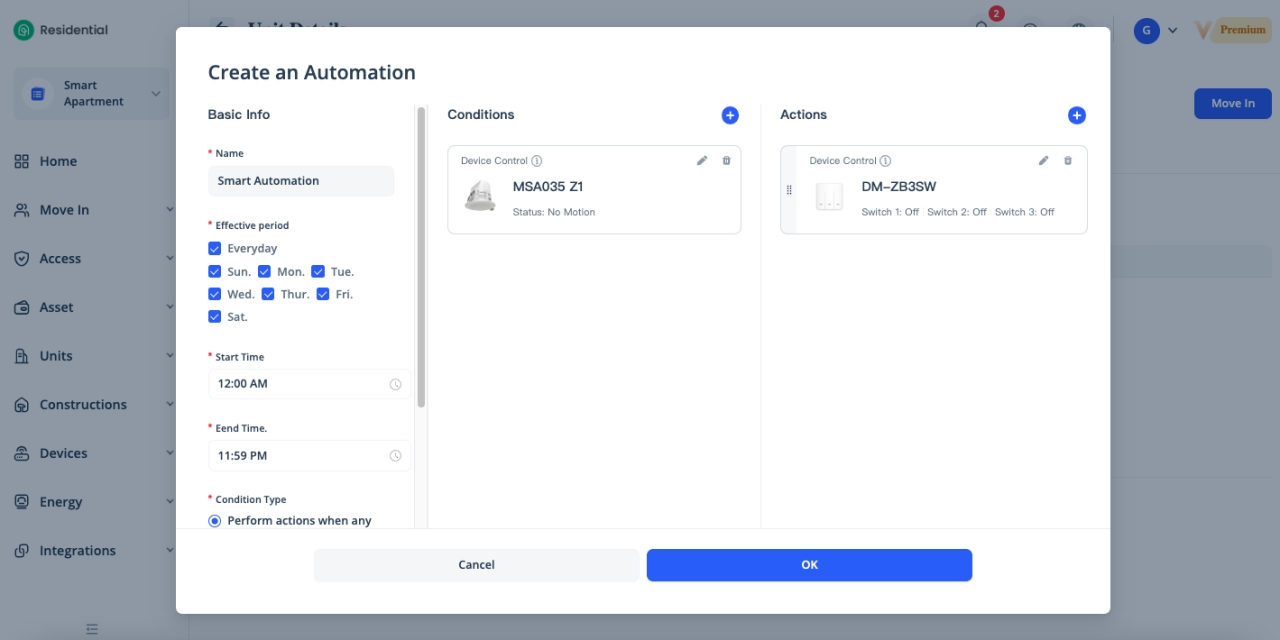
Enter the Name of the Automation, select the Effective Period, Start Time, End Time, Condition Type, Condition, and Actions with the added devices, then click [OK] to complete the automation configurations.
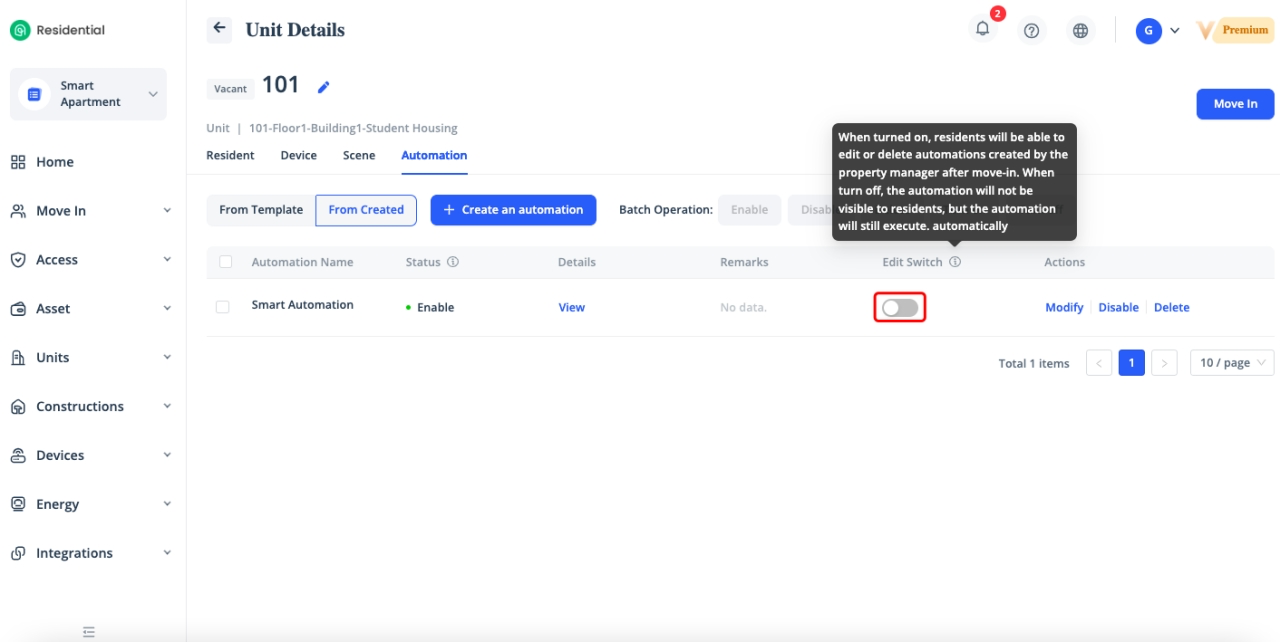
There's button used for automation edit permission control, when turned on, guests will be able to edit or delete automation created by the property manager after move-in. when turn off, the automation will not be visible to guests, but the automation will still be executed automatically.
Set Up Scene and Automation Through Template
When the devices under the units are almost the same, by creating a scene & automation template, you can quickly associate and distribute scene & automation configurations to all units, improving the efficiency.
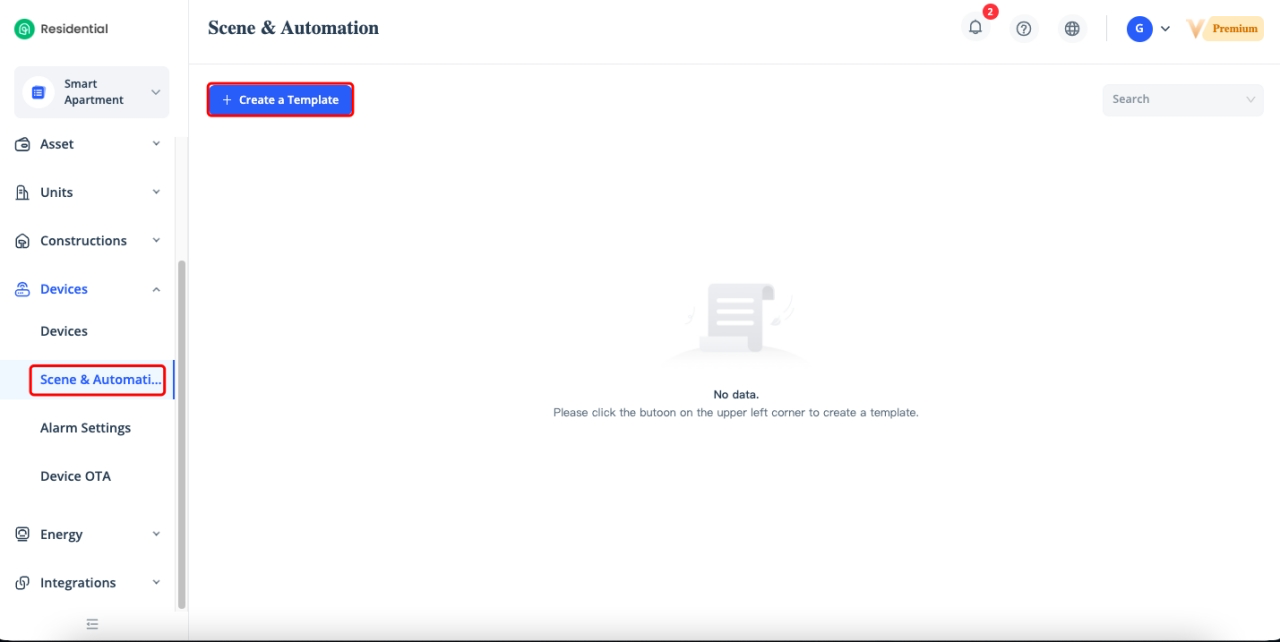
Click [Devices] - [Scene & Automation] - [Create a Template] to create a scene & automation template first.
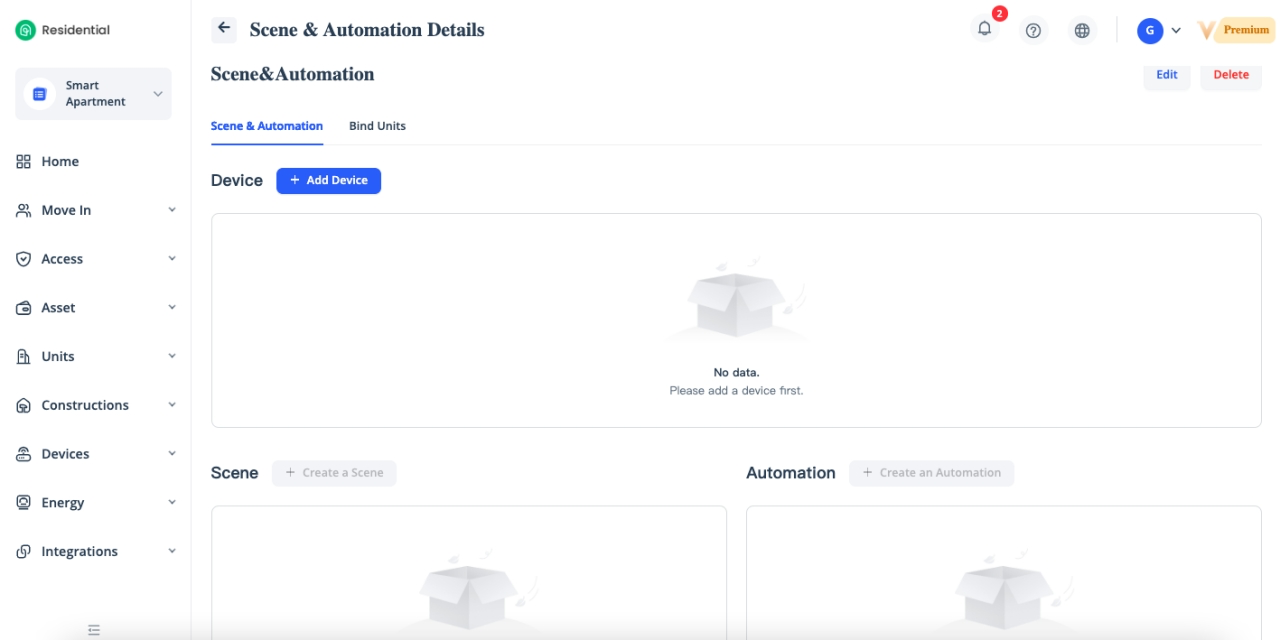
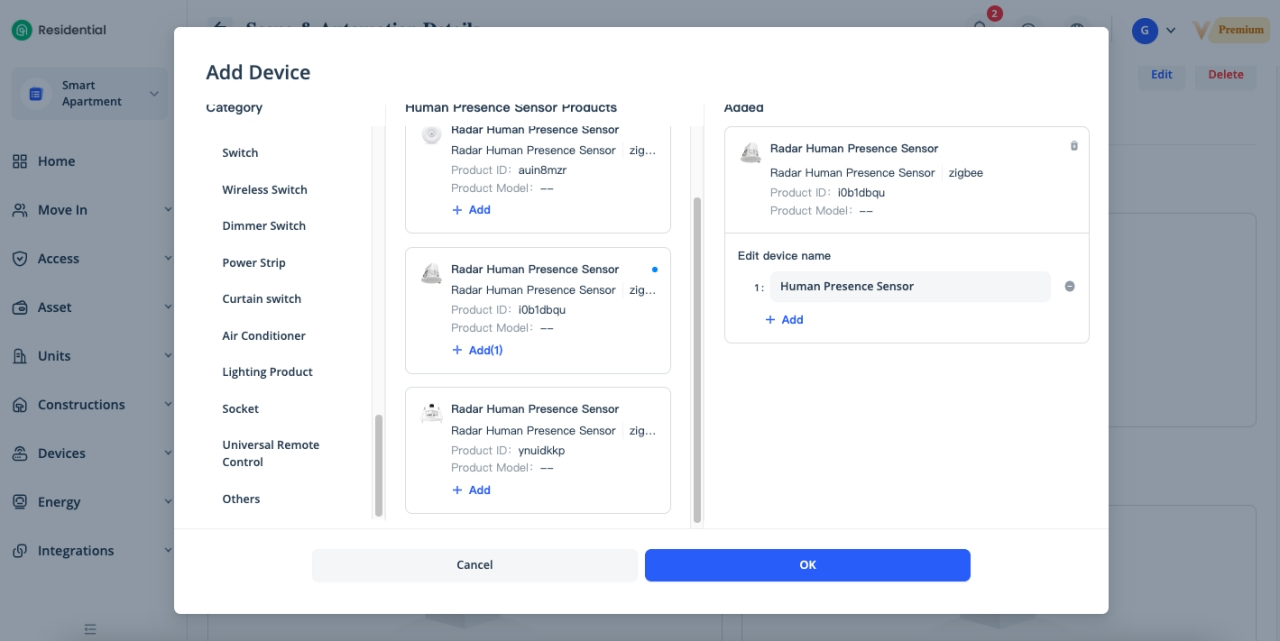
Click [Add Device], select the category of device, add the corresponding device through the Product ID, you can get the Product ID under [Devices] - [Devices] tab.
Enter the Name of scene, select the Actions which you want to execute, it can be Device Control, Scene, Delay Time, Automation and Notification. Click [OK] to complete the scene configurations.
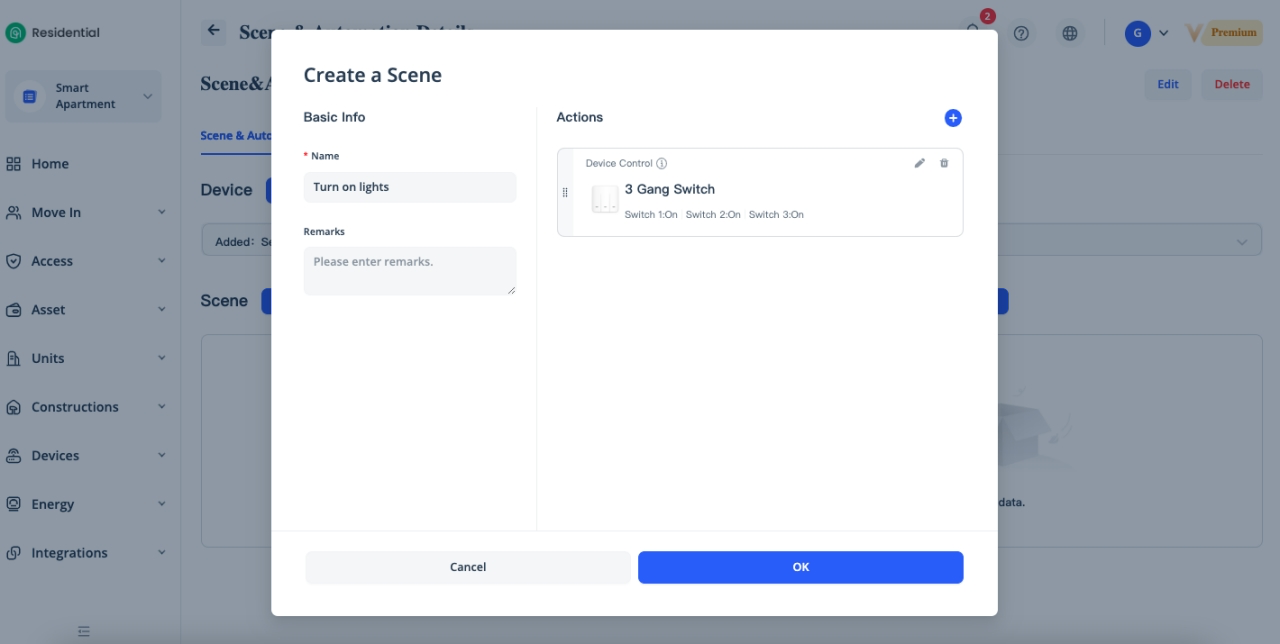
Enter the Name of the Automation, select the Effective Period, Start Time, End Time, Condition Type, Condition, and Actions with the devices, then click [OK] to complete the automation configurations.
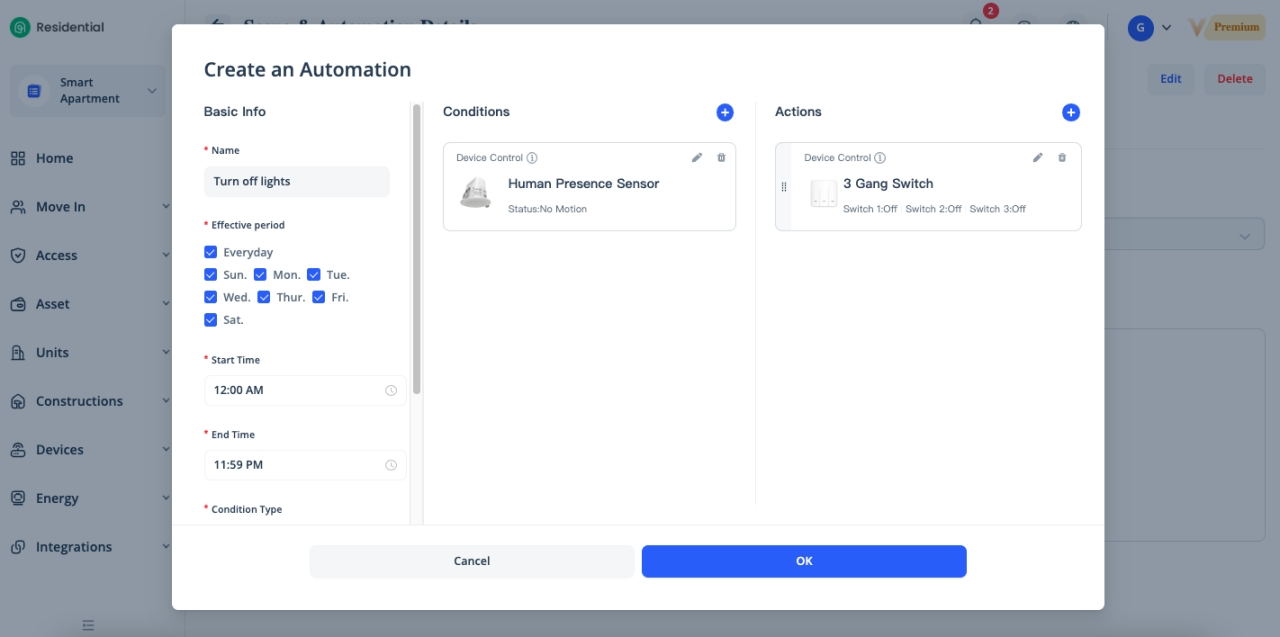
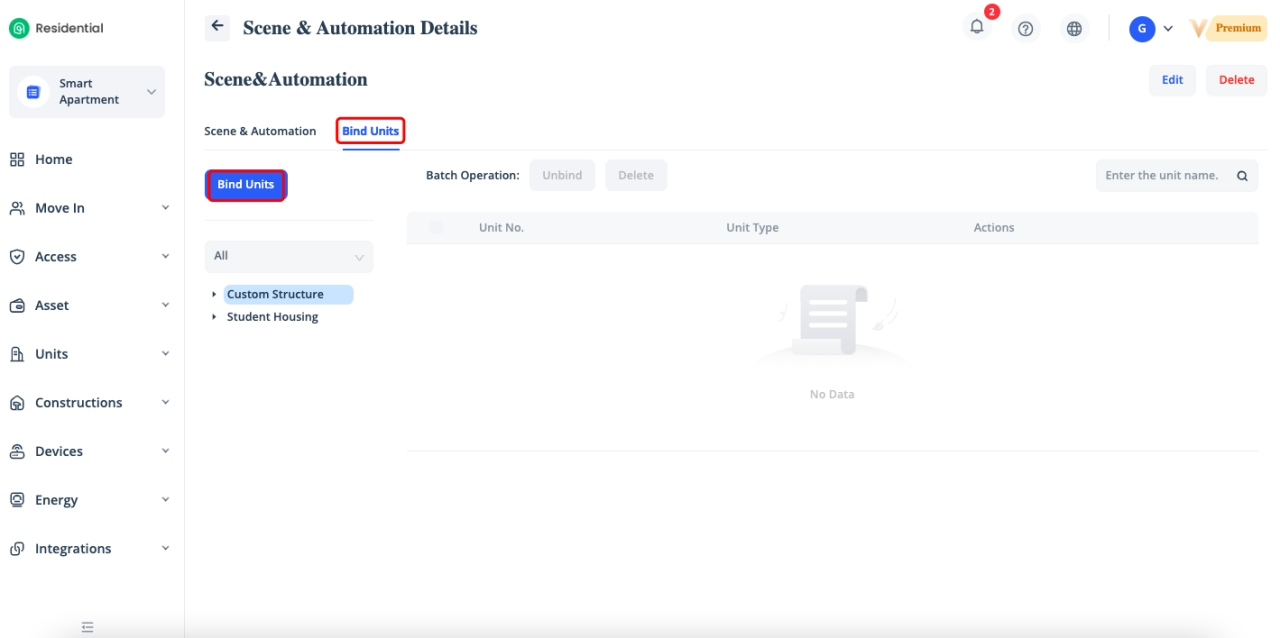
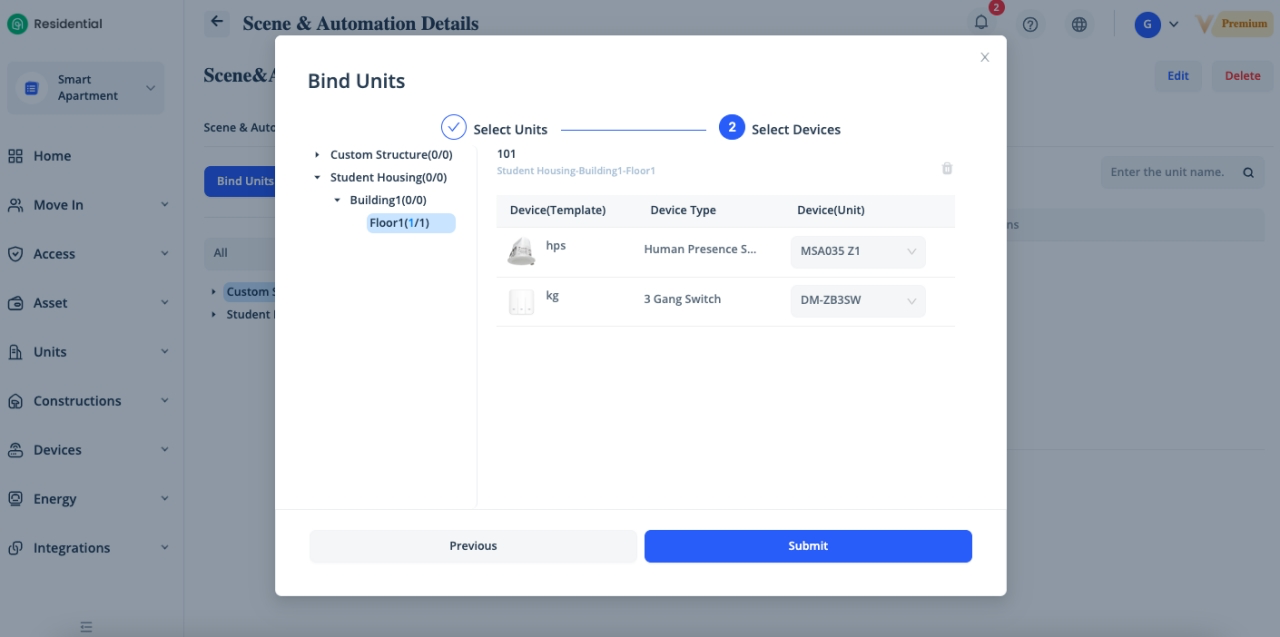
Click [Bind Units] - [Bind Units] to associate and distribute scene & automation to the units.
Select the units which you want to associate and distribute the scene & automation configurations. Kindly note that if the unit does not have the corresponding devices in the template or the unit is unactivated, it will not be able to be bound.
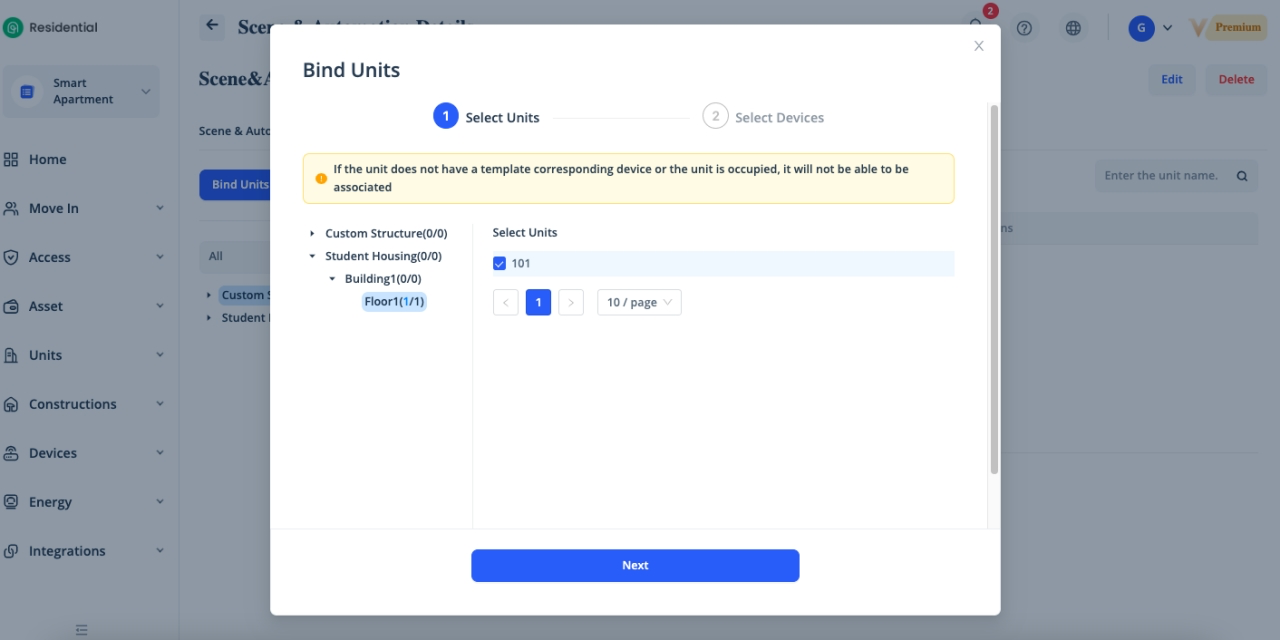
Click [Next] and [Submit] to complete the process.
Configure Alarm Settings
When an alarm is triggered by the device, SaaS supports setting the alarm notification push method, and pushes the device alarm to the managers in time. Currently, we support these kinds of alarms, including device low power, device offline, SOS alarm, door sensor alarm, flood alarm, smoke alarm, door lock alarm, gas alarm, human presence alarm - movement detected, human presence alarm - movement not detected, air conditioner alarm, high temperature alarm and low temperature alarm.
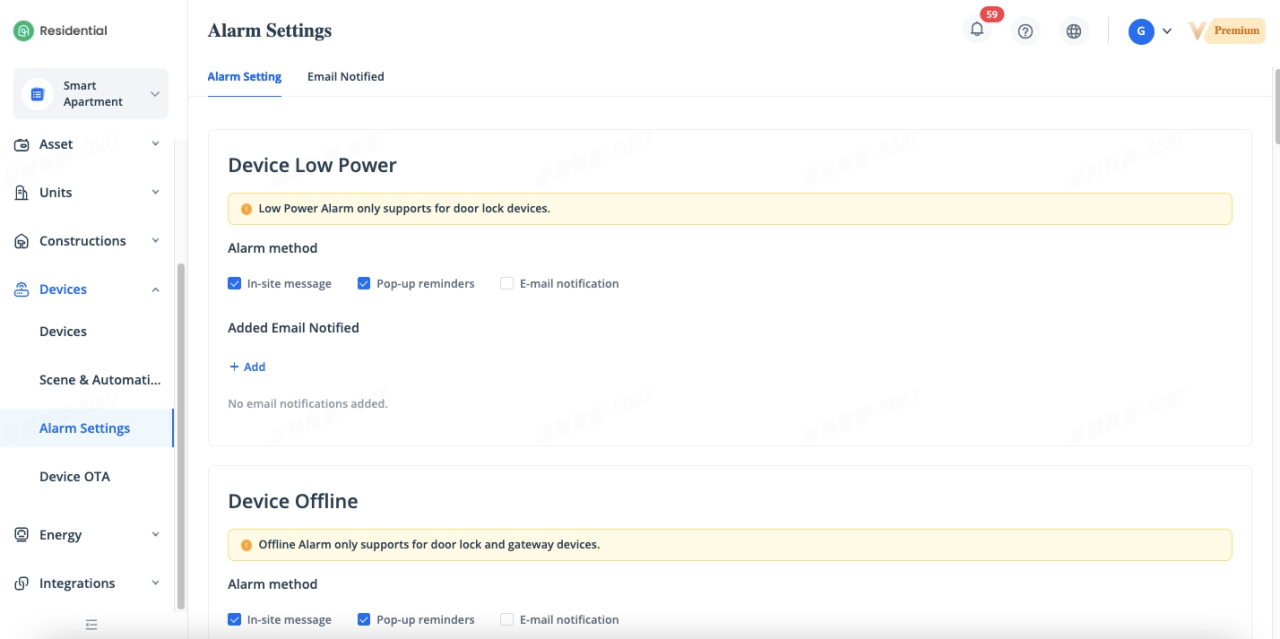
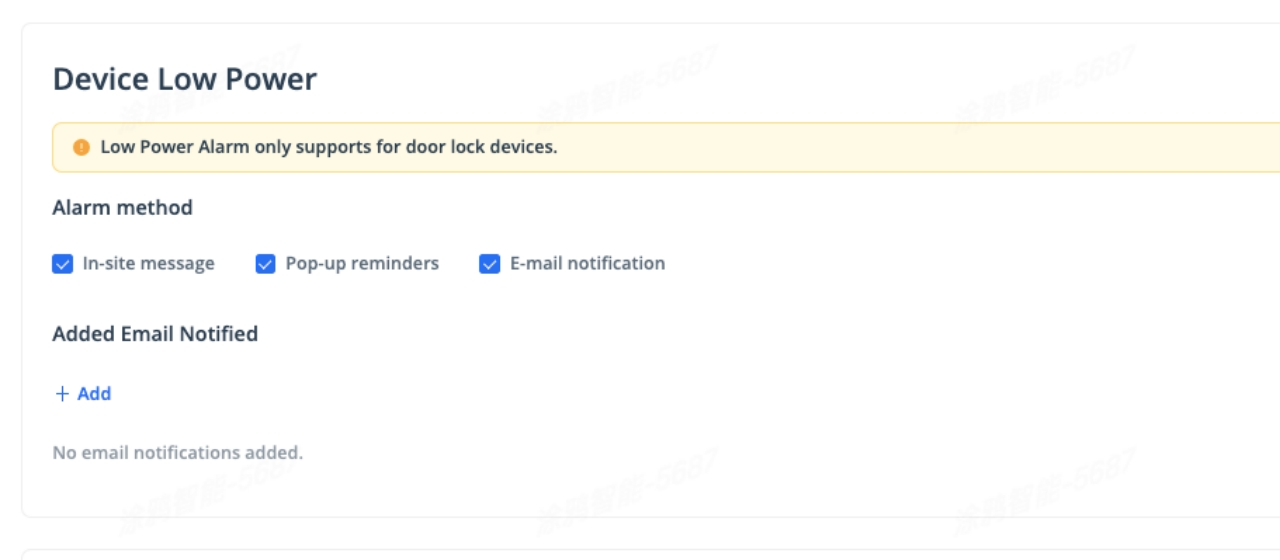
There are three kinds of alarm notification methods we supported, in-site message, pop-up reminders and email notification.
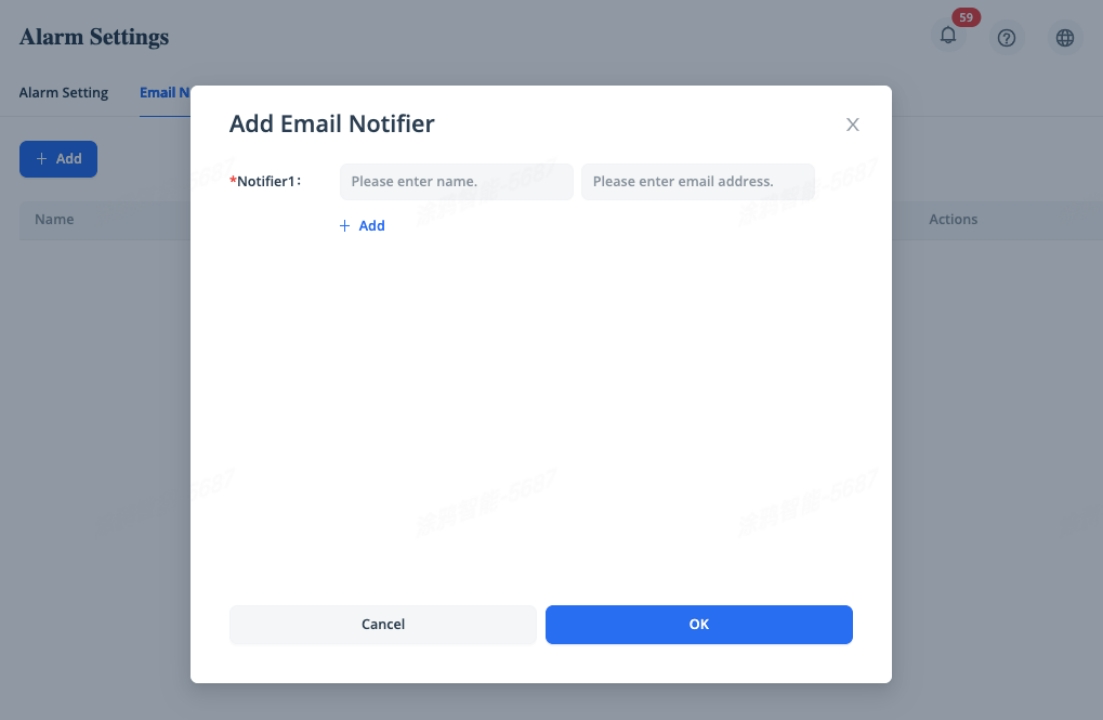
It’s available to add email notifier under Email Notified tab.
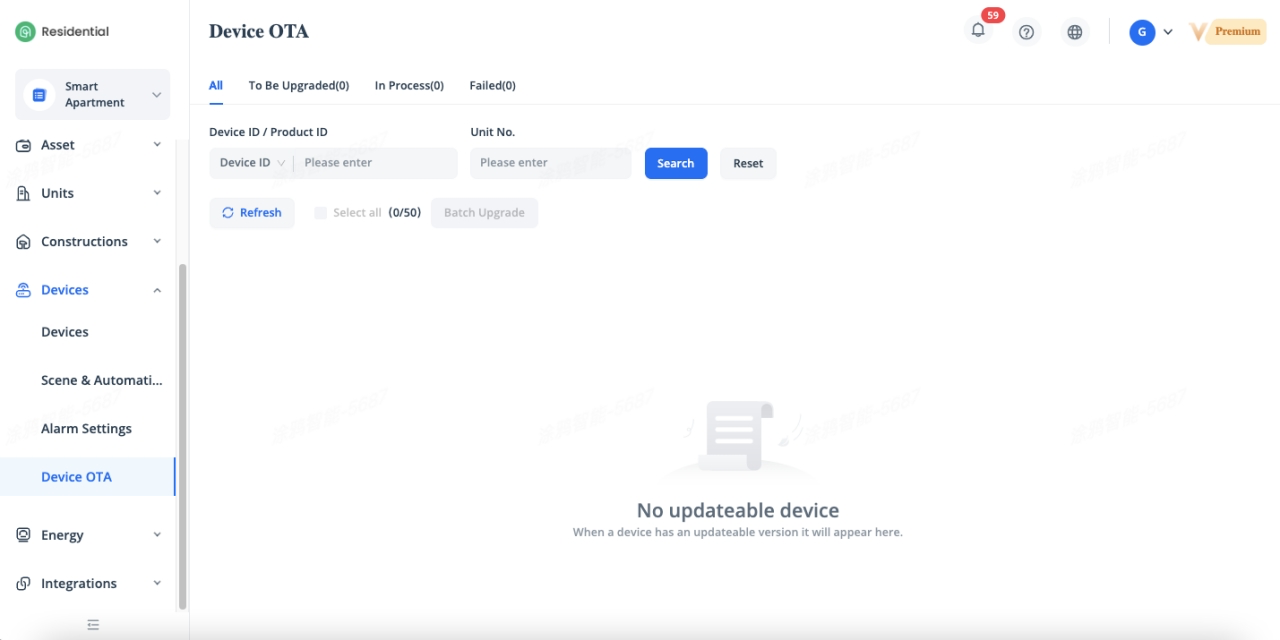
Update the Devices Through SaaS
To update the smart devices in batch, we support device batch OTA function in SaaS, the manager needs to release the firmware of corresponding device in the backend to achievebatch update in SaaS.
Related Topics